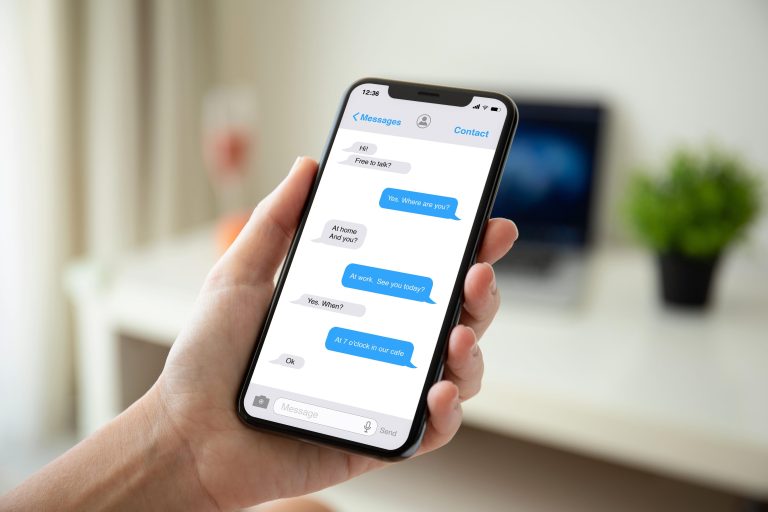


What is the best parental control app for Android? For most families, Google Family Link is the best free starting point. It helps parents manage screen time, approve apps, set digital routines, and check the location of compatible supervised Android devices.
But Family Link isn’t the right solution for everyone.
Some families need more detailed website filtering, flexible schedules, additional activity reports, or alerts about potential online safety risks. That’s where paid parental control apps such as Qustodio and Bark may be worth considering.
The challenge is knowing which features actually work on your child’s Android phone—and which ones are more useful in marketing descriptions than in everyday family life.
In this guide, we’ll compare the best parental control apps for Android in 2026, explain their strengths and limitations, and show you how to set up parental controls on a compatible Android device.
We’ll also cover free versus paid options, location tracking, app blocking, privacy considerations, and the differences between Android and iPhone parental controls.
Our recommendation: Start with Google Family Link if you want basic Android parental controls. Consider Qustodio for broader management and Bark for specialized safety alerts. Only pay for additional features when they address a specific need your family has.
Editorial note: This is a research-based comparison of official product information and published feature documentation. We have not independently tested these products on physical Android devices. Features vary by device, Android version, region, permissions, and subscription plan.
Best Parental Control Apps for Android: Quick Comparison
| App | Best For | Price Model | Main Strength | Important Limitation |
|---|---|---|---|---|
| Google Family Link | Best free option | Free | Screen time, app management, Google integration | Limited advanced monitoring |
| Qustodio | Best for comprehensive controls | Limited free and paid options | Web filtering, time limits, reports | Advanced features require payment |
| Bark | Best for specialized safety alerts | Paid subscription | Alerts for selected online risks | Monitoring coverage varies by app |
| Net Nanny | Web filtering candidate | Paid | Internet content filtering | Confirm current Android support before buying |
These recommendations reflect different use cases, not a laboratory-tested ranking.
For many families, the best option will be the simplest one that provides the necessary protections without collecting unnecessary personal information.
1. Google Family Link — Best Free Parental Control App for Android
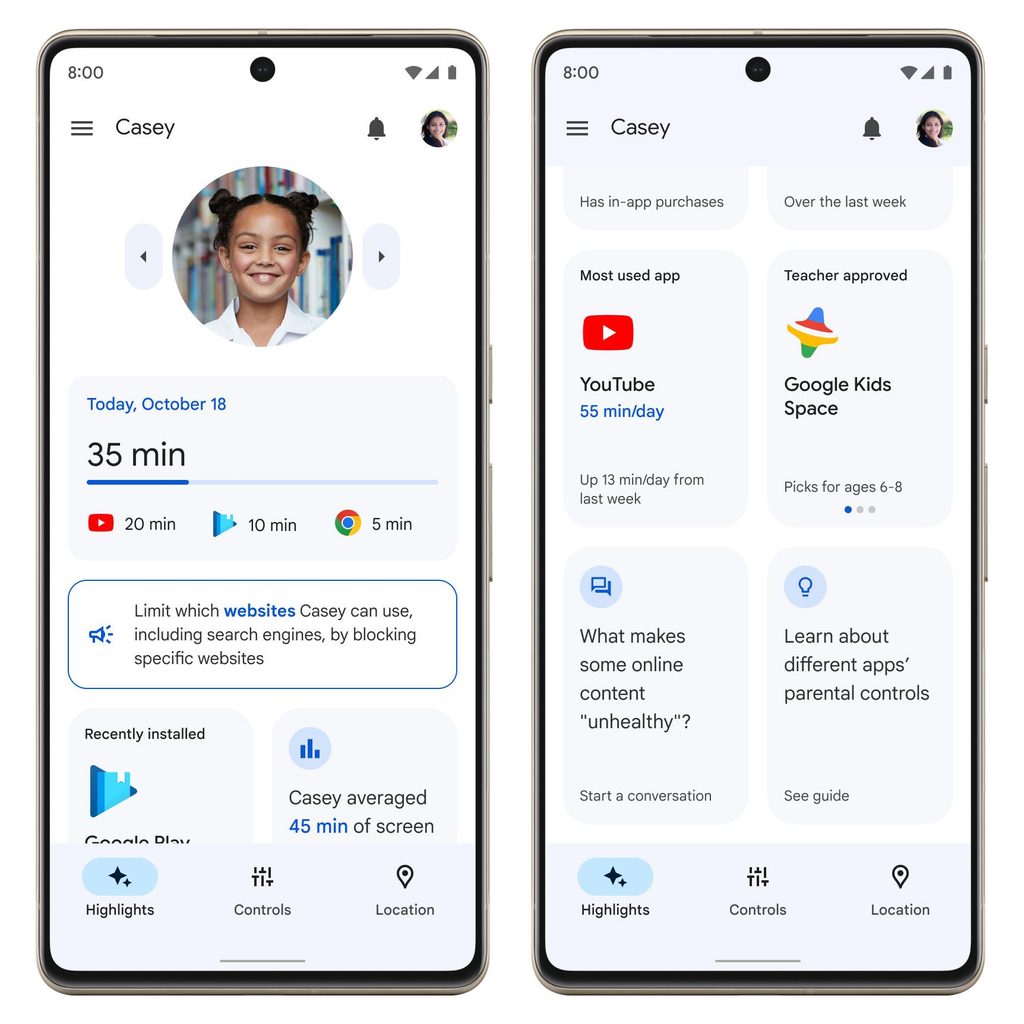
Best for: Parents who want free screen time management, app approvals, and basic supervision for a compatible Android phone.
Price: Free.
Official website: Google Family Link
Google Family Link is our first recommendation for families who are setting up parental controls on an Android phone for the first time.
Because it integrates with Google’s ecosystem, parents can manage supported Android devices and Google account settings without paying for a third-party subscription.
Key Features
- Daily screen time limits.
- Downtime and School Time schedules.
- App time limits and app blocking.
- Google Play download and purchase approvals.
- Location features for supported supervised devices.
- Selected Chrome, Search, YouTube, and Google Play controls.
- Google account and privacy management options.
What We Like
Family Link covers many of the everyday situations that lead parents to search for Android parental controls.
For example, you can establish a bedtime schedule, limit time spent on games, or review requests to download new apps.
It also makes sense for families that already use Google accounts and services.
Another advantage is that a parent can use a compatible iPhone to manage a child’s eligible Android device.
Limitations
Family Link is not a comprehensive monitoring service.
It does not provide unrestricted access to children’s private conversations, and its content filters cannot guarantee that inappropriate material will never appear.
Location information can also be unavailable or delayed depending on connectivity and device settings.
Some controls vary by the child’s age, account status, and device.
Who Should Choose Google Family Link?
Choose Family Link if you want to:
- Establish daily device limits.
- Manage app downloads.
- Create bedtime routines.
- Apply basic Google content restrictions.
- Avoid paying for a subscription.
For a detailed breakdown of its features, privacy considerations, and compatibility, read our Google Family Link review.
Our verdict: Google Family Link is the best free starting point for most families managing a compatible child’s Android phone.
2. Qustodio — Best for Comprehensive Android Parental Controls
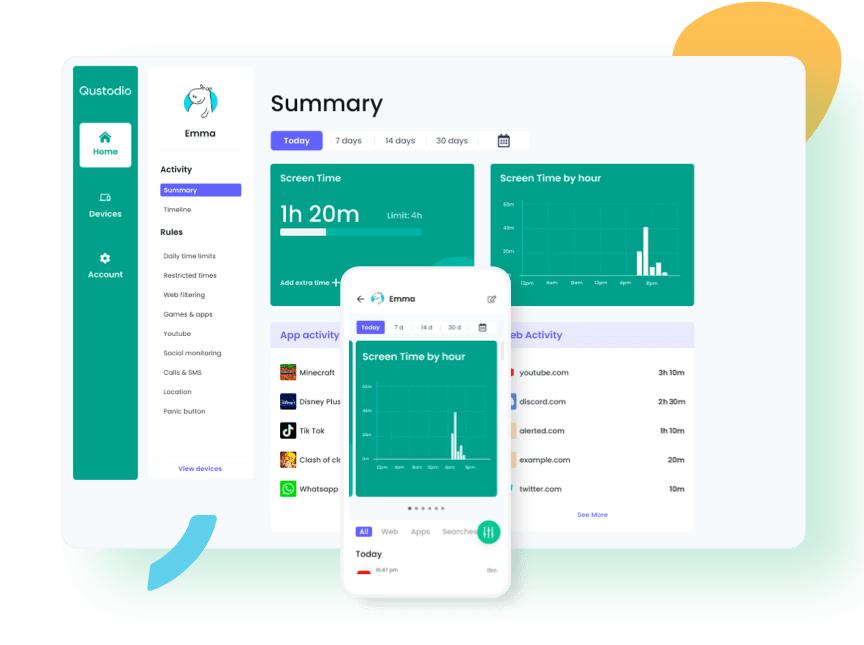
Best for: Families that want more detailed web filtering, app management, screen time controls, and activity reporting.
Price: Limited free option and paid plans; check current pricing.
Official website: Qustodio
Qustodio offers parental control features across Android, iPhone, and several computer platforms.
On supported Android devices, its published features include web filtering, app blocking, screen time management, location monitoring, and detailed activity information.
Some plans and configurations also support additional communication-related monitoring.
Key Features
- Website and category filtering.
- App and game blocking.
- Daily time limits.
- Custom routines and restricted times.
- Browsing and activity reports.
- YouTube-related monitoring.
- Location tracking and location alerts.
- Selected call and SMS monitoring features.
- Additional safety alerts and reporting tools.
What We Like
Qustodio may be a useful upgrade for families that need more than basic screen time management.
Its combination of content filtering, app controls, and reporting makes it particularly relevant when children use multiple devices.
Another advantage is its cross-platform support.
However, Android and iOS features are not identical, so families with mixed devices should compare each platform separately.
Limitations
The main disadvantage is cost.
Several of Qustodio’s more advanced features require a paid subscription.
Certain features also depend on Android permissions, supported software versions, and the installation method.
Communication monitoring can involve sensitive personal information, so parents should review the service’s privacy practices and explain the supervision arrangements to their children.
Who Should Choose Qustodio?
Consider Qustodio if:
- You want additional website filtering.
- You need more detailed app controls.
- Your family uses Android and other platforms.
- You want activity reports beyond basic device limits.
- You’re comfortable paying for verified features you actually need.
Our verdict: Qustodio is a strong paid option to evaluate when Google Family Link doesn’t provide enough control or reporting.
3. Bark — Best for Specialized Online Safety Alerts
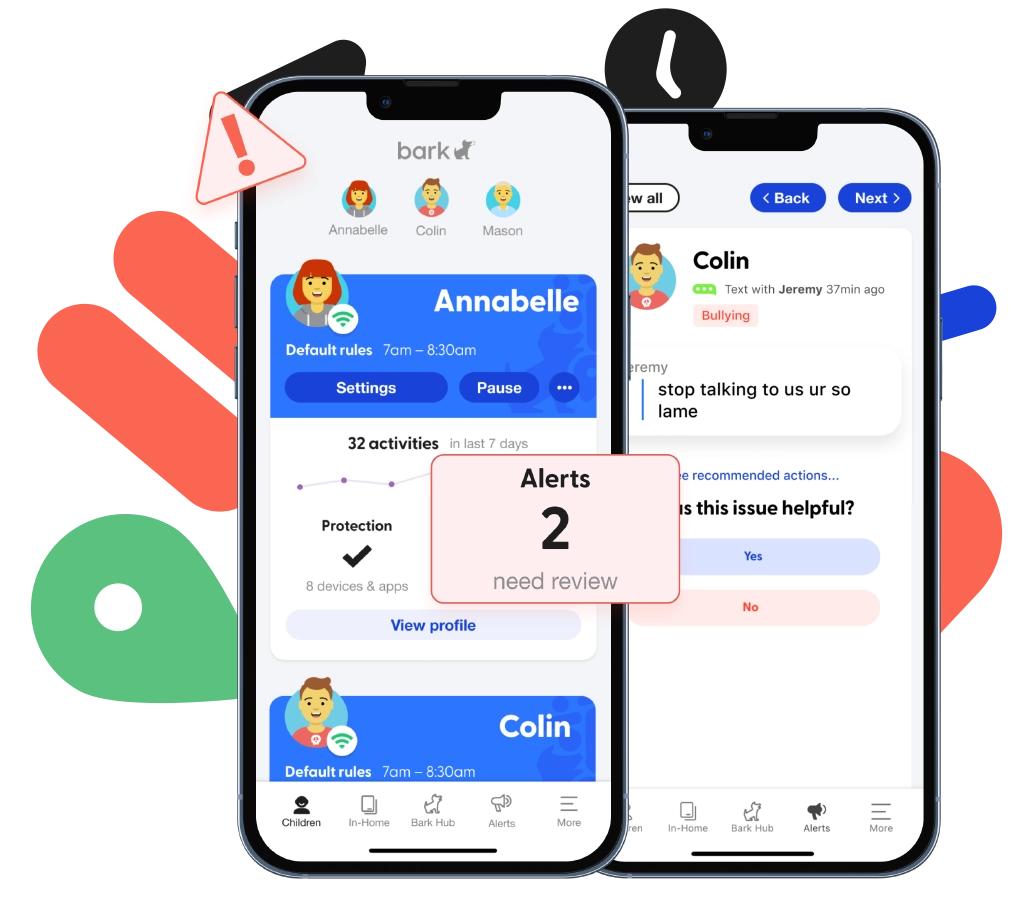
Best for: Parents who want alerts about certain potentially concerning online activity, in addition to screen time and filtering tools.
Price: Paid subscription; check current plans.
Official website: Bark
Bark focuses on identifying selected online safety concerns.
Depending on the Android device, app, account connections, and subscription, Bark can analyze supported content and alert parents when it detects potential issues.
Its published coverage includes selected text messages, social media activity, web activity, and other supported content sources.
Bark also offers screen time scheduling, website and app-related blocking, and location features.
Key Features
- Alerts for selected online safety risks.
- Monitoring of supported messaging and social platforms.
- Screen time schedules.
- Website and internet access restrictions.
- Location-related features.
- Family management dashboard.
- Monitoring of certain saved media and online activity.
What We Like
Bark offers a different approach from apps that focus mainly on restricting device usage.
Rather than requiring parents to review every activity manually, it aims to highlight certain concerning patterns or content.
This may be useful for families with older children who use social platforms and messaging services.
Its Android coverage is generally broader than its iPhone monitoring arrangements, although support still varies by app and configuration.
Limitations
Bark does not monitor every app, account, or conversation.
Some services require account connections or specific device permissions.
Alerts may not be immediate, and automated systems can miss concerns or flag harmless content.
Its internet restrictions should also not be confused with guaranteed removal of an installed app.
Parents should review the exact feature list for their child’s Android device before subscribing.
Who Should Choose Bark?
Consider Bark if your family has a specific need for supported online safety alerts and you’re comfortable with the additional privacy considerations.
It is not necessary for every child or every household.
Our verdict: Bark is worth considering for specialized safety alerts, but it shouldn’t replace open conversations about online risks and responsible communication.
4. Net Nanny — An Alternative for Website Filtering
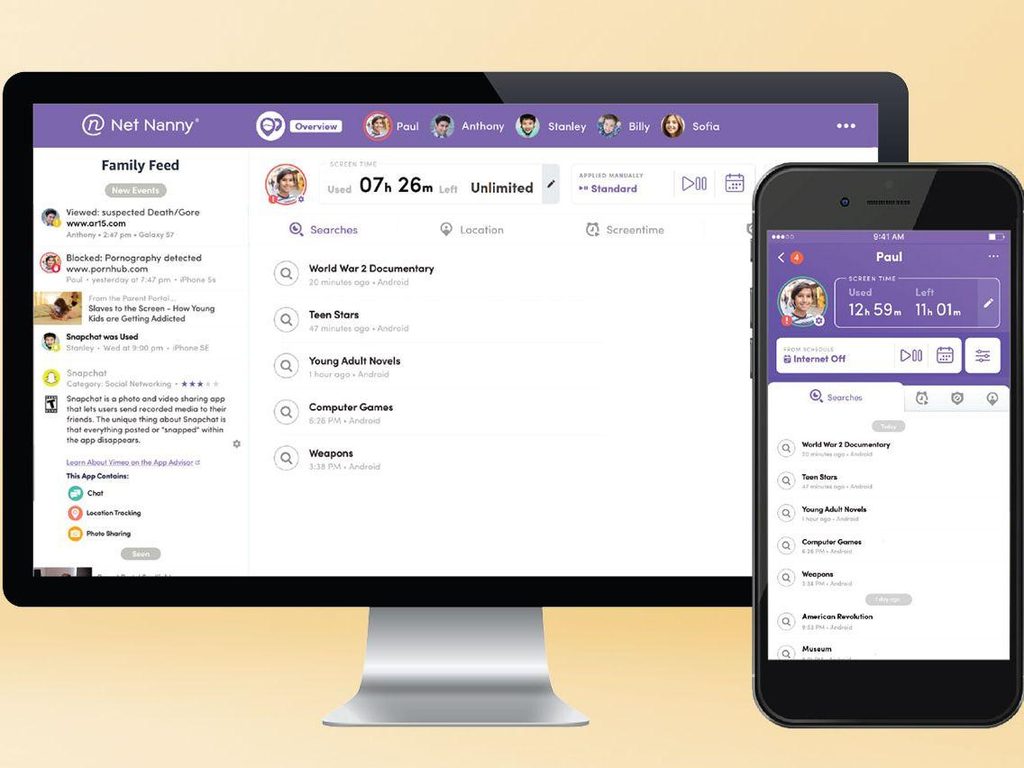
Best for: Families researching dedicated website and content filtering.
Price: Paid subscription.
Official website: Net Nanny
Net Nanny is a parental control service associated with website filtering, content restrictions, and family internet management.
Its published feature descriptions include internet filtering, screen time management, website blocking, app-related controls, and family activity reporting.
However, its current Android compatibility requires particular attention.
Key Features Advertised by Net Nanny
- Website blocking.
- Internet content filtering.
- Screen time schedules.
- Parent dashboard.
- Activity reporting.
- Selected app and location-related features.
Important Android Compatibility Warning
Net Nanny’s official feature pages do not consistently present Android among the currently supported platforms.
For that reason, we do not recommend purchasing Net Nanny specifically for a child’s Android phone until the provider confirms that your exact device and Android version are supported.
This is especially important if you’re comparing it with products that explicitly document current Android support.
Who Should Consider Net Nanny?
Families prioritizing content filtering may want to research Net Nanny, but should confirm device compatibility before treating it as an Android solution.
Our verdict: A web-filtering product worth knowing about, but not a confirmed Android recommendation without updated compatibility verification.
Which Android Parental Control App Should You Choose?
The best choice depends on what you need to manage.
| Your Priority | Option to Consider |
|---|---|
| Free screen time limits | Google Family Link |
| Google Play app approvals | Google Family Link |
| Basic Android location supervision | Google Family Link |
| More detailed web filtering | Qustodio |
| Custom time routines and reports | Qustodio |
| Specialized online safety alerts | Bark |
| Mixed Android and iPhone households | Qustodio, with platform-specific checks |
| Dedicated filtering research | Net Nanny, after Android compatibility confirmation |
If you’re unsure, start with the free option and identify its limitations before paying for anything else.
How to Set Up Parental Controls on Android
You don’t necessarily need to purchase an app to establish parental controls on your child’s Android phone.
Google Family Link is a practical starting point for compatible devices.
Here’s a general setup process.
Step 1: Check Your Child’s Android Device
Confirm that your child’s phone supports Google Family Link supervision.
Check the Android version, Google account configuration, and applicable device restrictions.
Some devices or account types may not support every feature.
Step 2: Set Up a Supervised Google Account
Depending on your child’s age and account status, you may need to create an eligible child account or add supervision to an existing account.
Follow Google’s official setup instructions.
Step 3: Install or Open Family Link on the Parent’s Device
Use the official Google Family Link app or supported setup process.
Parents may use a compatible Android phone or iPhone to manage eligible supervised Android devices.
Step 4: Connect the Child’s Device
Follow the instructions to establish supervision.
The exact steps vary depending on whether you’re setting up a new Android device or adding supervision to an existing one.
Step 5: Configure Screen Time Limits
Choose a realistic daily screen time allowance.
Consider different schedules for school days and weekends.
Step 6: Set Downtime and School Time
Use available scheduling features to support bedtime, schoolwork, and other important routines.
Make sure necessary educational and communication tools remain accessible.
Step 7: Review App Permissions
Manage available Google Play approval settings and review apps installed on the device.
Consider age ratings, in-app purchases, and communication features.
Step 8: Configure Content Settings
Review available restrictions for Chrome, Google Search, YouTube, and Google Play.
Remember that these settings do not filter every type of content across every app.
Step 9: Review Location Permissions
If location features are appropriate for your family, configure them openly and check their limitations.
Step 10: Discuss the Rules With Your Child
Explain what the controls do and why you’re using them.
As children grow, review the settings together and allow more independence when appropriate.
For official instructions, visit Google Family Link.
How to Block Apps on Android for Kids
Blocking or limiting apps is one of the most common reasons parents install Android parental controls.
On supported devices, Family Link can help manage app access and individual app time limits.
A general approach is:
- Open Family Link on the parent’s device.
- Select the child’s supervised account.
- Find the available app management or screen time controls.
- Choose the app you want to manage.
- Apply an available time limit or blocking option.
- Confirm that the setting behaves as expected on the child’s device.
Menu labels can change between app versions.
If you use a third-party service, check whether it blocks the app itself, restricts internet access to that app, or simply reports usage.
These are different functions.
For example, blocking a social app’s internet connection does not necessarily remove the app or prevent every offline function.
How to Set Screen Time Limits on Android
Screen time limits can help families establish more predictable technology routines.
You might set boundaries for:
- School mornings.
- Homework periods.
- Family meals.
- Bedtime.
- Weekend recreation.
Start with a manageable routine rather than imposing many restrictions at once.
The appropriate limit depends on your child’s age, school needs, sleep, and overall activities.
For practical examples and age-based recommendations, see our screen time rules for kids.
Technical limits work best when children understand why those boundaries exist.
How to Block Inappropriate Websites on Android
Parents can use Google account and browser restrictions, along with supported third-party filtering tools, to reduce exposure to inappropriate content.
Family Link offers controls for selected Google services, including Chrome and Search.
Paid services such as Qustodio provide additional filtering options.
However, no filtering system is completely reliable.
Inappropriate content may appear through:
- Social media feeds.
- Messaging apps.
- User-generated videos.
- In-app browsers.
- Online games.
- Search results outside supported filtering environments.
Some tools can block specific websites or content categories, but that doesn’t guarantee protection across every app.
Families should combine filtering with conversations about what to do when unexpected content appears.
Can Parental Control Apps Track an Android Phone?
Some Android parental control apps provide device location features.
Google Family Link, Qustodio, and Bark offer location-related tools for supported devices and configurations.
These can be useful when children travel to school or visit friends.
However, location availability depends on several factors:
- Device power.
- Network connectivity.
- Location permissions.
- Supported device settings.
- Accuracy of available location signals.
- Service-specific restrictions.
A device’s reported location may be approximate, delayed, or unavailable.
Location tracking should not be treated as a guaranteed emergency response service.
For older children, discuss when location sharing is appropriate and how to balance safety with privacy.
Free vs. Paid Parental Control Apps for Android
Do you really need a paid parental control app?
Not necessarily.
For many families, Google Family Link provides enough functionality to establish basic digital boundaries.
Paid tools become more relevant when a family needs features beyond those basic controls.
| Feature | Google Family Link | Paid Alternatives |
|---|---|---|
| Daily screen time limits | Yes | Commonly available |
| App blocking or restrictions | Yes, on supported devices | Varies by provider |
| Google Play approvals | Yes | Not always equivalent |
| Basic location features | Yes | Often available |
| Advanced web filtering | Limited | Available in selected products |
| Detailed activity reporting | Basic | Often more extensive |
| Specialized safety alerts | Limited | Available in selected products |
| Private communication monitoring | Not supported | Available for selected services and configurations |
| Subscription required | No | Usually |
When Free Controls Are Enough
A free solution may be sufficient when your main goals are to:
- Limit screen time.
- Establish bedtime routines.
- Manage app downloads.
- Restrict some content.
- Check a supported device’s location.
When Paid Controls May Be Worth It
Consider paying when you have a specific unmet need, such as:
- More detailed website filtering.
- Broader cross-platform family management.
- Specialized risk alerts.
- Additional reporting.
- More customizable schedules.
Before subscribing, verify the exact feature on your child’s Android device.
A paid app isn’t automatically safer, more reliable, or more appropriate for your family.
Android vs. iPhone Parental Controls: What’s Different?
Android and iPhone use different operating-system permissions and device-management systems.
That affects what parental control apps can do.
Google Family Link is designed primarily for compatible Android devices and Chromebooks.
Apple Screen Time and Family Sharing are built into Apple’s ecosystem.
Third-party products may support both platforms, but their capabilities can differ significantly.
| Feature | Android | iPhone |
|---|---|---|
| Main free parental control option | Google Family Link | Apple Screen Time |
| App management | Supported through Family Link and selected apps | Supported through Screen Time and selected apps |
| Device scheduling | Available | Available |
| Third-party monitoring | Varies; often broader on supported Android devices | More restricted by iOS permissions |
| Google Play approvals | Available through supported Google supervision | Not applicable |
| Apple purchase approvals | Not applicable | Available through Family Sharing |
| Specialized filtering | Available through selected apps | Available, with platform limitations |
If your child uses an iPhone, read our guide to the best parental control apps for iPhone for platform-specific recommendations.
What Can Parents See With Android Parental Control Apps?
The answer depends on the product.
Some apps focus on screen time and device management.
Others offer activity reporting, web filtering, or specialized communication monitoring.
| Information | Google Family Link | Selected Paid Apps |
|---|---|---|
| Screen time | Yes | Often |
| App usage | Yes, on supported devices | Often |
| Device location | When available | Often |
| Website filtering settings | Yes, for supported Google services | Often |
| Detailed browsing reports | Not a general full-history feature | Available in some products |
| SMS content | No | Available in some configurations |
| Selected social app activity | Limited | Available in some products |
| Full access to every private conversation | No | No universal guarantee |
Parents should understand that app permissions and privacy rules affect which information is available.
Avoid installing tools that promise secret, unrestricted access to everything a child does.
Age-appropriate, transparent supervision is a more sustainable approach.
Are Android Parental Control Apps Safe?
Parental control apps can support family safety, but they also create privacy considerations.
Some products require sensitive permissions to manage apps, filter content, monitor communications, or access location data.
Before installing one, review:
- What information the provider collects.
- Whether data is shared with third parties.
- How long information is retained.
- Whether communications are monitored.
- How account access is secured.
- How to delete stored information.
- Whether the provider clearly explains platform limitations.
Use official download sources and avoid apps that make unrealistic promises about hidden monitoring.
For a broader evaluation framework, read our guide on how to choose a parental control app.
The safest choice is not necessarily the tool with the most invasive features.
It’s the one that meets your family’s needs while minimizing unnecessary data collection.
Best Android Parental Controls by Age
The appropriate level of supervision depends on your child’s maturity and digital experience.
Ages 5–8: Start With Simple Boundaries
Prioritize:
- Limited recreational screen time.
- Age-appropriate apps.
- Download approvals.
- Content restrictions.
- Shared device use where practical.
Google Family Link may be sufficient for many children in this age group.
Ages 9–12: Build Responsible Habits
Consider:
- Clear app download rules.
- Homework and bedtime schedules.
- Online gaming safety.
- Privacy discussions.
- Basic website restrictions.
- Regular family conversations.
Paid tools may help when they address a specific concern.
Ages 13–17: Balance Safety and Independence
Teenagers need opportunities to develop independent judgment.
Focus on:
- Healthy technology habits.
- Cyberbullying awareness.
- Privacy and digital footprints.
- Responsible communication.
- Online scams and suspicious contacts.
- Agreed boundaries around device use.
Some families may consider specialized safety tools, but the level of monitoring should be proportionate, transparent, and appropriate to the teenager’s circumstances.
Common Mistakes Parents Make With Android Parental Controls
1. Choosing a Paid App Before Trying Free Tools
Start by identifying what Google Family Link can already do.
You may not need a subscription.
2. Assuming Every App Works on Every Android Phone
Android devices differ by manufacturer, operating-system version, and permissions.
Check compatibility before installing or paying.
3. Confusing App Blocking With Internet Blocking
A tool may block network access without disabling the entire app.
Understand what the feature actually does.
4. Assuming Content Filtering Is Perfect
No filter catches every inappropriate website, image, or conversation.
5. Relying Entirely on Location Tracking
Device location can be delayed or unavailable.
6. Ignoring Privacy and Data Collection
More monitoring means more sensitive information may be processed.
Review permissions and provider policies.
7. Setting Rules Without Talking to Children
Technical restrictions cannot replace digital education.
Children need to understand the reasons behind family expectations.
Frequently Asked Questions
1. What is the best parental control app for Android?
Google Family Link is the best free starting point for most families with compatible Android devices. It offers screen time limits, app management, and basic supervision. Qustodio is worth considering for broader filtering and reporting, while Bark focuses on specialized online safety alerts.
2. Is there a free parental control app for Android?
Yes. Google Family Link provides free parental control features for supported Android devices and supervised Google accounts. It can help parents manage screen time, apps, selected content settings, and location-related features.
3. How do I set up parental controls on Android?
A common approach is to use Google Family Link. Check device compatibility, establish an eligible supervised Google account, connect the child’s device, and configure screen time, app approvals, and content settings. Follow Google’s current setup instructions because the steps vary by device and account.
4. Can I block apps on my child’s Android phone?
Yes. Google Family Link allows app management and blocking on supported supervised Android devices. Some third-party tools also provide app restrictions or internet-access blocking. Exact behavior depends on the product and configuration.
5. Can I control my child’s Android phone from my iPhone?
Yes, in supported situations. Parents can use Google Family Link on a compatible iPhone to manage an eligible child’s Android device. Some third-party parental control services also offer cross-platform parent dashboards.
6. Can Android parental control apps see text messages?
Google Family Link does not provide a feature for reading private SMS messages. Some paid services offer selected communication-monitoring features on supported Android devices, subject to permissions, setup requirements, and provider limitations.
7. Can I track my child’s Android phone location?
Yes. Family Link and selected third-party services offer location features for supported devices. However, location information may be unavailable or inaccurate due to connectivity, permissions, or device conditions.
8. Is Google Family Link better than Qustodio?
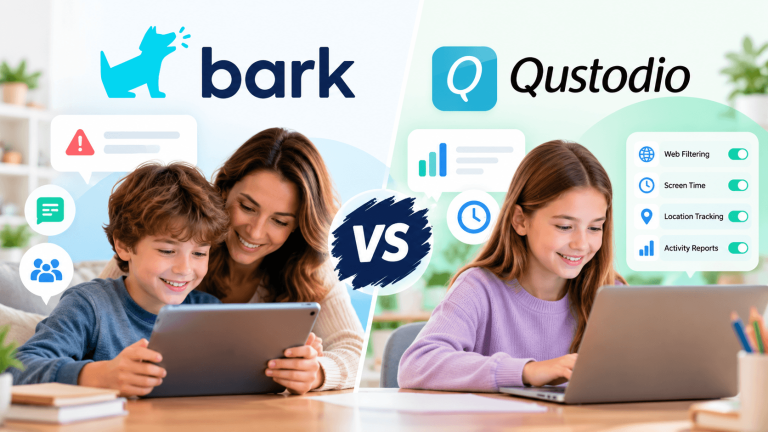
Family Link is a practical free option for basic Android supervision. Qustodio offers additional filtering, reporting, and management features that may require payment. The better choice depends on whether your family needs those extras.
9. Is Bark better than Google Family Link?
Bark and Family Link serve different purposes. Family Link focuses on free device and account supervision. Bark emphasizes specialized online safety alerts and additional controls through a paid service. Neither is automatically better for every family.
10. Can kids bypass Android parental controls?
No parental control system is completely bypass-proof. Effectiveness depends on the device, account settings, permissions, and access to other devices. Review settings regularly and establish clear expectations with your child.
11. Do parental control apps work on Samsung phones?
Many parental control apps support compatible Samsung Android phones, including Google Family Link and selected third-party services. However, available features depend on the Android version, account configuration, device settings, and the app’s support requirements.
12. Are paid Android parental control apps worth it?
Paid apps can be worthwhile when they provide a verified feature your family needs, such as specialized web filtering, activity reporting, or supported safety alerts. If basic screen time and app controls are sufficient, a free solution may be enough.
Final Verdict: Which Android Parental Control App Is Best?
For most families, Google Family Link is the best place to start.
It’s free, integrates with Google’s ecosystem, and provides useful controls for managing screen time, app access, and daily device routines.
If you need more advanced features, consider the following alternatives:
- Qustodio: For broader filtering, reporting, and family device management.
- Bark: For specialized safety alerts and supported online activity monitoring.
- Net Nanny: A filtering-focused product to research, but confirm current Android compatibility before considering a purchase.
Don’t assume that more expensive or more invasive monitoring automatically means better protection.
Choose a tool that addresses your actual needs, review its privacy practices, and use it alongside regular conversations about online safety.
The goal of Android parental controls should be to help children develop safe, responsible digital habits—not simply to restrict every possible activity.
Sources and Further Reading
- Google Family Link — Official Website
- Google Family Link Help Center
- Qustodio — Features and Platform Support
- Qustodio — Android and iOS Feature Differences
- Bark — Android Parental Control App
- Bark — Features by Device
- Net Nanny — Official Features
Editorial disclosure: This comparison is based on published product documentation rather than independent hands-on testing. Features, pricing, compatibility, and policies can change. Verify current information with each provider before subscribing.