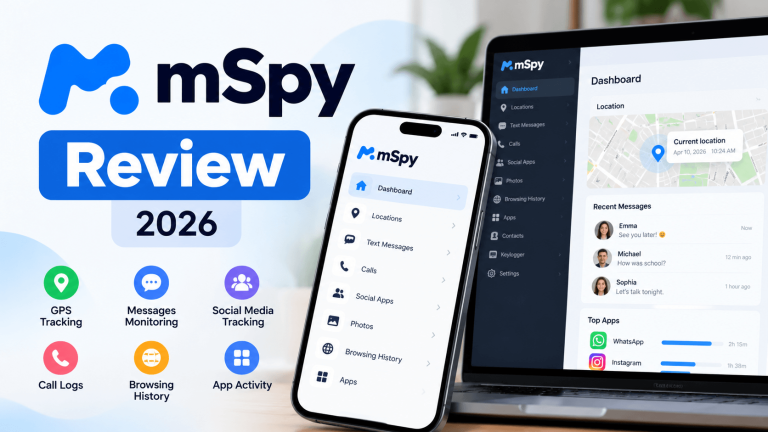


Choosing a parental control app can feel overwhelming.
One app promises screen time limits. Another offers location tracking, website filtering, or social media alerts. Some claim to monitor nearly everything your child does online.
But more features don’t necessarily mean better protection.
The right parental control app depends on your child’s age, the devices they use, your family’s priorities, and how much independence you’re ready to give them.
A tool that works well for a seven-year-old using a shared tablet may be completely inappropriate for a teenager who needs privacy and increasing responsibility.
To choose a parental control app, start by checking device compatibility, age-appropriate content filters, screen time management, app restrictions, privacy practices, ease of use, and total cost. Then test the features that matter most before paying for a subscription.
Just as importantly, remember that parental controls work best when they’re part of an ongoing conversation about online safety—not a substitute for trust, guidance, and digital literacy.
This guide explains 12 essential features to evaluate, how to compare free and paid tools, and what to test before making your decision.
What Is a Parental Control App?
A parental control app is a tool that helps parents or guardians manage aspects of a child’s digital experience.
Depending on the product and device, parental controls may allow you to:
- Set daily screen time limits.
- Restrict access to certain websites.
- Approve or block app downloads.
- Manage purchases and subscriptions.
- Set schedules for school or bedtime.
- Review selected device activity.
- Manage communication settings.
- View a child’s device location.
- Receive alerts about certain activities.
Some parental controls are built directly into operating systems.
Others are standalone applications that provide additional features or manage multiple devices.
For example, Apple offers Screen Time and family management features, Google provides Family Link, and Microsoft offers Family Safety.
Third-party apps may offer additional tools, but their capabilities vary significantly by platform.
No parental control app can eliminate every online risk.
Content filters may miss harmful material, location information may be inaccurate, and some activity may take place outside the app’s coverage.
Think of parental controls as one layer of protection within a broader family online safety plan.
How to Choose a Parental Control App: Quick Checklist
Before comparing products, use this 12-point parental control app checklist.
- Device compatibility: Does it support your child’s actual devices and operating system versions?
- Content filtering: Can it manage age-inappropriate websites and content?
- Screen time management: Can you set flexible daily limits and schedules?
- App management: Can you approve, block, or limit apps?
- Monitoring transparency: Does it clearly explain what it can and cannot monitor?
- Location features: Are location tools available, appropriate, and necessary?
- Privacy and security: Does the company explain how it collects, stores, and protects data?
- Alerts: Are notifications useful, understandable, and customizable?
- Emergency access: Can your child still reach important contacts and services?
- Ease of use: Can you install, configure, and manage the app without unnecessary complexity?
- Pricing: Are subscriptions, renewals, device limits, and cancellation terms clear?
- Family communication: Can the settings support reasonable boundaries and increasing independence?
You don’t necessarily need an app that checks every box.
For example, a younger child using a tablet at home may not need location tracking.
A teenager may benefit more from flexible limits and collaborative rules than extensive message monitoring.
The goal is to identify the features that solve your family’s actual problems.
12 Things to Check Before Choosing a Parental Control App
1. Check Device and Operating System Compatibility
Compatibility should be your first consideration.
A parental control app may advertise support for both iPhone and Android while offering different features on each platform.
This happens because operating systems provide different permissions and technical capabilities.
Before purchasing, confirm:
- Which devices are supported?
- Which operating system versions are required?
- Does the app work on both the parent’s and child’s devices?
- Can it manage tablets, laptops, or Chromebooks?
- Are the features you need available on your child’s specific platform?
- Does it require additional settings, permissions, or software?
For example, an app might provide extensive app management on Android but fewer controls on iOS.
Another might support Windows computers but not provide equivalent filtering on every browser.
What to look for: A detailed compatibility page that lists supported features by device, rather than a generic claim that the app works on all major platforms.
2. Look for Age-Appropriate Content Filtering
Content filtering helps restrict access to material you consider inappropriate for your child’s age.
Depending on the product, filters may cover categories such as adult content, gambling, violence, or other types of websites.
Some apps also allow parents to create custom blocklists or allowlists.
Before choosing a tool, ask:
- Can I block specific websites?
- Can I allow only approved websites for a younger child?
- Does filtering work across the browsers my child uses?
- Does it cover private browsing or alternative browsers?
- Can I adjust restrictions as my child gets older?
Remember that filtering is imperfect.
An app may block a harmless educational page or fail to recognize inappropriate content.
And website filters don’t necessarily control everything displayed inside social media apps, games, or messaging platforms.
What to look for: Clear filtering options, simple exceptions, and honest explanations of coverage limitations.
3. Evaluate Screen Time Limits and Scheduling
Screen time management is one of the most common reasons parents consider parental control software.
A useful app should offer more than a single daily countdown.
Look for features such as:
- Daily device limits.
- Separate weekday and weekend schedules.
- Bedtime or downtime settings.
- Individual app limits.
- Temporary extensions.
- Educational app exceptions.
- Easy adjustments for holidays or travel.
For example, your family might want games to be unavailable during homework hours while keeping educational resources accessible.
Flexibility matters because not all screen time serves the same purpose.
Video calling a grandparent, completing homework, and scrolling through entertainment videos are different activities.
Avoid choosing arbitrary restrictions simply because an app makes them easy to enforce.
Instead, discuss routines around sleep, school, exercise, family time, and recreation.
What to look for: Scheduling tools that support healthy habits without unnecessarily disrupting useful activities.
4. Check App Approval and Blocking Features
Children can discover new games, social platforms, and other applications quickly.
App management tools can help parents review what is installed and decide which apps are appropriate.
Useful features may include:
- Approval requests for new downloads.
- App blocking.
- Individual app time limits.
- Purchase restrictions.
- In-app purchase controls.
- Age-rating restrictions.
However, capabilities differ by platform and app store.
For example, a tool that manages Google Play purchases may not provide identical control over purchases made through another service.
Check whether your child can install apps through alternative sources and whether the parental control product addresses that possibility.
What to look for: Reliable approval and restriction settings that work with the app stores and devices your child actually uses.
5. Understand Social Media and Message Monitoring Limitations
Some parental control apps advertise social media monitoring, message alerts, or detection of potentially concerning content.
These claims deserve careful scrutiny.
Monitoring capabilities can vary depending on the platform, messaging service, encryption, device permissions, and software updates.
An app may monitor selected services without accessing every conversation.
Another may analyze notifications rather than complete message histories.
Before subscribing, ask:
- Which specific apps are supported?
- Does the feature work on iPhone, Android, or both?
- Does it analyze message content or only certain activity signals?
- What information is sent to the provider?
- How are false alerts handled?
- Can the child understand what is being monitored?
Avoid assuming that a product can read all encrypted messages or monitor every social platform.
What to look for: Specific, verifiable feature descriptions rather than promises of complete visibility.
Monitoring should be proportionate to the child’s age and circumstances, with appropriate transparency and respect for their developing privacy.
6. Decide Whether You Actually Need Location Tracking
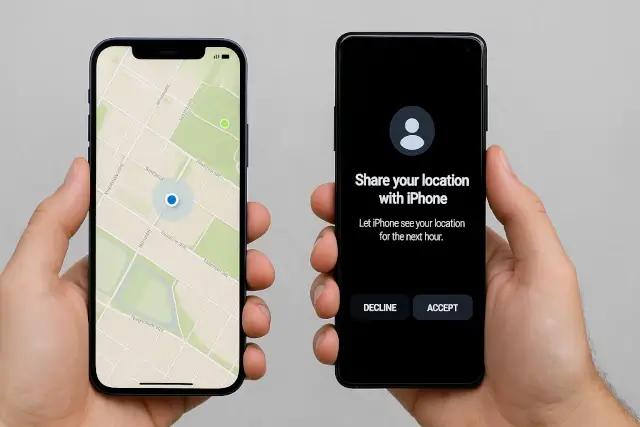
Location features may help families coordinate pickups, check whether a device has arrived at a destination, or respond to certain safety concerns.
Possible features include:
- Viewing a device’s approximate location.
- Location sharing.
- Arrival or departure notifications.
- Battery status.
- Location history, where available.
But location tracking has important limitations.
Accuracy may depend on GPS reception, internet connectivity, permissions, battery settings, and whether the device is powered on.
A location app cannot guarantee a child’s safety.
It also shouldn’t be treated as a substitute for communication or emergency planning.
Before enabling tracking, explain to your child what information is shared, why it is used, and when the arrangement will be reviewed.
Avoid secretly monitoring other adults or using a child’s account to surveil someone else.
What to look for: Transparent, consent-aware location features with understandable permissions and clear data retention practices.
7. Examine Privacy and Data Security
Parental control software may process sensitive information about children.
Depending on its features, that information could include location data, device activity, account identifiers, browsing information, or communication-related data.
This makes privacy and security essential buying criteria.
Review the provider’s privacy policy and look for answers to these questions:
- What information is collected?
- Why is it collected?
- Is information shared with third parties?
- How long is data retained?
- Can parents request deletion?
- What security protections are described?
- Can account access be protected with multifactor authentication?
- Does the provider explain how it handles children’s data?
Also investigate whether the company provides a clear support channel for privacy questions.
A vague privacy policy or unexplained requests for extensive permissions should make you cautious.
What to look for: Data minimization, understandable policies, appropriate security controls, and meaningful deletion options.
Don’t assume that a product is privacy-friendly simply because it markets itself as a family safety app.
8. Look for Useful Alerts, Not Constant Notifications
Notifications can be helpful when they draw attention to something that genuinely requires parental action.
Examples might include:
- A request to install a new app.
- A blocked purchase attempt.
- A request for additional screen time.
- A device reaching a configured limit.
- A location-related notification, if enabled.
But too many alerts can become overwhelming.
Constant notifications may encourage unnecessary checking and make it harder to identify important events.
Consider whether you can adjust notification categories, frequency, and urgency.
Also check how the app handles false positives.
A suspicious-content alert is not proof that a child has done something wrong.
What to look for: Clear, actionable notifications that support conversation rather than automatic punishment.
9. Make Sure Emergency Communication Remains Available
Safety settings should not unintentionally prevent a child from getting help.
When testing a parental control app, check what happens after a device reaches its screen time limit or enters downtime.
Can your child still contact an approved caregiver?
Are important communication tools available?
What happens if the device is offline?
Does the restriction affect emergency calling?
The answers depend on the operating system and specific configuration.
Never assume that emergency access will work correctly simply because the app describes itself as a safety product.
Test the relevant settings carefully without placing unnecessary calls to emergency services.
What to look for: Clearly documented exceptions for essential communication and a configuration that supports your family’s emergency plan.
10. Choose an App You Can Actually Manage
An app with dozens of advanced features isn’t useful if the settings are confusing.
Look for a straightforward installation process and a dashboard that makes important information easy to understand.
During a trial, consider:
- How long does setup take?
- Are instructions understandable?
- Can another authorized caregiver manage settings?
- Is it easy to change a schedule?
- Can you identify which restrictions are active?
- Are support articles available?
- Does the app explain errors clearly?
Also think about maintenance.
Operating system updates, new devices, and changing family routines may require adjustments.
What to look for: A tool you can confidently manage without spending excessive time troubleshooting.
11. Compare the Total Cost, Not Just the Advertised Price
Parental control apps may offer free plans, monthly subscriptions, annual subscriptions, or feature-based tiers.
A low introductory price doesn’t always reflect the full cost.
Before subscribing, check:
- The renewal price.
- Whether billing is monthly or annual.
- How many devices or children are included.
- Which features require a higher tier.
- Whether a free trial converts automatically to paid billing.
- The cancellation process.
- Refund eligibility.
- Whether important features are restricted to particular platforms.
If you’re considering an annual subscription, test the app first whenever possible.
A long-term discount isn’t valuable if the app doesn’t provide the functions you need.
What to look for: Transparent pricing and a realistic opportunity to verify compatibility before committing.
12. Choose a Tool That Supports Family Communication
The final consideration is easy to overlook.
Will the app help your family build healthy digital habits—or create ongoing conflict?
Parental controls are most useful when children understand the reasons behind them.
For younger children, parents may need to establish more direct boundaries.
As children mature, they can increasingly participate in decisions about screen time, online privacy, and responsible technology use.
Try explaining:
“We’re using these settings to help balance homework, sleep, and entertainment. We’ll review them together as you get older.”
You can also discuss what your child should do if they encounter upsetting content or receive an uncomfortable message.
Children should feel able to ask for help without automatically fearing punishment.
What to look for: Flexible settings that can evolve with your child’s maturity and your family’s needs.
Which Parental Control Features Matter Most by Age?
Children’s needs change as they grow.
The following age groups are general planning examples, not rigid developmental rules.
| Age Group | Common Priorities | Suggested Approach |
|---|---|---|
| Ages 5–8 | Age-appropriate content, downloads, basic time routines | Parent-led settings with simple explanations |
| Ages 9–12 | App approvals, online games, screen time, communication safety | Clear rules and regular conversations |
| Ages 13–15 | Social media boundaries, privacy, sleep routines, digital literacy | Collaborative rules and proportionate oversight |
| Ages 16–17 | Independence, privacy, responsible decision-making | Greater autonomy with agreed safety expectations |
A child’s maturity, individual circumstances, and support needs may matter more than their exact age.
For example, a younger child who only uses a shared family tablet may need very different controls from a child who carries a personal smartphone.
The goal should be to gradually develop independent judgment rather than maintain the same level of restriction indefinitely.
Free vs. Paid Parental Control Apps: Which Is Better?
You don’t necessarily need a paid subscription.
Many devices already include useful parental control features.
For some families, these built-in tools may cover most needs.
Free or Built-In Parental Controls
Potential advantages include:
- No separate subscription for core features.
- Integration with the operating system.
- Familiar account management.
- Screen time and content restrictions.
- App or purchase controls on supported devices.
Potential limitations include:
- Features concentrated within one ecosystem.
- Different capabilities across devices.
- Limited support for certain third-party services.
- Less centralized management in mixed-device households.
Paid Parental Control Apps
Potential advantages may include:
- Additional reporting options.
- Specialized alerts.
- Broader management across certain platforms.
- Additional filtering or scheduling features.
- A centralized parent dashboard.
Potential drawbacks may include:
- Recurring costs.
- Sensitive data handled by another provider.
- Features that differ across operating systems.
- Complicated setup.
- Monitoring claims that don’t match actual coverage.
| Comparison | Built-In Tools | Paid Third-Party Apps |
|---|---|---|
| Cost | Often free for core functions | Usually subscription-based |
| Screen time | Available on supported platforms | Commonly available |
| App management | Often integrated with device ecosystem | Varies by platform |
| Website filtering | Available in supported environments | Varies by product and browser |
| Cross-platform management | May be limited | Some offer broader coverage |
| Specialized alerts | Varies | May offer additional options |
| Privacy considerations | Uses platform provider’s services | Adds another provider to evaluate |
| Best for | Families with straightforward needs | Families needing verified additional capabilities |
The best value is the least intrusive tool that reliably meets your family’s needs.
Start with free controls before paying for features you may never use.
iPhone vs. Android: What Parents Should Know
The operating system can significantly affect which parental control features are available.
For iPhone and iPad: Start With Apple Screen Time
Apple provides parental controls through Screen Time and Family Sharing.
Depending on device configuration and software version, parents can manage areas such as:
- Screen time and schedules.
- App access.
- Age-appropriate content restrictions.
- Purchase approvals.
- Selected communication settings.
- Family account permissions.
Because these tools are integrated into Apple’s ecosystem, they are a useful starting point for families using iPhones and iPads.
If you’re considering a third-party app, compare its actual iOS features with what Apple already provides.
Don’t assume a third-party app can bypass Apple’s operating system restrictions.
Official resource: https://support.apple.com/en-us/108806
For Android and Chromebook: Start With Google Family Link
Google Family Link offers parental supervision tools for supported Google accounts and devices.
Depending on the device and account configuration, families can manage:
- Daily screen time.
- Downtime and school schedules.
- App approvals and restrictions.
- Certain Google service content settings.
- Device location on supported supervised devices.
- Selected account and privacy settings.
Importantly, installing the Family Link parent app on an iPhone doesn’t mean it can manage an iPhone child’s device in exactly the same way as a supervised Android device.
Check the supported child-device capabilities.
Official resource: https://families.google.com/familylink/
For Windows and Xbox: Consider Microsoft Family Safety
Microsoft Family Safety provides family management tools connected to Microsoft accounts and supported devices.
Depending on configuration, features may include:
- Screen time limits.
- App and game restrictions.
- Activity reporting.
- Purchase management.
- Web filtering in supported environments.
Check browser-specific limitations, especially if your child uses browsers other than Microsoft Edge.
Official resource: https://support.microsoft.com/en-us/family-safety/set-up-microsoft-family-safety
What If Your Family Uses Multiple Platforms?
A mixed-device household might include an Android phone, an iPad, a Windows laptop, and a gaming console.
In that situation, create a device inventory before buying.
Write down:
- Every device your child uses.
- The operating system and version.
- The apps or services that need supervision.
- Which controls already exist.
- Which important needs remain unmet.
You may discover that a combination of built-in tools works better than one third-party app.
Parental Control App Comparison Worksheet
Use this worksheet when evaluating two or three options.
| Feature | App A | App B | App C |
|---|---|---|---|
| Supports child’s devices | |||
| Screen time scheduling | |||
| Website filtering | |||
| App approval controls | |||
| Social media feature limitations disclosed | |||
| Optional location tools | |||
| Emergency access verified | |||
| Clear privacy policy | |||
| Data deletion options | |||
| Easy parent dashboard | |||
| Total annual cost | |||
| Trial or refund option |
Don’t simply choose the app with the most checkmarks.
Decide which features are essential and which are optional.
For example, reliable content filtering may be a requirement, while location history may be unnecessary.
A product that performs your essential tasks reliably may be a better choice than one offering many features with unclear limitations.
How to Test a Parental Control App Before Paying
A product’s marketing page can’t tell you everything about its real-world performance.
Whenever possible, test the app on your actual devices before committing to a paid plan.
Step 1: Confirm Compatibility
Check the child’s device model, operating system, and supported account type.
Review the provider’s current compatibility documentation.
Step 2: Test Screen Time Rules
Set a short test schedule.
Confirm that restrictions activate when expected and that permitted activities remain accessible.
Step 3: Test Content Filtering
Try accessing a harmless test website that you’ve intentionally blocked.
Check whether the restriction works in the browsers your child uses.
Avoid visiting harmful websites merely to test filtering.
Step 4: Test App Restrictions
If app approvals are important, verify that the child account receives the expected restrictions and the parent account receives requests.
Step 5: Check Essential Communication
Confirm that important approved contacts and communication methods remain available during downtime.
Step 6: Review Privacy Settings
Look at the permissions requested during installation.
Disable optional permissions that aren’t necessary for your intended features.
Step 7: Check the Parent Dashboard
Can you understand reports and change settings without difficulty?
Do notifications arrive as expected?
Step 8: Review Billing Before the Trial Ends
Confirm the renewal date, price, cancellation method, and any device limits.
Keep a record of your subscription terms.
If the app fails an essential requirement, don’t assume a paid upgrade will solve the problem without verifying it.
Common Mistakes Parents Make When Choosing Parental Controls
Choosing Based on the Longest Feature List
More features can mean more complexity, data collection, and expense.
Prioritize the features that address your actual concerns.
Ignoring Platform Differences
An app’s Android capabilities may not match its iOS capabilities.
Always review platform-specific documentation.
Assuming Monitoring Means Complete Protection
No monitoring tool can guarantee that a child will never encounter harmful content or unsafe interactions.
Children still need guidance about reporting problems and seeking help.
Using Secret Surveillance as the Default
Hidden monitoring can undermine trust and create privacy concerns.
Use transparent, age-appropriate supervision and explain the rules wherever possible.
Setting Rules Without Talking to Your Child
Restrictions are easier to understand when children know their purpose.
Explain expectations and provide opportunities to ask questions.
Forgetting to Update the Settings
A configuration that worked last year may no longer fit your child’s age, schedule, or devices.
Review settings periodically.
Paying Before Testing
An annual subscription may seem economical, but only if the app works reliably for your family.
Test essential functions first.
How to Talk to Your Child About Parental Controls
Introducing parental controls can be easier when you frame them as part of learning to use technology responsibly.
You might say:
“We want you to enjoy your phone and stay connected with friends, but we also want to make sure you have time for sleep, school, and other activities. Let’s talk about which rules make sense.”
Then discuss:
- Which activities are allowed.
- When devices should be put away.
- What information parents can see.
- Whether location sharing is enabled.
- How children can request additional time.
- What to do if something online feels unsafe.
- When the family will review the rules.
For older children, invite more participation.
Ask:
“What do you think would be a reasonable limit for games on school nights?”
Or:
“How can we make sure you have privacy while still getting help if something serious happens?”
The goal isn’t to remove every risk.
It’s to help children build judgment, confidence, and the ability to ask for support.
Frequently Asked Questions
How do I choose the best parental control app?
Start with your child’s age, devices, and your family’s main concerns. Compare compatibility, screen time tools, content filtering, app restrictions, privacy policies, ease of use, and pricing. Test essential features before subscribing.
What features should a parental control app have?
Common useful features include screen time schedules, website filtering, app approvals, purchase restrictions, customizable alerts, and clear privacy controls. Location and specialized monitoring may be useful for some families but aren’t necessary for everyone.
Are free parental control apps good enough?
For many families, built-in options such as Apple Screen Time or Google Family Link may meet their needs. Paid tools are worth considering when you have specific requirements that free tools cannot reliably address.
Which parental control app is best for iPhone?
Start by evaluating Apple’s built-in Screen Time and Family Sharing features. If you need additional capabilities, compare third-party apps based on their documented iOS functionality rather than their general marketing claims.
Which parental control app is best for Android?
Google Family Link is a useful starting point for supported supervised Android devices. Additional tools may be appropriate if you need features not available through your existing setup.
Can parental control apps monitor social media?
Some products offer monitoring or alerts for selected services, but coverage varies widely. Encrypted messages, app permissions, operating system restrictions, and service updates can limit access. Verify each specific claim.
Can a parental control app track my child’s location?
Some tools can display the location of a supported device when the necessary permissions and connectivity are available. Accuracy and reliability vary, and location data should be handled carefully.
Can children bypass parental controls?
No parental control system is completely resistant to workarounds or technical limitations. Strong account settings, updated software, clear family expectations, and regular conversations are important.
Do parental control apps work across multiple devices?
Some do, but supported features may differ across iPhone, Android, Windows, Chromebooks, and gaming consoles. Check every device and operating system before purchasing.
Are parental control apps safe for children’s privacy?
Safety depends on the provider’s practices, the information collected, the permissions granted, and how the tool is configured. Review privacy policies, data retention, security protections, and deletion options before using a product.
At what age should parents stop using parental controls?
There is no universal age. Supervision should evolve with a child’s maturity, safety needs, and growing independence. Families should revisit restrictions and privacy expectations regularly.
Should parents read their child’s private messages?
Routine access to private conversations can raise significant trust and privacy concerns. The appropriate level of supervision depends on age, circumstances, and genuine safety needs. Transparent rules and proportionate responses are preferable to unnecessary surveillance.
Are parental control apps worth paying for?
They may be if they reliably provide important features that free tools lack. But paying more doesn’t automatically improve safety. Evaluate the actual benefits, privacy trade-offs, and total subscription cost.
Can parental control apps replace talking to kids about online safety?
No. Parental controls can reinforce family rules, but they cannot replace conversations about privacy, cyberbullying, inappropriate content, online strangers, and how to ask for help.
Final Thoughts
Choosing a parental control app isn’t about finding the product with the most powerful monitoring tools. Before choosing a parental control app, it helps to establish clear expectations about when and how your child can use digital devices. Our guide to screen time rules for kids explains how to create age-appropriate boundaries, set family routines, and use a printable screen time chart.
It’s about choosing the right level of support for your child and your family.
Start with device compatibility.
Identify the features you genuinely need.
Compare privacy practices and costs.
Test important functions before paying.
And involve your child in age-appropriate conversations about how and why the controls are used.
For many families, built-in tools may be enough. Others may benefit from additional features offered by a carefully evaluated third-party app.
The best parental control app is one that supports safety, respects appropriate boundaries, and helps your child gradually develop responsible digital habits.
Technology can help set the boundaries.
Trust, communication, and guidance help children learn to navigate the digital world.
Further Reading
- Federal Trade Commission — How To Use Parental Controls To Keep Your Kid Safer Online
https://consumer.ftc.gov/articles/how-use-parental-controls-keep-your-kid-safer-online
Official consumer guidance on parental control options and family online safety. - Apple Support — Use Screen Time to Manage Your Child’s iPhone or iPad
https://support.apple.com/en-us/108806
Official documentation for Apple’s parental control features. - Google Families — Family Link
https://families.google.com/familylink/
Information about screen time, app management, content settings, and supervised devices. - Microsoft Support — Set Up Microsoft Family Safety
https://support.microsoft.com/en-us/family-safety/set-up-microsoft-family-safety
Official guidance on family management and supported Microsoft devices. - Common Sense Media — Parents’ Ultimate Guide to Parental Controls
https://www.commonsensemedia.org/articles/parents-ultimate-guide-to-parental-controls
Practical guidance on using parental controls as part of digital parenting.
Editorial Note: This guide is educational and does not endorse a specific commercial parental control product. Features, pricing, operating system compatibility, and privacy policies can change. Verify current product documentation before purchasing or installing software.