
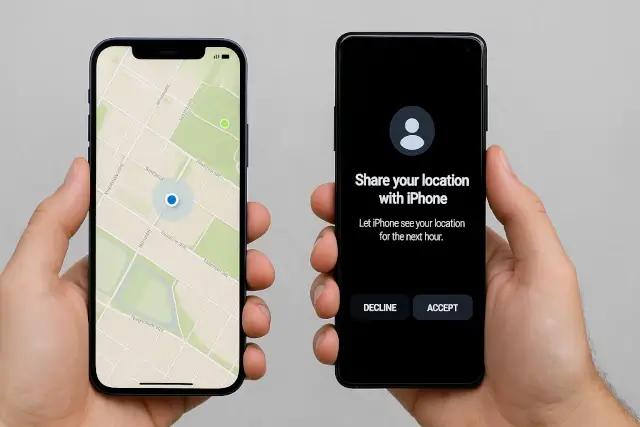
Can you track an Android phone from an iPhone? Yes. You can use Google Maps to view a location someone has chosen to share, Google Find Hub to locate your own lost Android device, or a compatible family location-sharing app.
You don’t need to own two phones running the same operating system. However, the right method depends on what you’re trying to do.
Maybe your spouse uses a Samsung Galaxy while you have an iPhone. Perhaps your child has an Android phone, and your family wants to share locations. Or maybe you’ve misplaced your own Android device and only have an iPhone available to help find it.
In this guide, we’ll explain how to track an Android phone from an iPhone using five practical methods, with step-by-step instructions, troubleshooting tips, and important privacy considerations.
Quick answer: For everyday location sharing between an iPhone and Android, Google Maps is usually the easiest free option. If you’ve lost your own Android phone, use Google’s Find Hub at android.com/find.
Location sharing should be voluntary and transparent. These methods are intended for locating devices you own or managing, or for viewing locations that another person has agreed to share.
Can You Track an Android Phone From an iPhone?
Yes. Although Apple’s Find My app doesn’t directly manage ordinary Android phones, several cross-platform services make location sharing possible.
Here are five ways to do it:
| Method | Best For | Cost | What You Need |
|---|---|---|---|
| Google Maps Location Sharing | Couples, friends, and family | Free | Android user shares their location |
| Google Find Hub | Finding your own lost Android | Free | Access to the device’s Google account |
| Family Location-Sharing App | Ongoing family coordination | Free or paid | Compatible apps and permissions |
| Google Maps Trip Progress | Sharing a journey and ETA | Free | Android user starts trip sharing |
| One-Time Location Pin or Link | Sharing a meeting place or temporary location | Free | Android user sends the location |
The most important distinction is between tracking a lost device and viewing another person’s shared location.
Google Find Hub helps recover Android devices associated with an authorized Google account. Google Maps location sharing allows someone to voluntarily make their location visible to another person.
Let’s look at each method.
Method 1: Track an Android Phone From an iPhone Using Google Maps
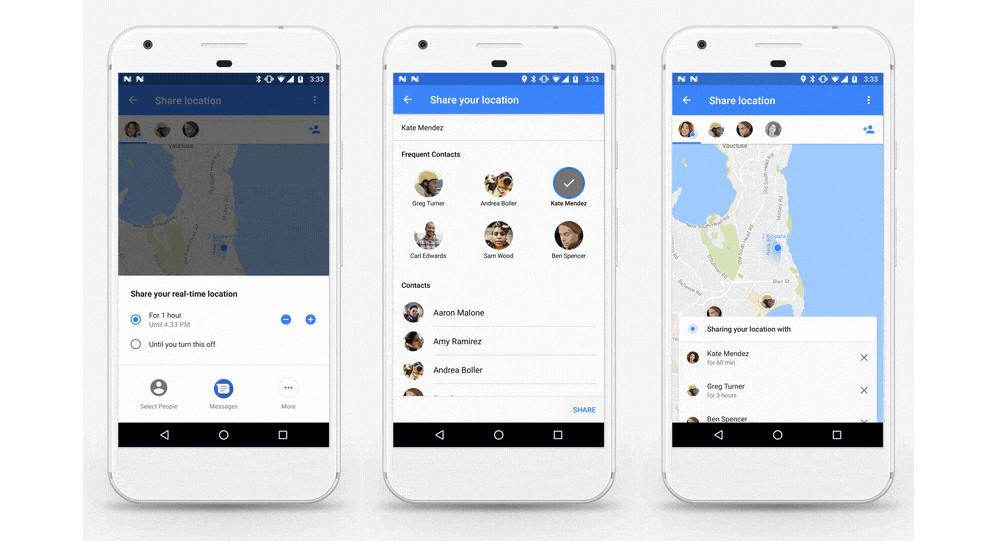
Google Maps is one of the simplest ways to share an Android phone’s location with an iPhone.
It works across both platforms, doesn’t require a paid subscription for basic location sharing, and lets the person sharing choose who can see their location.
Step 1: Open Google Maps on the Android Phone
On the Android device:
- Open the Google Maps app.
- Sign in to a Google account.
- Tap the profile picture or initial in the top-right corner.
- Select Location sharing.
- Tap New share.
Make sure location services are enabled on the Android phone.
Step 2: Choose Who Can See the Location
The Android user can select the person they want to share with.
If the iPhone user has a Google account, sharing directly with that account is generally the most convenient option.
The Android user can also choose how long the location remains visible.
Depending on the sharing option, this might be a limited period or until sharing is manually stopped.
Step 3: Accept or Open the Shared Location on the iPhone
On the iPhone:
- Install or open Google Maps.
- Sign in to the Google account the Android user selected.
- Tap your profile picture.
- Select Location sharing.
- Find the person who shared their location.
Their shared position should appear on the map when location data is available.
Step 4: Check the Shared Location
Once sharing is active, you may be able to see the Android user’s recent location and device battery information.
Keep in mind that location updates depend on factors such as connectivity, device settings, and location availability.
The displayed position may not always represent the device’s exact location at that second.
How to Stop Google Maps Location Sharing
On the Android phone:
- Open Google Maps.
- Go to Location sharing.
- Select the person receiving the location.
- Tap Stop.
The Android user remains in control of whether sharing continues.
Can You Share an Android Location With an iPhone Without a Google Account?
Yes, Google Maps also supports sharing a location through a link.
The Android user can create a location-sharing link and send it through a messaging app or email.
For real-time sharing links, Google currently limits access to a maximum of 24 hours.
Best for: Couples, friends, and family members who want voluntary, ongoing cross-platform location sharing.
Official instructions: Google Maps Location Sharing Help
Method 2: Find a Lost Android Phone From an iPhone Using Google Find Hub
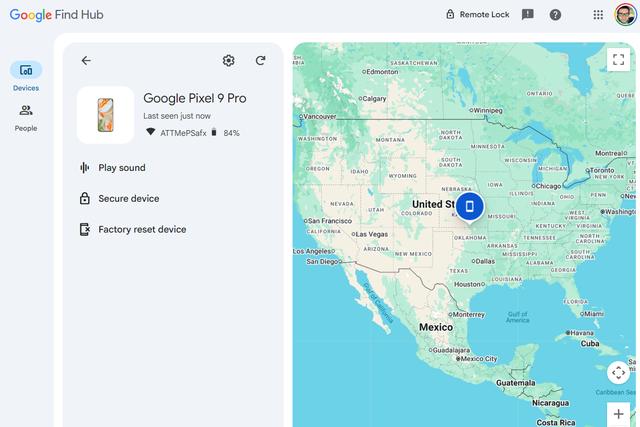
If you’ve lost your own Android phone, Google Find Hub is usually the first service to try.
Formerly known as Find My Device, Find Hub helps users locate and secure supported Android devices.
You can access its website from an iPhone, so you don’t need another Android phone.
Step 1: Open Google Find Hub on Your iPhone
Open Safari or Chrome and visit: https://android.com/find
Sign in with the Google account associated with the missing Android phone.
If you’re helping someone else find their device, have the owner sign in themselves rather than asking them to share their password.
Step 2: Select the Missing Android Device
After signing in, Find Hub displays devices associated with the account.
Select the missing Android phone.
Depending on the device’s status and settings, you may see its available location or last known location.
Step 3: Review the Device’s Location
If location information is available, Find Hub displays it on a map.
The accuracy and availability of the result depend on several factors, including the device’s settings, connectivity, and support for Google’s device-finding network.
If the phone is nearby, the Play sound feature may help you locate it.
Step 4: Secure the Device if Necessary
If you believe your Android phone is lost somewhere outside your home, review the available security options.
These may include:
- Play sound: Make the device ring when supported.
- Secure device or Mark as lost: Help protect the phone and display recovery information where available.
- Factory reset device: Erase data remotely when supported.
Remote erasure is a serious step. It can permanently remove data and may prevent further location tracking through Find Hub.
Use it only after considering the consequences.
What if the Android Phone Is Offline?
An offline Android device may still have a recent or network-assisted location available, depending on its model, settings, and Find Hub support.
However, offline finding is not guaranteed.
If no location appears, check again later and consider other recovery steps, such as contacting places you’ve recently visited.
Best for: Locating an Android phone you own or are authorized to manage.
Official instructions: Google Android Help — Find, Secure or Erase a Lost Device
Method 3: Use a Family Location-Sharing App
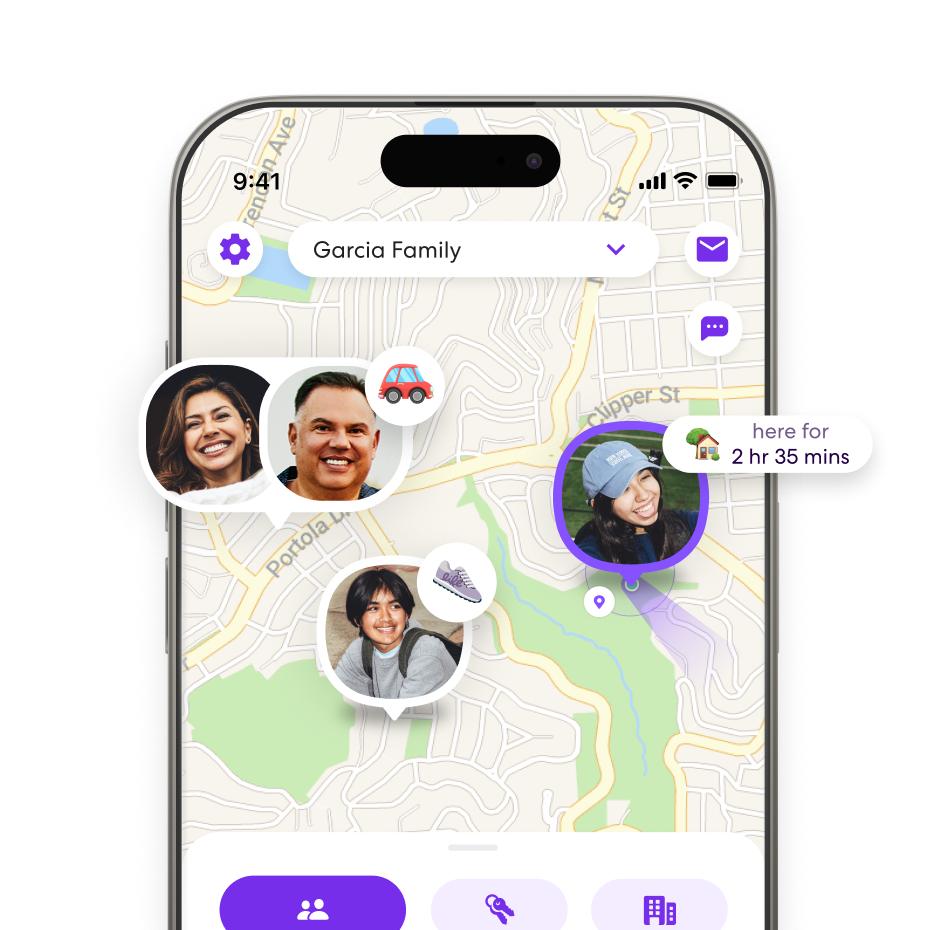
If your household uses a combination of iPhones and Android phones, a cross-platform family location-sharing app may be useful.
These services are designed to help participating family members coordinate their whereabouts.
Some offer additional features beyond basic location sharing, such as arrival notifications or place-based alerts.
Step 1: Choose a Compatible App
Look for an app that supports both Android and iOS.
For example, Life360 offers cross-platform family location-sharing features.
Google Maps is another option if you prefer basic location sharing without using a dedicated family app.
Before choosing a service, compare:
- Android and iPhone compatibility.
- Free versus paid features.
- Background location permissions.
- Battery usage.
- Location-sharing controls.
- Data privacy practices.
- Whether participants can pause or stop sharing.
Step 2: Install the App on Both Phones
Each participating person should install the compatible app on their own device.
Follow the service’s setup instructions to create or join a family group.
Step 3: Enable Location Permissions
Location-sharing apps typically require location access to provide updates.
Depending on the operating system and app, background location permissions may also be needed.
Review the permissions carefully and enable only what is necessary for the features your family has chosen.
Step 4: Invite Family Members
Use the app’s invitation or family-group feature.
Each participant should understand what location information will be visible, to whom, and under what circumstances.
Step 5: View Shared Locations on Your iPhone
After everyone has completed setup, open the app on your iPhone.
Participating Android devices may appear on the map when their locations are available.
Is a Family Tracking App Better Than Google Maps?
It depends on your needs.
Google Maps is often sufficient when two people simply want to share their locations.
A dedicated family app may be more useful when multiple people want coordinated location-sharing features, notifications, or additional family tools.
However, some advanced features may require a subscription.
Best for: Families who have agreed to use ongoing location sharing across different phone platforms.
For related guidance, read how to choose a parental control app.
Method 4: Track an Android Phone’s Trip Progress From an iPhone
Sometimes you don’t need to see someone’s location throughout the day.
You only want to know whether they’re on their way and when they expect to arrive.
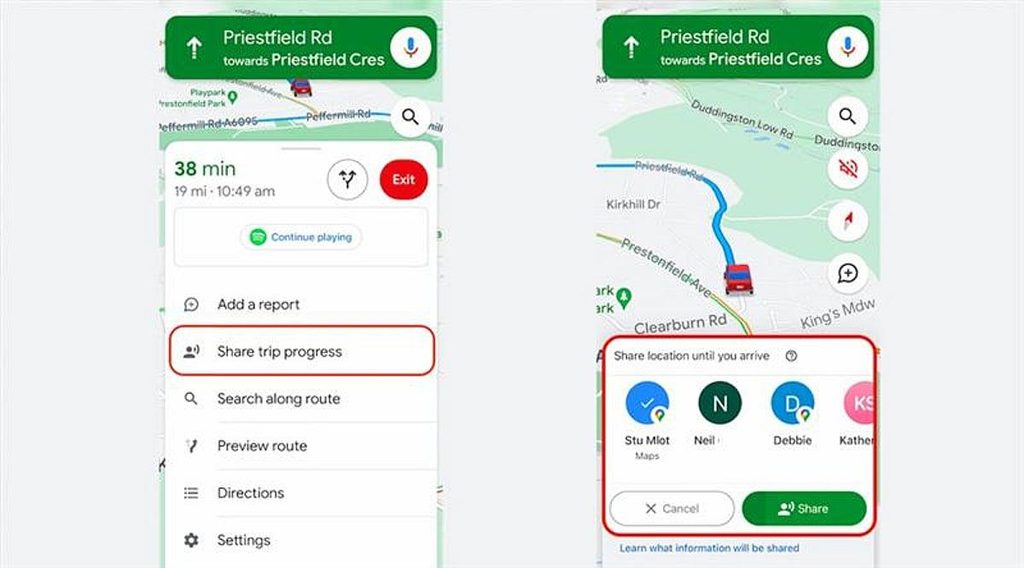
Google Maps offers a feature called Share trip progress for this purpose.
It’s useful when someone is traveling to meet you, returning from a long drive, or coordinating a pickup.
Step 1: Start Navigation on the Android Phone
On the Android device:
- Open Google Maps.
- Enter the destination.
- Start navigation.
Step 2: Select Share Trip Progress
While navigation is active, open the navigation information panel.
Look for Share trip progress.
The exact position of the option may vary with the Google Maps version and navigation mode.
Step 3: Choose the iPhone User
Select the person who should receive the trip information, or use an available sharing option.
The Android user must initiate the sharing.
Step 4: View the Journey on the iPhone
The recipient can open the shared trip information.
Depending on the sharing method, the recipient may see the Android user’s location, destination, and estimated arrival time.
Step 5: Let Sharing End With the Trip
Trip progress sharing is designed for a particular journey.
It generally ends when navigation finishes or the destination is reached.
The Android user can also stop sharing earlier.
Best for: Temporary travel coordination without ongoing location sharing.
Official instructions: Google Maps Navigation Help
Method 5: Send a One-Time Location Pin or Temporary Link
If you only need to know where someone is meeting you, continuous location sharing may be unnecessary.
A one-time location pin can be a simpler option.
This is particularly useful for sharing a restaurant, parking area, hotel, or meeting point.
Step 1: Open Google Maps on Android
The Android user opens Google Maps and finds the location they want to share.
They can use their current location or select a place on the map.
Step 2: Select the Location
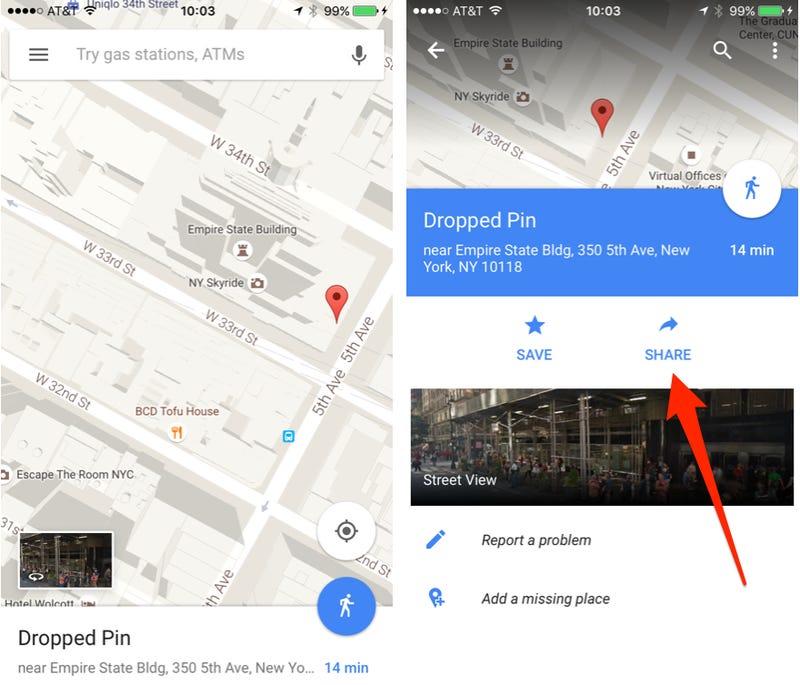
Tap the relevant place or press and hold on the map to drop a pin.
A location card should appear.
Step 3: Tap Share
Use the sharing option to send the location through a messaging app, email, or another supported service.
Step 4: Open the Location on the iPhone
The iPhone user opens the received link.
They can view the location in Google Maps or a compatible browser.
Step 5: Decide Whether Live Sharing Is Necessary
A static location pin shows a selected place.
It does not automatically update as the Android user moves.
If you need ongoing updates, use Google Maps real-time location sharing instead.
Best for: Sharing a meeting place or current position without ongoing tracking.
Can Apple’s Find My Track an Android Phone?
Not in the same way it tracks an iPhone.
Apple’s Find My ecosystem is designed around supported Apple devices and compatible accessories.
An ordinary Android smartphone cannot be added to your Apple Find My device list as though it were an iPhone.
That means you generally cannot open Find My on your iPhone and directly locate a family member’s Android phone through Apple’s native device-tracking system.
However, you can still use cross-platform services such as Google Maps.
If your family uses both operating systems, choose a location-sharing method that supports Android and iOS rather than assuming Apple’s Find My will work for every phone.
Why Can’t I See the Android Phone’s Location?
Even after setting up location sharing, you may occasionally see an unavailable or outdated location.
Here are some common reasons.
| Problem | Possible Cause | What to Try |
|---|---|---|
| Location unavailable | Sharing stopped or was never enabled | Ask the Android user to check sharing settings |
| Location not updating | Weak connection or restricted location access | Check connectivity and permissions |
| Device appears offline | Phone is disconnected or powered off | Review available last-known location |
| Wrong phone appears | Incorrect Google account | Verify the account associated with the device |
| Sharing link expired | Temporary link reached its time limit | Ask for a new link |
| Find Hub cannot locate the phone | Device settings or recovery requirements aren’t met | Check Google’s Find Hub requirements |
| Family app updates are delayed | Background restrictions or app permissions | Review the app’s location settings |
Check Android Location Settings
On the Android phone, confirm that location services are enabled.
The exact settings path varies by manufacturer and Android version.
Also check whether the relevant app has permission to access location.
Check Internet Connectivity
Live location updates generally require the service to receive current device information.
A weak or unavailable connection can delay updates.
Check Battery-Saving Restrictions
Some Android battery-saving settings can limit background activity.
If updates are inconsistent, review the relevant app’s background permissions and battery settings.
Avoid disabling security or privacy protections unnecessarily.
Check Whether Sharing Has Stopped
The Android user may have paused sharing, selected a temporary duration, or changed the sharing permissions.
If someone has intentionally stopped sharing, respect that choice.
Can You Track an Android Phone Without the Owner’s Permission?
You should not use location-sharing tools to secretly monitor another adult.
Legitimate location sharing is based on the person’s knowledge and authorization.
If you want to share locations with your spouse or partner, discuss why the feature would be useful and agree on reasonable boundaries.
For example, you might use location sharing for travel coordination, emergencies, or convenience.
You can also agree on when sharing should stop.
Our guide on whether couples should share their location explores the relationship and privacy considerations in more detail.
Parents and legal guardians may have additional responsibilities and lawful options for managing a child’s device, but those depend on the circumstances, local laws, and the tools being used.
Which Method Should You Choose?
The easiest method depends on your situation.
Choose Google Maps if: You want free, voluntary location sharing between an Android phone and an iPhone.
Choose Google Find Hub if: You’ve lost your own Android phone and need to locate or secure it.
Choose a family location-sharing app if: Your household wants additional features for participating family members.
Choose Google Maps Trip Progress if: You only need to follow a specific journey or estimated arrival time.
Choose a location pin if: You simply need someone to know where to meet you.
For most couples or friends using different phone platforms, Google Maps is a practical starting point.
Frequently Asked Questions
Can you track an Android phone from an iPhone?
Yes. You can view an Android user’s voluntarily shared location through Google Maps or a compatible family location-sharing app. You can also use Google Find Hub on your iPhone to locate an Android device associated with an account you’re authorized to access.
How do you track an Android phone from an iPhone for free?
Google Maps offers free cross-platform location sharing. The Android user opens Google Maps, selects Location sharing, chooses a recipient and duration, and shares their location. The iPhone user can then view it in Google Maps.
Can I use Apple’s Find My to locate an Android phone?
Not directly. Apple’s Find My does not support ordinary Android phones as native tracked devices. Use Google Maps for voluntary cross-platform sharing or Google Find Hub for a lost Android device you own.
How can I find my lost Android phone using my iPhone?
Open Safari or Chrome on your iPhone, visit android.com/find, and sign in with the Google account associated with your missing Android device. Select the device and review the available location and recovery options.
Can Google Maps share location between Android and iPhone?
Yes. Google Maps supports real-time location sharing between Android and iPhone users. The person sharing controls who can view their location and how long sharing continues.
Can I track my child’s Android phone from my iPhone?
Depending on the child’s age, account setup, and applicable family-management features, parents may be able to use compatible family location-sharing or parental-control services. Review the service’s requirements and discuss age-appropriate privacy expectations.
Can you track an Android phone if it’s turned off?
Sometimes a recent or network-assisted location may be available through Google Find Hub on supported devices. However, the ability to locate a powered-off device depends on its hardware, settings, and available network features. It is not guaranteed.
Why is the Android location not updating on my iPhone?
Possible causes include poor connectivity, disabled location services, background restrictions, expired sharing links, or stopped sharing. Check the relevant settings on both devices and confirm that sharing is still active.
Do both phones need the same Google account?
No. For Google Maps location sharing, the Android and iPhone users can have separate Google accounts. The Android user chooses which account or recipient can view the shared location. Find Hub, however, requires authorized access to the Google account associated with the missing device.
Can you locate an Android phone without the owner’s permission?
You should not attempt to secretly monitor another person’s phone. Use location-sharing features with the person’s knowledge and consent, or use authorized device-recovery and parental-management tools where appropriate.
Final Thoughts
If you’ve been wondering how to track an Android phone from an iPhone, the answer is simpler than it might seem.
You don’t need both devices to run the same operating system.
Google Maps makes it possible for Android and iPhone users to share locations voluntarily. Google Find Hub helps you locate your own missing Android phone, while compatible family apps offer additional options for households using different devices.
The best method depends on whether you’re trying to recover a lost phone, coordinate a journey, or stay connected with family members.
Start with the simplest option that meets your needs, review the privacy settings, and make sure everyone involved understands how location sharing works.
Cross-platform location sharing works best when it provides convenience and reassurance without compromising anyone’s privacy or independence.