
Is Google Family Link really enough to keep your child safer online, or should you consider a paid parental control app?
If your child uses an Android phone or Chromebook, you’ve probably come across Google Family Link. It’s one of the most accessible parental control options available, largely because it’s free and integrates with Google’s ecosystem.
But free doesn’t automatically mean comprehensive.
Can Family Link actually control screen time? Does its location tracking work reliably? Can parents see text messages or browsing history? And what happens if your child uses an iPhone instead of an Android device?
These questions matter because parental control apps vary significantly in what they can and cannot do.
In this Google Family Link review, we’ll examine its main features, strengths, limitations, device compatibility, and privacy considerations to help you decide whether it’s the right choice for your family.
Our verdict: Google Family Link is a strong free starting point for families managing compatible Android devices and Chromebooks. It provides useful screen time controls, app management, location features, and Google account supervision. However, it doesn’t offer full supervision of a child’s iPhone, cannot read private conversations, and cannot guarantee that children will avoid inappropriate online content.
Review methodology: This is a research-based editorial assessment using Google’s published product information and support documentation. It is not a hands-on device test. Features may vary by device, operating system, account age, region, and software version.
Google Family Link Review: Quick Verdict
| Category | Our Assessment |
|---|---|
| Best for | Parents managing compatible Android devices and Chromebooks |
| Price | Free |
| Screen Time Management | Good basic controls |
| App Management | Useful for supported apps and devices |
| Location Tracking | Helpful, with device and connectivity limitations |
| Web Filtering | Basic protection, not foolproof |
| Child iPhone Support | No full device-level supervision |
| Private Message Monitoring | Not supported |
| Ease of Use | Generally straightforward for Google-based families |
| Overall Verdict | A practical free option, but not a complete online safety solution |
What We Like
- Free parental control features without a required subscription.
- Daily screen time limits and device downtime.
- App approvals and management on supported devices.
- Location information for compatible supervised devices.
- Integration with Google accounts and services.
- Useful tools for establishing family technology routines.
What Could Be Better
- Limited functionality for children using iPhones or iPads.
- Content filtering cannot block every inappropriate website or image.
- No ability to read children’s private messages.
- Limited visibility into activity inside third-party social apps.
- Some features depend on device compatibility and account settings.
- Older children may require a different approach to supervision and privacy.
Bottom line: If your child has an Android phone and you mainly want to manage apps, screen time, and basic device safety, Family Link is worth considering before paying for another service.
If your family uses several different platforms or needs more specialized controls, compare alternatives carefully.
What Is Google Family Link?
Google Family Link is a free parental control service designed to help parents manage certain aspects of their children’s Google accounts and compatible devices.
It allows parents to establish digital ground rules while giving children opportunities to use technology for learning, communication, and entertainment.
Depending on the device and account configuration, parents can use Family Link to:
- Set daily screen time limits.
- Schedule downtime.
- Manage access to supported apps.
- Approve certain Google Play downloads or purchases.
- View device location when available.
- Manage some Google account and content settings.
- Adjust supervision as children grow.
Family Link is particularly relevant for families already using Android phones, Google Play, Chrome, or Chromebooks.
However, it’s important to understand what the service is designed to do.
Google Family Link is a parental supervision tool, not a hidden monitoring app.
It doesn’t give parents unrestricted access to everything their children do online.
For most families, that’s an important distinction: effective digital parenting should combine age-appropriate supervision with communication, trust, and growing independence.
Is Google Family Link Free?
Yes. Google Family Link is free to use.
You don’t need to pay a monthly subscription to access its core parental control features.
This is one of its biggest advantages over many commercial parental control services.
Depending on the supported device and configuration, families can manage screen time, app permissions, and certain Google account settings without purchasing a premium plan.
However, free doesn’t mean every feature works on every device.
Family Link’s capabilities depend on the child’s device, operating system, Google account setup, and applicable service restrictions.
Some paid parental control apps offer additional tools, such as more detailed web filtering or broader device compatibility. Whether those features justify the cost depends on your family’s needs.
Google Family Link Features Reviewed
Let’s examine the main features and where they are most useful.
1. Screen Time Limits and Downtime
Verdict: One of Family Link’s strongest features for compatible Android devices.
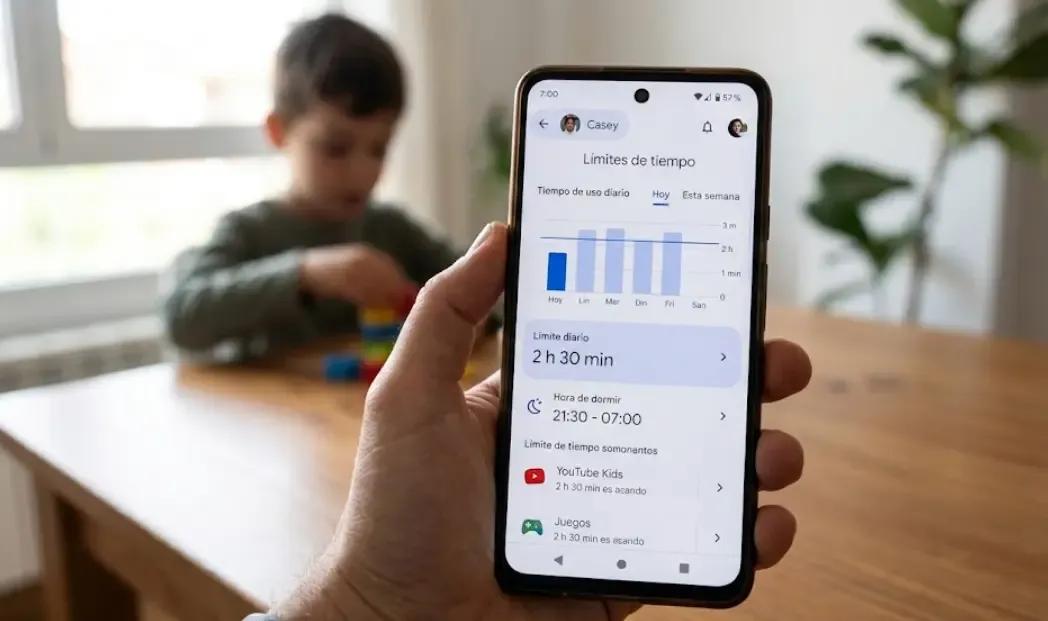
Family Link allows parents to establish screen time boundaries for supported supervised devices.
Depending on the device and settings, you can manage daily limits, schedule downtime, and adjust access when necessary.
For example, you might establish a school-night routine that allows recreational device use after homework but restricts access during bedtime.
This can be helpful for families dealing with repeated arguments about when screen time should end.
What Works Well
- Clear device usage boundaries.
- Scheduled downtime for daily routines.
- Flexibility to adjust limits.
- Controls that support consistent family expectations.
Limitations
Screen time controls don’t automatically teach healthy digital habits.
A child may follow a technical limit without understanding why sleep, exercise, and offline activities matter.
Also, controls may vary by device and may not cover every screen your child uses.
Parental control tools work best when children understand the expectations behind them. Before setting daily limits, consider creating clear screen time rules for kids that balance entertainment, learning, sleep, and family activities.
2. App Management and Google Play Approvals
Verdict: Useful for younger children who are beginning to download apps independently.
Family Link can help parents manage app access on supported devices.
Depending on the configuration, parents may be able to approve certain Google Play downloads and purchases, block selected apps, or manage access to installed applications.
For example, if your child wants to download a new game, you can review whether it’s appropriate before allowing access.
This creates an opportunity to discuss:
- Age ratings.
- In-app purchases.
- Advertising.
- Online multiplayer features.
- Privacy permissions.
- Communication with strangers.
What Works Well
App approvals give parents a practical way to participate in children’s digital decisions.
They may also reduce unexpected downloads or purchases.
Limitations
Approving an app doesn’t mean all content inside it is safe.
Games and social platforms may include user-generated content, chat functions, or changing features.
Some app management options also differ between platforms and account configurations.
Parents should review app settings and talk with their children about online interactions.
3. Location Tracking and Family Safety
Verdict: Helpful for checking a compatible child’s device location, but not a substitute for communication or emergency planning.
Family Link offers location-related features for supported supervised devices.
Parents may be able to view a child’s device location and use available location alerts or related settings.
This can be useful when a child travels to school, visits friends, or participates in after-school activities.
For example, a parent may want to check whether their child’s phone is near an expected location.
What Works Well
- Location features are included without a subscription.
- Parents can use one Google-based service for several supervision tasks.
- Location information may provide reassurance during everyday routines.
Limitations
Location tracking is not guaranteed to work continuously.
Availability and accuracy depend on factors such as:
- Whether the device is powered on.
- Network connectivity.
- Location settings.
- Device permissions.
- Supported hardware and software.
- Environmental conditions.
A location may be delayed, approximate, or unavailable.
Family Link should not be treated as an emergency tracking system or a guarantee of someone’s real-time whereabouts.
It’s also worth discussing location sharing openly with children as they become older and more independent.
4. Google Chrome and SafeSearch Controls
Verdict: Useful basic filtering, but not comprehensive internet protection.
Family Link can help parents manage certain Chrome browsing and Google Search settings for supervised accounts.
Depending on the child’s setup, parents may be able to apply browsing restrictions or manage access to specific websites.
Google’s SafeSearch features can also help filter explicit content in supported Google Search experiences.
These tools can reduce exposure to some unwanted material.
However, they have important limitations.
What Works Well
- Integration with Google’s services.
- Options to restrict access to certain websites.
- Search filtering controls.
- Useful starting protections for younger users.
Limitations
No filtering system catches every inappropriate website, image, or video.
Content may also appear inside third-party apps, messaging services, games, or platforms that aren’t covered by the same restrictions.
Filters can produce false positives and false negatives.
Parents should avoid assuming that enabling SafeSearch makes the entire internet child-safe.
If you’re exploring additional protection, our guide to nudity filters for internet safety explains how content filtering fits into a broader family safety strategy.
5. YouTube and YouTube Kids Controls
Verdict: Helpful when combined with age-appropriate content choices and active parenting.
YouTube is a common concern for parents because it offers an enormous range of content.
Family Link can help parents manage certain YouTube-related settings for eligible supervised accounts.
Depending on the child’s age and account configuration, families may use YouTube Kids or a supervised YouTube experience.
Parents can review available content settings and choose an approach that better matches their child’s needs.
What Works Well
- Age-oriented content experiences.
- Integration with supervised Google accounts.
- Settings that help families manage access.
Limitations
No automated content recommendation or filtering system is perfect.
Children may encounter videos that parents consider inappropriate, even when restrictions are enabled.
For younger children, co-viewing and regularly reviewing content choices remain valuable.
6. School Time and Device Scheduling
Verdict: Useful for families that want different rules for learning and recreation.
On supported devices, Family Link includes scheduling features that can help parents establish boundaries during school or other designated periods.
These tools can help distinguish between times when children should focus on learning and times when recreational device use is permitted.
For example, a family might use a school-day schedule that restricts certain distractions during class hours.
However, school-related device needs vary.
A child may require access to educational apps, communication tools, or accessibility features.
Parents should review the available exceptions and avoid blocking essential functions.
7. Google Account and Privacy Settings
Verdict: Valuable for families already using Google’s ecosystem, but worth reviewing carefully.
Family Link provides parents with ways to manage certain settings associated with supervised Google accounts.
This may include account permissions, app-related controls, and selected privacy or activity settings.
However, parental supervision doesn’t mean unrestricted access to a child’s entire digital life.
Parents should review Google’s disclosures to understand what information is collected, which controls are available, and how supervision changes as children grow older.
A good family safety setup should balance protection with appropriate privacy.
What Can Parents See With Google Family Link?
One of the most common questions about Family Link is how much information parents can actually access.
The answer depends on the feature and the child’s device.
| Activity or Information | Can Parents See It? |
|---|---|
| Supported device location | Yes, when location is available |
| App usage information | Yes, for supported supervised devices |
| Certain installed apps | Yes, through available app management features |
| Screen time information | Yes, on supported devices |
| Private text message contents | No, not through Family Link |
| WhatsApp conversation contents | No |
| Private social media messages | No |
| Live screen viewing | Not a standard Family Link feature |
| Full Chrome browsing history | No general remote history-reading feature |
| All YouTube viewing activity | Not through unrestricted parental access |
Can Google Family Link See Text Messages?
No. Family Link doesn’t provide parents with a feature for reading the contents of their child’s SMS messages.
It also doesn’t provide direct access to private WhatsApp, Instagram, or other messaging conversations.
This is an important limitation for parents expecting a comprehensive monitoring tool.
However, it’s also consistent with Family Link’s focus on account and device supervision rather than secret message surveillance.
Can Google Family Link See Browsing History?
Family Link is not designed to provide parents with a complete remote record of every website their child visits.
Parents can manage certain Chrome and Search restrictions, but these controls are different from viewing a comprehensive browsing history.
Available information can vary by service and device.
Can Google Family Link See YouTube History?
Parents can manage certain YouTube supervision settings, but Family Link should not be understood as a tool that provides unrestricted access to every video a child watches.
Available controls depend on the child’s YouTube experience and account settings.
For specific viewing-history questions, review the current YouTube supervision documentation.
Does Google Family Link Work on iPhone?
Yes for many parents managing compatible devices, but not as a full parental control solution for a child’s iPhone.
This distinction is essential.
Google Family Link supports different capabilities depending on whether the iPhone belongs to the parent or the child.
Scenario 1: Parent Has an iPhone, Child Has an Android Phone
This is a supported use case.
A parent can use the Family Link app on a compatible iPhone to manage an eligible child’s supervised Android device.
Google’s compatibility information currently lists iOS 16 or later for the parent app.
The exact available features depend on the child’s Android device and account setup.
Scenario 2: Parent Has Android, Child Has an iPhone
Family Link cannot provide full device-level supervision of the child’s iPhone.
Some Google account-related settings may still apply when the child uses Google services, but the iPhone itself is not managed in the same way as a compatible Android device.
Parents looking for iPhone screen time controls should consider Apple’s built-in Screen Time features.
Scenario 3: Both Parent and Child Have iPhones
Family Link is generally not the appropriate tool for comprehensive iPhone parental controls.
Apple Screen Time and Family Sharing are more directly suited to managing compatible Apple devices.
Scenario 4: Child Uses a Chromebook
Family Link can provide supervision features for compatible Chromebooks.
The available settings may differ from those on Android phones.
Google Family Link Device Compatibility
| Parent’s Device | Child’s Device | Full Family Link Device Supervision? |
|---|---|---|
| Android | Compatible Android | Yes |
| iPhone | Compatible Android | Yes |
| Android | iPhone | No |
| iPhone | iPhone | No |
| Android or iPhone | Compatible Chromebook | Supported, with platform-specific controls |
Important: Having the Family Link app installed on an iPhone does not mean Family Link can fully control that iPhone as a child’s device.
Google Family Link Pros and Cons
| Pros | Cons |
|---|---|
| Free core parental controls | Limited child iPhone support |
| Useful Android screen time limits | Not a comprehensive content filter |
| Google Play app management | Cannot read private messages |
| Location features on supported devices | Location availability can vary |
| Integration with Google accounts | Limited visibility into third-party apps |
| Chromebook supervision options | Some settings depend on device and age |
| No required premium subscription | Doesn’t replace communication or digital education |
Biggest Advantage: Free, Practical Android Controls
The strongest reason to choose Family Link is its combination of cost and basic functionality.
Parents who want to establish screen time limits, manage app access, and supervise compatible Android devices may not need a paid subscription.
For many families, that’s enough.
Biggest Disadvantage: Limited Cross-Platform Support
The most significant drawback is its limited ability to manage children’s Apple devices.
If your child uses an iPhone, you shouldn’t expect Family Link to provide the same controls available for a supervised Android device.
This matters especially for households where family members use different operating systems.
Google Family Link Limitations: What It Cannot Do
Understanding Family Link’s limitations is just as important as understanding its features.
1. It Cannot Fully Supervise a Child’s iPhone
Family Link is primarily designed around Google’s supported supervision ecosystem.
For iPhone device-level parental controls, Apple’s own tools are generally more appropriate.
2. It Cannot Read Private Conversations
Family Link doesn’t provide access to the contents of children’s private text messages or third-party messaging conversations.
Parents should not confuse app management with message monitoring.
3. It Cannot Guarantee Complete Content Filtering
Even when browsing restrictions are enabled, inappropriate content may still appear.
Children can encounter material through different apps, services, and content formats.
No parental control product should be treated as a guarantee of complete online protection.
4. It Cannot Guarantee Continuous Location Tracking
Device location may be unavailable when a phone is offline, powered down, or unable to determine its position.
Location information should be treated as a helpful feature rather than a guaranteed safety system.
5. It Doesn’t Provide Full Visibility Into Social Media Activity
Parents may be able to manage whether certain apps are installed or accessible on supported devices.
However, Family Link does not provide a complete record of conversations, posts, or interactions inside third-party social platforms.
6. It Cannot Replace Digital Parenting
Technical restrictions may reduce some risks, but they don’t automatically teach children how to make responsible decisions.
Children still need guidance about:
- Cyberbullying.
- Online privacy.
- Scams.
- Inappropriate content.
- Healthy screen habits.
- Digital relationships.
- Asking for help when something goes wrong.
7. Supervision Changes as Children Grow
Google account supervision and related options can change when children reach the applicable age for managing their own accounts.
The rules depend on country, account status, and Google’s current policies.
Parents should review these changes before assuming that every restriction will remain available indefinitely.
Can Kids Bypass Google Family Link?
No parental control system is completely bypass-proof.
Family Link can enforce useful restrictions on supported devices, but its effectiveness depends on the device, configuration, account settings, and the child’s access to other technology.
A child may also use an unsupervised device or another account, which means Family Link cannot necessarily manage every digital activity.
Rather than focusing entirely on preventing every possible workaround, parents should:
- Keep devices and software updated.
- Review supervision settings regularly.
- Use appropriate account permissions.
- Discuss why rules exist.
- Set expectations for devices outside the home.
- Encourage children to raise concerns openly.
If your child repeatedly tries to avoid screen time restrictions, consider whether the current rules are realistic and whether they understand the reasons behind them.
Technical controls work best alongside trust and clear communication.
Google Family Link vs. Apple Screen Time
Google Family Link and Apple Screen Time are both useful parental control options, but they are designed for different device ecosystems.
| Feature | Google Family Link | Apple Screen Time |
|---|---|---|
| Price | Free | Built into supported Apple devices |
| Best suited for | Android and Chromebook families | iPhone, iPad, and other supported Apple devices |
| Daily app limits | Supported | Supported |
| Scheduled downtime | Supported | Supported |
| App and content restrictions | Supported, varies by device | Supported within Apple’s ecosystem |
| Location-related family features | Available on supported devices | Available through Apple’s family/location services |
| Full child iPhone supervision | No | Yes, on supported devices |
| Full child Android supervision | Yes, on supported devices | No |
Which Is Better?
Choose Google Family Link if your child uses a compatible Android device and you want free, practical parental controls.
Choose Apple Screen Time if your child primarily uses an iPhone or iPad.
If your family uses both Android and Apple devices, you may need different controls for each platform.
Neither solution guarantees that children will never encounter online risks.
Google Family Link vs. Paid Parental Control Apps
Paid parental control services may offer additional features beyond Google’s free tools.
Depending on the product, these can include:
- More detailed web filtering.
- Support for multiple device platforms.
- Additional activity reports.
- Specialized content alerts.
- Different location-related features.
- Centralized management for mixed-device families.
However, paid doesn’t automatically mean better.
Some services may collect sensitive family information, require extensive device permissions, or offer features that don’t work consistently across platforms.
Before subscribing, review the service’s privacy policy, device compatibility, refund terms, and actual feature limitations.
For families comparing different parental control solutions, it’s important to evaluate device compatibility, privacy policies, screen time tools, and content filtering before making a decision. Our guide on how to choose a parental control app explains the key features parents should consider.
When Is a Paid App Worth Considering?
A paid solution may be worth evaluating if:
- You need controls that Family Link doesn’t offer.
- Your family uses several different device platforms.
- You want specialized filtering or reporting features.
- A particular tool supports a clearly identified family need.
Before paying, confirm that the advertised feature works on your child’s specific device and operating system.
Is Google Family Link Safe?
Google Family Link is a legitimate parental control service provided by Google.
However, whether it’s appropriate for your family depends on how you configure it, what information you share, and your expectations about privacy.
Parents should review:
- Google’s privacy disclosures.
- The child’s account settings.
- Location-sharing permissions.
- App access and approval settings.
- Device compatibility.
- Age-related supervision changes.
It’s also important to discuss supervision with children in an age-appropriate way.
For example, you might explain:
“We’re using Family Link to help manage apps and screen time while you learn how to use your phone responsibly.”
This is generally more constructive than treating the tool as a secret way to watch everything a child does.
A safer digital environment requires both appropriate technology settings and a relationship where children feel comfortable asking for help.
Who Should Use Google Family Link?
Best for Families With Younger Android Users
If your child has a compatible Android phone, Family Link provides a useful starting point for screen time management, app approvals, and basic supervision.
Good for Parents Who Want Free Controls
Families who don’t need specialized monitoring features may find that Google’s free tools meet their needs.
Useful for Chromebook Households
Family Link can help manage eligible supervised Google accounts and supported Chromebook features.
Less Suitable for Child iPhone Users
If your child primarily uses an iPhone, Apple Screen Time is generally the more relevant starting point.
Not Designed for Secret Monitoring
Family Link isn’t intended for secretly reading messages or accessing private conversations.
Parents seeking healthy digital habits should focus on transparent, age-appropriate supervision.
How to Get Started With Google Family Link
If Family Link seems appropriate for your family, begin with the official setup process.
Step 1: Check Device Compatibility
Confirm that your device and your child’s device support the features you want to use.
Step 2: Review Your Child’s Google Account
Determine whether your child needs a supervised account or whether supervision can be added to an eligible existing account.
Step 3: Install or Open Family Link
Use Google’s official Family Link app or supported setup options.
Avoid downloading unofficial apps claiming to provide enhanced Family Link capabilities.
Step 4: Configure Basic Controls
Start with a few practical settings:
- Daily screen time.
- Downtime.
- App permissions.
- Content settings.
- Location permissions, if appropriate.
Step 5: Explain the Rules
Talk with your child about what the controls do and why you’re using them.
Invite age-appropriate questions.
Step 6: Review Settings Regularly
As your child’s responsibilities and needs change, revisit the settings together.
For official instructions, visit Google Family Link.
Is Google Family Link Worth It in 2026?
Yes, Google Family Link is worth considering if your child uses a compatible Android device or Chromebook and you want free, practical parental controls.
Its biggest strengths are screen time management, app supervision, location-related features, and integration with Google’s ecosystem.
For families whose needs are relatively straightforward, it may be sufficient without a paid subscription.
However, Family Link isn’t the best solution for every household.
Its limited child iPhone support, imperfect content filtering, and lack of private-message monitoring are important limitations.
If you need broader device compatibility or specialized tools, compare alternatives based on verified features rather than marketing promises.
Most importantly, remember that parental controls are only one part of digital parenting.
Children also need opportunities to develop judgment, independence, and healthy technology habits.
Frequently Asked Questions
1. Is Google Family Link free?
Yes. Google Family Link is free to use, and its core parental control features do not require a paid subscription. Supported features include screen time management, app controls, and certain location and account settings. Availability depends on the child’s device, account, and region.
2. Is Google Family Link safe?
Google Family Link is an official Google service that provides parental supervision features. However, no app can guarantee complete online safety. Parents should review account privacy settings, explain supervision to their children, and combine technical controls with conversations about digital safety.
3. Does Google Family Link work on iPhone?
Parents can use Family Link on a compatible iPhone to supervise an eligible child’s Android device. However, Family Link cannot provide full device-level supervision of a child’s iPhone or iPad. Families using Apple devices should consider Apple Screen Time and Family Sharing.
4. Can Google Family Link see text messages?
No. Family Link does not provide parents with a feature for reading the contents of their child’s private SMS messages or conversations in apps such as WhatsApp and Instagram. It focuses on supported device, app, account, and screen time controls.
5. Can Google Family Link see browsing history?
Family Link can help manage certain Chrome browsing restrictions and Google Search settings, but it does not provide a general remote feature for viewing a child’s complete browsing history. Available supervision controls depend on the child’s account and device.
6. Can Google Family Link track location?
Yes, Family Link offers location-related features for compatible supervised devices. However, the device generally needs appropriate settings, connectivity, and location availability. Information may be delayed or unavailable, so it should not be relied on as a guaranteed emergency tracking service.
7. Can kids bypass Google Family Link?
No parental control system is completely bypass-proof. Family Link’s effectiveness depends on the device, account configuration, and available controls. Children may also access other devices that aren’t supervised. Parents should review settings regularly and explain the reasons behind family technology rules.
8. Does Google Family Link work for teenagers?
Family Link can support eligible supervised teen accounts, but the available controls and supervision arrangements depend on age, country, and account status. As teenagers mature, parents should review supervision settings and gradually encourage appropriate independence.
9. What are the disadvantages of Google Family Link?
Its main disadvantages include limited child iPhone support, imperfect content filtering, no access to private message contents, and limited visibility into third-party social apps. Some location and supervision features also depend on device compatibility and connectivity.
10. Is Google Family Link better than Apple Screen Time?
Neither is universally better. Google Family Link is generally more suitable for supervising compatible Android devices and Chromebooks, while Apple Screen Time is designed for supported Apple devices. The better option depends primarily on your child’s device and the controls your family needs.
Final Verdict
Google Family Link is one of the most practical free parental control options for families using supported Android devices.
It provides useful tools for managing screen time, approving apps, and establishing basic digital boundaries without requiring a subscription.
But it’s not an all-in-one monitoring solution.
It won’t fully supervise a child’s iPhone, read private conversations, or guarantee protection from every online risk.
Our recommendation: Start with Google Family Link if your family uses compatible Android devices and needs straightforward parental controls. Evaluate paid alternatives only when you have specific needs that Google’s tools cannot meet.
Above all, use parental controls to support your child’s digital development—not as a replacement for communication, trust, and responsible parenting.
Sources and Further Reading
- Google Family Link — Official Website
- Google Family Link Help Center
- Google — Families and Children’s Privacy
- Apple — Use Screen Time on Your iPhone or iPad
- American Academy of Pediatrics — Media and Children
Editorial disclosure: This review is based on publicly available product documentation and an assessment of advertised capabilities and limitations. We have not independently tested Family Link on physical devices for this article. Product features, device compatibility, and policies may change.