

What is the best parental control app for iPhone? For most families, the best place to start is Apple’s built-in Screen Time and Family Sharing. They’re free, designed for the iPhone, and cover many essential controls. If you need more detailed web filtering, custom app schedules, or specialized safety alerts, third-party options such as Qustodio, OurPact, and Bark may be worth considering.
But choosing an iPhone parental control app isn’t as simple as picking the product with the longest feature list.
Apple places important restrictions on what third-party apps can access. A feature that works on Android might work differently—or not at all—on an iPhone.
That’s why this guide focuses specifically on parental control apps that can help manage a child’s iPhone, rather than apps that merely allow parents to monitor an Android phone from their own iPhone.
Below, we compare six options, explain their strengths and limitations, and help you decide whether a paid subscription is worth it.
Editorial disclosure: This is a research-based comparison using official product documentation, platform support information, and published feature descriptions. We have not independently tested these apps on physical iPhones. Recommendations reflect documented capabilities and intended use cases, not hands-on performance scores. Some links may be affiliate links if identified as such.
Best Parental Control Apps for iPhone: Quick Comparison
| App | Best For | Price Model | Main Strength | Main Limitation |
|---|---|---|---|---|
| Apple Screen Time | Best free option | Free, built in | Native iPhone controls | Fewer specialized reports |
| Qustodio | Best for broader family management | Free limited option; paid plans | Web filtering and cross-platform tools | Some iOS features need extra setup |
| OurPact | Best for app blocking and schedules | Free and paid options | Custom app rules and screen schedules | Some features require additional configuration |
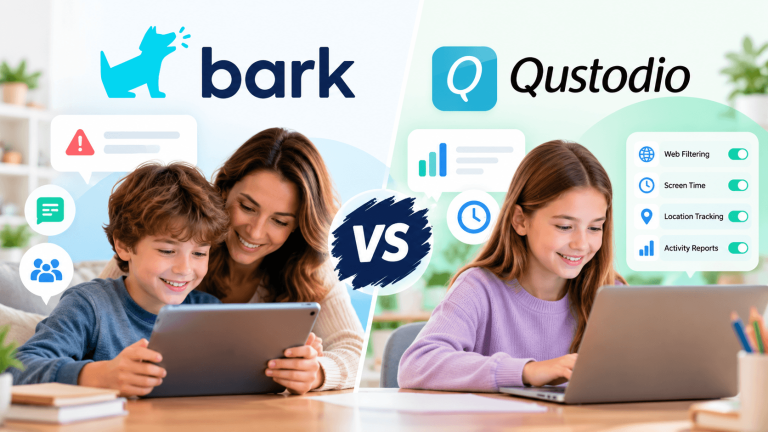
| Bark | Best for specialized safety alerts | Paid options | Alerts for selected concerning content | iPhone monitoring requires specific setup |
| Net Nanny | Best for web filtering | Paid | Content filtering and family dashboard | Platform-specific limitations |
| Apple Family Sharing | Best for family setup and purchase approvals | Free | Child accounts and Ask to Buy | Works alongside Screen Time, not a separate comprehensive filter |
Our recommendation: Start with Apple Screen Time. If it doesn’t meet your needs, compare Qustodio for broader controls, OurPact for app scheduling, or Bark for supported safety-alert features.
The right choice depends on your child’s age, the iPhone model and software version, your family rules, and how much supervision is appropriate.
How We Chose These iPhone Parental Control Apps
We considered six factors that matter when managing a child’s iPhone.
1. Actual iPhone Compatibility
We prioritized products that offer documented features for a child’s iPhone.
An app being available in the App Store does not automatically mean it can control a child’s device.
2. Screen Time and App Management
We examined whether each option offers daily limits, downtime, app blocking, or scheduled access.
3. Content Filtering
We considered tools for restricting inappropriate websites and content, while recognizing that no filter is completely effective.
4. Family Safety Features
Location sharing, purchase approvals, and risk alerts can be useful, but their availability and reliability vary.
5. Privacy and Transparency
Parental control software can access sensitive family information. We considered the importance of clear disclosures, permissions, and age-appropriate supervision.
6. Value for Money
We compared free built-in controls against the additional features offered by paid services.
We did not assign numerical scores because doing so without consistent hands-on testing would imply a level of measurement this comparison does not provide.
1. Apple Screen Time — Best Free Parental Control for iPhone
Best for: Families who want essential iPhone parental controls without paying for another app.
Price: Free, built into compatible Apple devices.
Official resource: Apple Screen Time
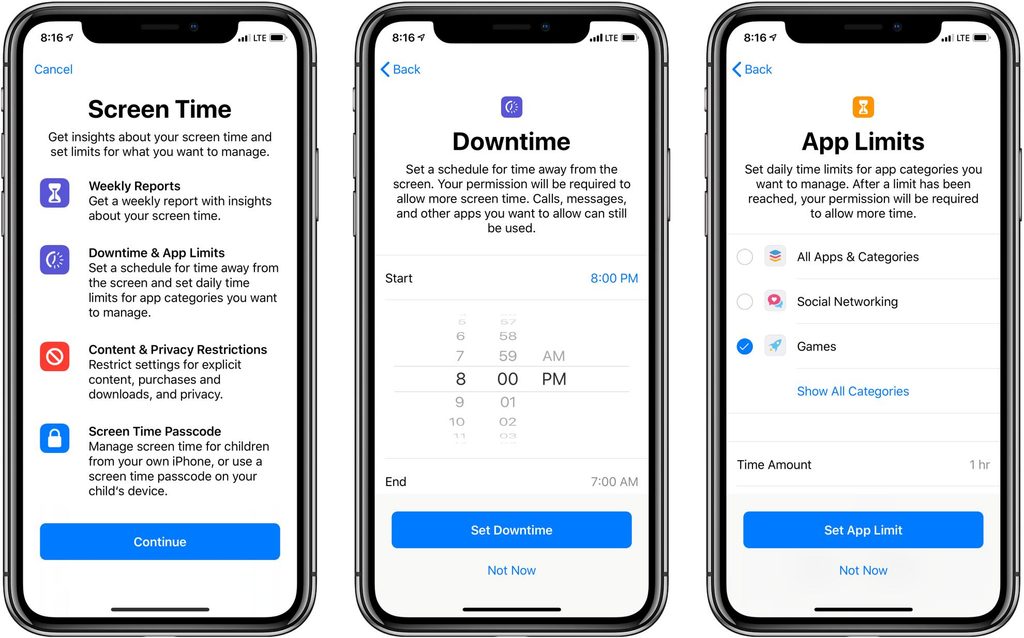
Apple Screen Time is our first recommendation for most families because it’s integrated into the iPhone operating system.
Parents can use it to establish screen time boundaries, manage app access, restrict content, and support healthier digital habits.
When combined with Family Sharing, eligible parents can manage their child’s settings through supported Apple devices.
Key Features
- Daily app and category limits.
- Downtime schedules.
- Content and privacy restrictions.
- App and website usage information.
- Communication-related controls.
- Purchase and download restrictions.
- Family Sharing integration.
Apple’s 2026 updates introduced additional child-safety tools in iOS 27, including Time Allowances, Ask to Browse, and a redesigned Screen Time experience.
Availability depends on device compatibility, software updates, region, and family configuration.
Pros
- No subscription required.
- Built directly into iOS.
- Useful for everyday screen time management.
- Works with Apple’s family account features.
- Reduces the need to install another monitoring service.
- Strong starting point for younger iPhone users.
Cons
- Less specialized reporting than some third-party services.
- Doesn’t provide unrestricted access to private conversations.
- Advanced features vary by iOS version.
- Parents may need additional tools for specialized requirements.
- Family management is most straightforward within Apple’s ecosystem.
Who Should Choose Apple Screen Time?
Choose Screen Time if your main goals are to:
- Limit recreational app use.
- Create a consistent bedtime routine.
- Restrict inappropriate content.
- Manage downloads and purchases.
- Help your child develop responsible device habits.
For many families, these features are sufficient.
Our verdict: Apple Screen Time is the best free starting point for parental controls on a child’s iPhone. Try it before paying for a third-party subscription.
2. Qustodio — Best for Broader Parental Control Features
Best for: Families that want web filtering, screen time management, location features, and support across multiple device platforms.
Price: Limited free option and paid plans; check current pricing.
Official website: Qustodio
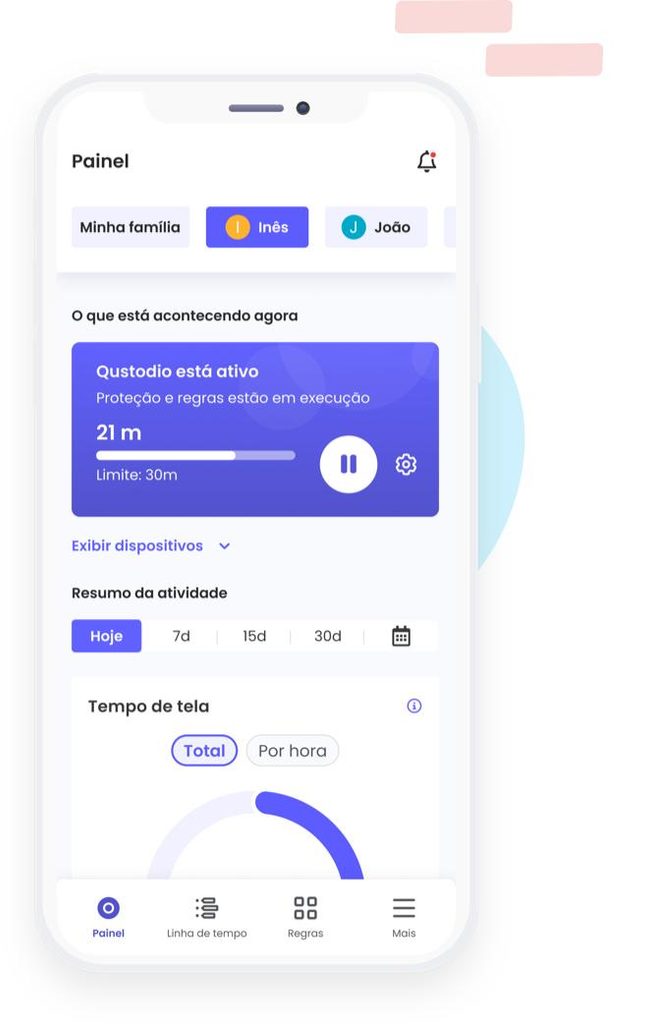
Qustodio is a well-established parental control service that supports iPhone, Android, and several desktop platforms.
Its iOS features include web filtering, screen time controls, app management for supported apps, location monitoring, and activity information.
This makes it worth considering if your household uses several types of devices.
Key Features
- Website filtering in supported browsers.
- Daily screen time limits.
- Restricted-time schedules.
- Management of compatible apps.
- Location monitoring.
- Activity reporting.
- Selected YouTube-related controls.
- Optional communication-monitoring features with additional requirements.
What Makes Qustodio Different?
Qustodio brings several supervision tools into one dashboard.
For families with both iPhones and Android devices, that may be more convenient than relying entirely on separate operating-system controls.
However, Qustodio’s Android and iOS capabilities are not identical.
For example, its official documentation explains that some iOS communication and social-monitoring features require a computer-based setup.
App monitoring and blocking are also limited to supported applications.
Pros
- Works across multiple operating systems.
- Combines web filtering and time management.
- Supports location-related features.
- Provides more specialized reporting options.
- Offers a limited free option.
Cons
- Advanced features may require a paid plan.
- Not all Android features work the same way on iPhone.
- Some iOS monitoring requires additional computer setup.
- App management depends on supported applications.
- Families should carefully review sensitive-data permissions.
Who Should Choose Qustodio?
Consider Qustodio if:
- You manage several children’s devices.
- Your family uses a mix of iPhone and Android.
- You need additional web filtering.
- You want more detailed supervision tools than Apple’s basic controls provide.
Our verdict: Qustodio is a strong option for families needing broader controls, but check its iOS feature list before subscribing.
3. OurPact — Best for iPhone App Blocking and Screen Time Schedules
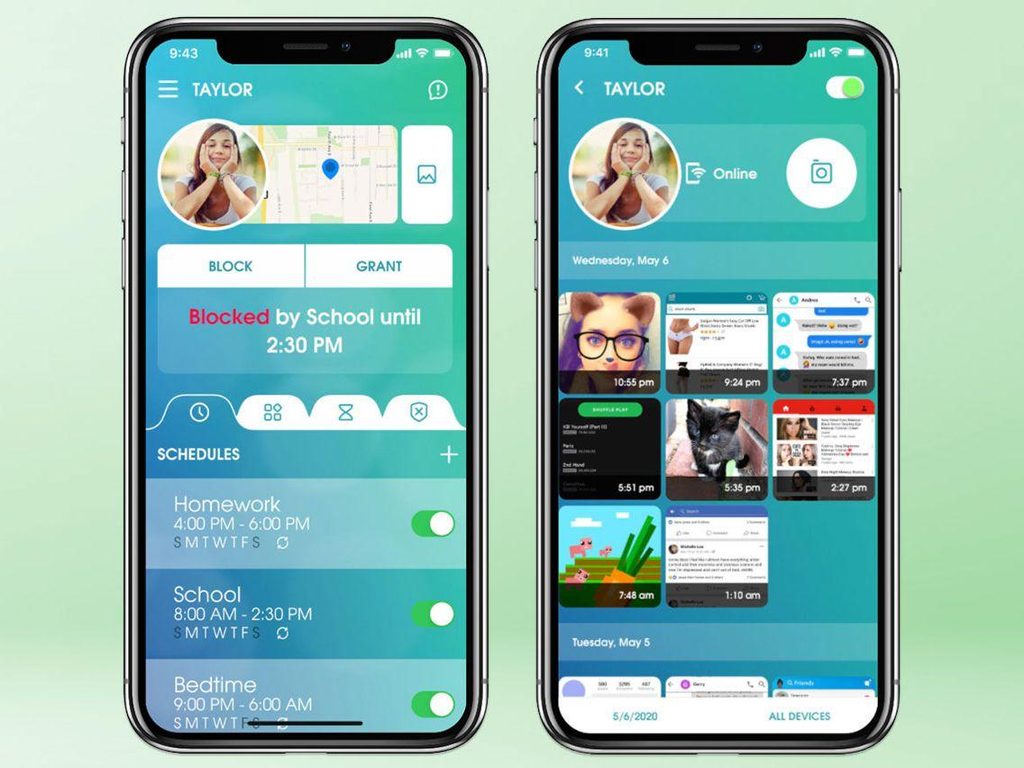
Best for: Parents who want flexible schedules and more direct control over when selected apps can be used.
Price: Free and paid options; advanced features depend on the plan.
Official website: OurPact
OurPact focuses heavily on app management and screen time routines.
Its advertised features include scheduled blocks, app rules, screen time allowances, website restrictions, location features, and optional screen-view monitoring.
For families whose biggest problem is repeated arguments about games, social apps, or bedtime device use, this emphasis may be useful.
Key Features
- Scheduled app blocking.
- Daily screen time allowances.
- Rules for specific apps.
- Website restrictions.
- Location-related features.
- New app alerts.
- Optional screenshot-based activity monitoring.
What Makes OurPact Different?
OurPact offers flexible scheduling tools that can help parents distinguish between school hours, homework, recreation, and bedtime.
For example, a family might allow selected educational apps during homework time while restricting games and social apps.
However, some OurPact features require specific device setup steps.
Its documentation also explains that Apple’s newer operating-system restrictions affect how management profiles can be protected against removal.
That makes current iOS compatibility particularly important to verify.
Pros
- Strong emphasis on app scheduling.
- Customizable rules.
- Useful for predictable daily routines.
- Location and family management features.
- Options for managing multiple children.
Cons
- Advanced features may require payment.
- Setup can be more involved than native Screen Time.
- Some controls depend on iOS version and device configuration.
- Screenshot-based monitoring raises privacy considerations.
- Device-management limitations can change with Apple updates.
Who Should Choose OurPact?
OurPact may be suitable if your main priorities are:
- Blocking distracting apps during homework.
- Establishing different weekday and weekend schedules.
- Creating clear app access rules.
- Managing multiple children’s screen time.
Our verdict: OurPact is worth evaluating for families that need more customizable app scheduling than their current Screen Time setup provides.
4. Bark — Best for Specialized Online Safety Alerts
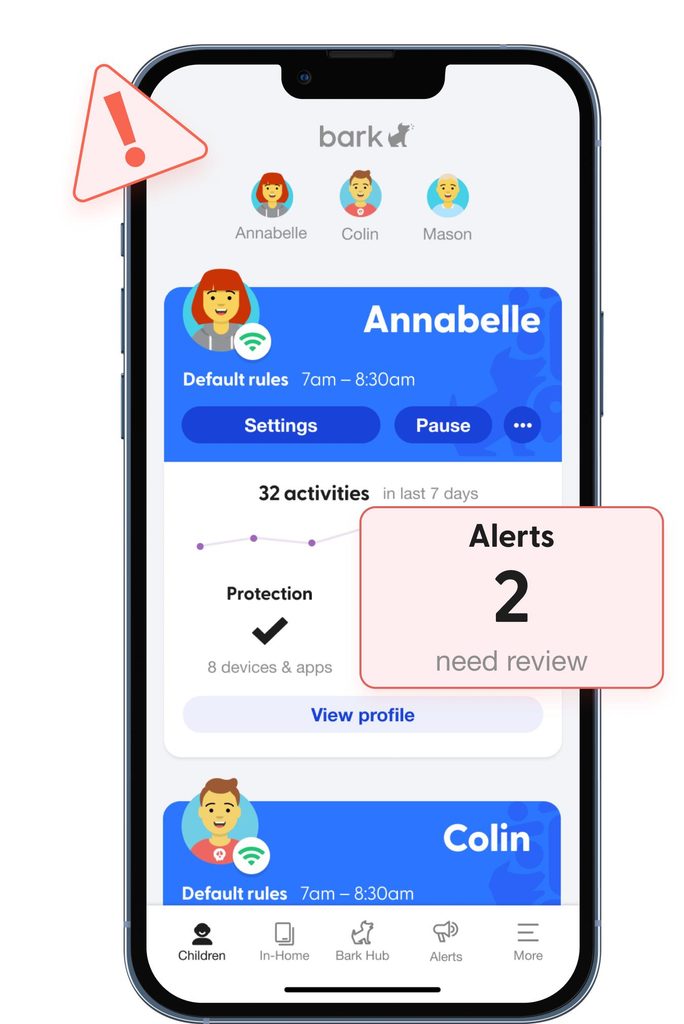
Best for: Parents who want alerts about certain potentially concerning online activity and are comfortable with the additional setup and privacy considerations.
Price: Paid options; check current plans and supported features.
Official website: Bark
Bark takes a different approach from parental control apps focused primarily on daily screen time.
It emphasizes identifying selected potential risks in supported digital content, such as bullying, sexual content, and other concerning interactions.
Bark also offers additional parental control features depending on the service and device.
However, Bark’s iPhone monitoring is more limited and more complicated than its Android monitoring.
Key Features
Depending on the service and setup:
- Alerts for selected concerning content.
- Monitoring of certain supported message and media sources.
- Screen time and website-related controls.
- Family safety tools.
- Parent notifications.
- iPhone monitoring through supported computer or hardware-based methods.
Important iPhone Limitation
Bark’s official documentation explains that its iOS monitoring can require a computer-based application, Bark Sync, or Bark Home.
Some scanning depends on the child’s device connecting to the appropriate network or setup.
Alerts may not be immediate, and not every third-party app or conversation can be monitored.
Parents should check exactly which services are supported before paying.
Pros
- Focuses on specific online safety concerns.
- Offers alerts rather than only time limits.
- May help identify certain concerning content.
- Provides multiple family safety tools.
Cons
- iPhone setup can be more complex.
- Monitoring coverage varies significantly by platform.
- Some scans and alerts are delayed.
- Not every messaging or social platform is supported.
- Sensitive-content monitoring requires careful privacy consideration.
Who Should Choose Bark?
Bark may be worth considering if your family has a clearly defined need for specialized safety alerts.
It is less appropriate if you simply want an easy, free way to limit games or establish bedtime downtime.
Our verdict: Bark is a specialized option, not our default recommendation for every iPhone family. Understand its iOS setup requirements and privacy implications first.
5. Net Nanny — Best for Families Prioritizing Web Filtering
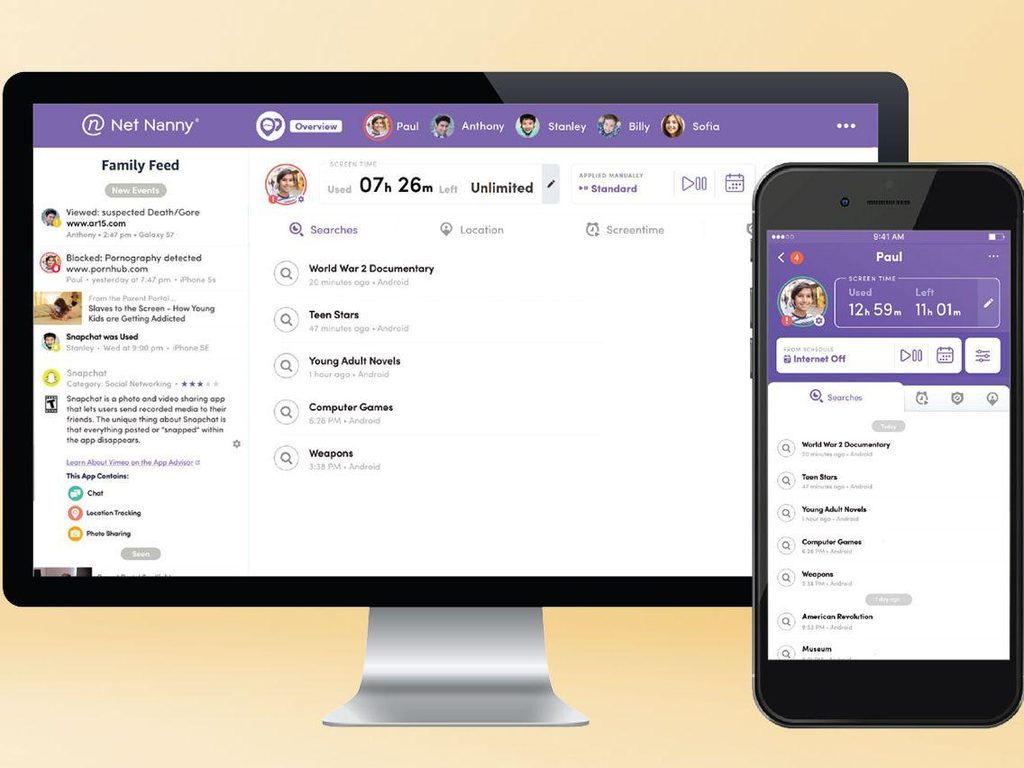
Best for: Families seeking dedicated website filtering and internet content management.
Price: Paid; check current subscriptions and supported devices.
Official website: Net Nanny
Net Nanny is a parental control service known for internet filtering and family supervision tools.
Its published features include website blocking, internet filtering, screen time management, app-related controls, location features, and activity reporting.
The exact capabilities vary by device and platform.
Key Features
- Website and content filtering.
- Screen time management.
- Parent dashboard.
- Internet activity information.
- Selected app-related controls.
- Location features where supported.
What Makes Net Nanny Different?
Net Nanny may appeal to parents who prioritize managing access to websites and online content.
However, internet filtering on iPhone has inherent limitations.
Content inside apps, encrypted services, and certain third-party platforms may not be controlled in the same way as ordinary browser activity.
Pros
- Dedicated filtering focus.
- Family management features.
- Website restrictions.
- Tools beyond basic screen time limits.
Cons
- Paid subscription.
- Feature availability varies by operating system.
- Filtering cannot guarantee complete protection.
- Families should verify current iPhone support before purchasing.
Who Should Choose Net Nanny?
Consider Net Nanny if website filtering is your main concern and you’ve confirmed that its current iOS features meet your requirements.
Our verdict: A potential option for content-focused families, but compare its iPhone capabilities carefully against Qustodio and Apple’s built-in controls.
6. Apple Family Sharing — Best for Managing Child Accounts and Purchases
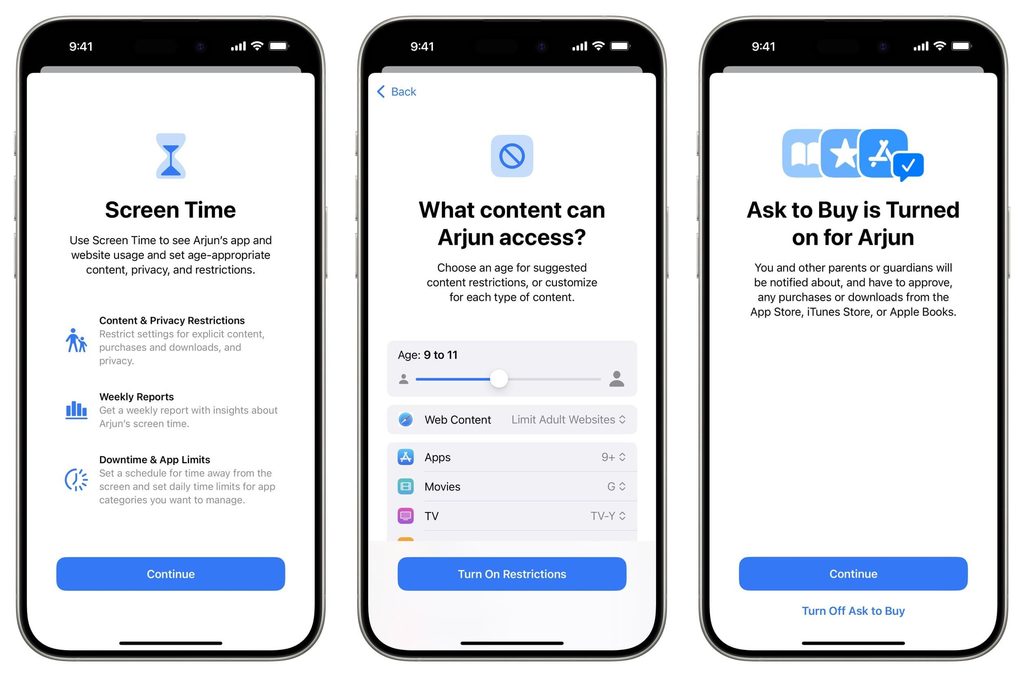
Best for: Parents who want to manage their child’s Apple account, purchase approvals, and family settings.
Price: Free to set up; purchases and subscriptions are separate.
Official resource: Apple Family Sharing
Family Sharing isn’t a separate third-party parental control app.
Instead, it’s an important part of Apple’s built-in family management system.
We include it because parents searching for iPhone parental controls often need to understand how Family Sharing and Screen Time work together.
Key Features
- Family account organization.
- Child account management.
- Ask to Buy purchase approvals.
- Integration with Screen Time.
- Supported family location-sharing features.
- Family subscription sharing options.
Pros
- Built into Apple’s ecosystem.
- No separate parental control subscription required.
- Useful purchase approvals.
- Works alongside Screen Time.
- Helps families manage eligible child accounts.
Cons
- Not a dedicated advanced content-filtering service.
- Most useful when family members use Apple devices.
- Available controls depend on account and device configuration.
Who Should Use Family Sharing?
Families using iPhones should review Family Sharing before installing additional apps.
For many households, Family Sharing plus Screen Time provides the most sensible starting point.
Which Parental Control App Is Best for Your Child’s iPhone?
There is no single app that is best for every family.
The right choice depends on the problem you’re trying to solve.
| Your Main Priority | Option to Consider First |
|---|---|
| Free screen time limits | Apple Screen Time |
| Child account and purchase approvals | Apple Family Sharing |
| Multi-platform family management | Qustodio |
| Custom app blocking schedules | OurPact |
| Specialized safety alerts | Bark |
| Dedicated website filtering | Net Nanny or Qustodio |
Before choosing a paid product, identify which feature Apple’s built-in tools cannot provide for your family.
That will help you avoid paying for functionality you may already have.
Are Free Parental Control Apps for iPhone Good Enough?
For many families, yes.
Apple Screen Time and Family Sharing cover several important needs without an additional subscription.
You can establish downtime, manage app usage, restrict content, and control certain purchases.
This may be sufficient for a younger child who is learning how to use an iPhone responsibly.
A paid app becomes more relevant when you need a specific feature that the built-in tools don’t provide.
For example:
- More detailed website filtering.
- A particular type of app scheduling.
- Centralized controls for mixed-device families.
- Specialized safety alerts.
- Additional reporting.
Even then, you should confirm that the feature actually works on your child’s iPhone.
Don’t assume a paid app provides better protection simply because it costs more.
Why Parental Control Apps Work Differently on iPhone and Android
iPhone and Android use different security and permission systems.
Apple limits how third-party apps access information and control other apps.
These restrictions are designed in part to protect user privacy and device security, but they also affect parental control software.
As a result, a third-party service may offer different features on Android and iPhone.
For example:
- App monitoring may cover fewer apps on iOS.
- Certain communication-monitoring features may require computer setup.
- Some controls rely on Apple’s supported device-management frameworks.
- Social media monitoring may not cover every platform.
- Software updates can change how management features work.
Always check the child-device compatibility table—not just the parent app’s App Store listing.
An app that lets a parent use an iPhone dashboard to supervise Android does not necessarily provide equivalent controls on a child’s iPhone.
Does Google Family Link Work on a Child’s iPhone?
Google Family Link is a popular free parental control service, but it is not a full device-level parental control solution for a child’s iPhone.
A parent can use Family Link on a compatible iPhone to supervise an eligible child’s Android device.
However, that doesn’t mean Family Link can manage the child’s iPhone screen time and apps in the same way.
For a detailed explanation of its strengths and limitations, read our Google Family Link review.
For families whose children use iPhones, Apple’s Screen Time and Family Sharing should generally be evaluated first.
What Features Should You Look for in an iPhone Parental Control App?
Before downloading an app, consider the following checklist.
Screen Time Limits
Can you set daily limits and schedule downtime?
Does the app control the entire device or only selected activities?
App Blocking
Can you block or schedule specific apps?
Are the apps your child uses actually supported?
Content Filtering
Does the tool filter websites, search results, or content inside apps?
What are its limitations?
Location Sharing
Does it provide location information?
What happens when the device is offline or location permissions are disabled?
Privacy and Data Collection
What information does the company collect?
Does it access messages, photos, location history, or browsing information?
How long is that data retained?
Setup Requirements
Does the app require a computer, device-management profile, VPN configuration, or additional hardware?
Price and Cancellation
Is the product free, subscription-based, or sold as a one-time purchase?
How many devices are covered?
Are important features restricted to higher-priced plans?
For a broader comparison framework, see our guide on how to choose a parental control app.
How to Set Up Parental Controls on Your Child’s iPhone
If you’re starting with Apple’s built-in controls, follow these general steps.
Step 1: Set Up Family Sharing
If appropriate for your family, create or configure a Family Sharing group and your child’s Apple account.
Step 2: Open Screen Time
On the relevant Apple device, open Settings and find Screen Time.
The exact menu options may differ by iOS version.
Step 3: Configure Downtime
Choose times when recreational app access should be restricted, such as bedtime or family meals.
Step 4: Set App Limits
Review which app categories or individual apps need boundaries.
Step 5: Review Content and Privacy Restrictions
Configure age-appropriate restrictions for content, purchases, and other available settings.
Step 6: Review Communication and Safety Features
Check the available communication and child-safety settings for your child’s age and device.
Step 7: Explain the Rules to Your Child
Discuss why you’re setting limits and what your child should do if something online makes them uncomfortable.
Step 8: Revisit the Settings
As your child grows, adjust the controls to reflect their responsibilities and need for independence.
For additional ideas, our guide to screen time rules for kids includes age-based guidance and a printable family agreement.
Parental Control Apps for iPhone by Age
The right amount of supervision changes as children develop.
Ages 5–8: Simple Rules and Close Guidance
Prioritize:
- Age-appropriate content.
- Limited, predictable recreational screen time.
- Purchase approvals.
- Clear device-free routines.
- Adult involvement in online activities.
Apple Screen Time and Family Sharing may be sufficient for many children in this age group.
Ages 9–12: More Independence With Clear Boundaries
Consider:
- App download permissions.
- Screen time schedules.
- Online privacy discussions.
- Group chat and gaming safety.
- Appropriate website restrictions.
- Regular family check-ins.
A third-party tool may help if you have a specific unmet need.
Ages 13–17: Safety, Privacy, and Collaboration
Teenagers need growing independence.
Focus on:
- Healthy sleep and notification habits.
- Responsible social media use.
- Cyberbullying awareness.
- Privacy and location-sharing choices.
- Recognizing scams and unsafe interactions.
- Collaborative decisions about supervision.
Avoid assuming that more monitoring automatically creates more safety.
The goal is to help teenagers develop the skills to manage technology responsibly.
Common Mistakes Parents Make When Choosing iPhone Parental Controls
Choosing an App Based Only on Android Reviews
A service may perform well on Android while offering fewer features on iOS.
Always review iPhone-specific documentation.
Paying Before Trying Apple Screen Time
Built-in controls may already solve your main problem.
Try them first.
Assuming Every App Can Monitor Private Messages
iOS restrictions mean communication-monitoring features vary considerably.
Some services require additional setup, and others don’t offer this functionality.
Ignoring Privacy Policies
A parental control app may collect highly sensitive information about your child.
Review permissions, data collection, and retention practices.
Treating Location as a Guarantee
Location services can be delayed or unavailable.
They shouldn’t replace communication or emergency planning.
Setting Rules Without Explaining Them
Children are more likely to understand boundaries when parents explain their purpose and review them as children grow.
Frequently Asked Questions
1. What is the best parental control app for iPhone?
Apple Screen Time is the best starting point for most families because it’s free and integrated into iOS. For additional features, Qustodio, OurPact, Bark, and Net Nanny may be worth evaluating. The best choice depends on your child’s device, age, and your family’s specific needs.
2. Is there a free parental control app for iPhone?
Yes. Apple’s built-in Screen Time and Family Sharing provide free parental control features. Some third-party apps also offer limited free options or trials, but their features and pricing can change.
3. Is Apple Screen Time better than third-party parental control apps?
Apple Screen Time is often sufficient for basic app limits, downtime, and content restrictions. Third-party apps may offer specialized filtering, scheduling, or alerts. Whether those features are better depends on your requirements and the app’s actual iOS compatibility.
4. Can I control my child’s iPhone from my Android phone?
Some third-party services offer parent dashboards on Android and support selected controls on a child’s iPhone. However, available features vary. Apple’s native family-management experience is most directly designed for supported Apple devices. Check the specific product’s cross-platform support before subscribing.
5. Does Google Family Link work on iPhone?
Parents can use Family Link on a compatible iPhone to supervise eligible Android devices. However, Family Link does not provide full device-level supervision of a child’s iPhone. For iPhone-specific controls, consider Apple Screen Time and Family Sharing.
6. Can parental control apps read my child’s iPhone messages?
Some specialized services advertise limited communication-monitoring features, often with additional setup requirements. However, no parental control app should be assumed to have unrestricted access to every private message or third-party conversation. Review the exact supported services, permissions, and privacy implications.
7. Can I block specific apps on my child’s iPhone?
Yes. Apple Screen Time offers app limits and restrictions, while some third-party tools provide additional app-blocking and scheduling features. Exact behavior depends on the iOS version, device configuration, and supported apps.
8. What is the best parental control app for iPhone and Android?
Qustodio is one option worth comparing for mixed-device families because it supports both platforms. However, its Android and iOS features differ. Other products may also support both ecosystems, so compare the specific controls available on each child’s device.
9. Are paid parental control apps worth it for iPhone?
They can be worth it when they provide a specific feature you need that Apple’s free tools don’t offer. Examples include specialized web filtering, custom schedules, or supported safety alerts. Confirm compatibility, pricing, setup requirements, and privacy practices before paying.
10. Can kids bypass parental controls on iPhone?
No parental control system is completely foolproof. Effectiveness depends on the software version, account settings, configuration, and access to other devices. Keep software updated, review settings regularly, and combine technical controls with clear family expectations.
Final Verdict: Which iPhone Parental Control App Should You Choose?
For most families, Apple Screen Time and Family Sharing are the best first choice.
They’re free, built for Apple’s ecosystem, and provide essential controls for managing screen time, apps, purchases, and content.
If you need more, consider the alternatives based on your priorities:
- Qustodio: For broader family controls and mixed-device households.
- OurPact: For customized app schedules and blocking.
- Bark: For supported specialized safety alerts.
- Net Nanny: For families prioritizing web filtering.
Before buying, check current iPhone compatibility and confirm that the specific feature you want works on your child’s device.
The best parental control app isn’t necessarily the one that monitors the most information. It’s the one that supports your family’s safety needs while helping your child develop healthy digital habits.
Sources and Further Reading
- Apple — Screen Time
- Apple — Family Sharing
- Apple — New Child Safety Features, September 2026
- Qustodio — Features
- Qustodio — Android vs. iPhone/iPad Feature Differences
- OurPact — Official Website
- Bark — iOS Features
- Net Nanny — Parental Controls
Editorial note: Product features, prices, supported operating systems, and setup requirements may change. This comparison uses published product information rather than independent hands-on testing. Families should verify current details with each provider before subscribing.