
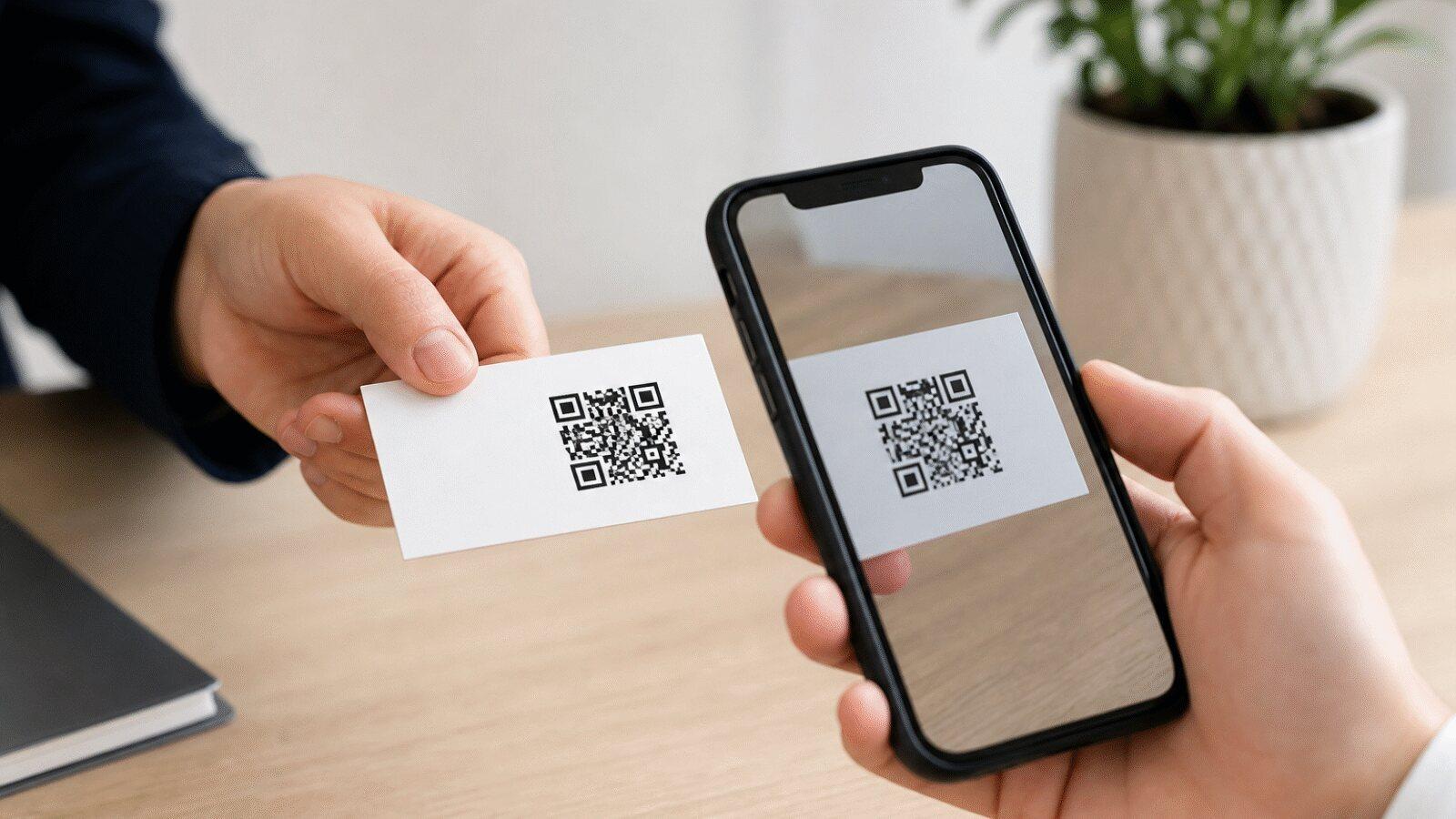
You see a QR code on a restaurant menu, a Wi-Fi sign, a product package, or a website. You want to open it, but you’re not sure how to scan it with your phone.
Or maybe the QR code is already on your phone’s screen, and you can’t figure out how to scan it without a second device.
The good news is that most modern iPhones and Android phones can scan QR codes without downloading a separate app.
For a printed QR code, you can usually use your phone’s camera. For a QR code in a screenshot or photo, you can use built-in image recognition features or Google Lens.
Here’s how to scan a QR code on your phone, step by step.
Quick Answer: How to Scan a QR Code With Your Phone
If the QR code is on paper, a sign, a computer screen, or another device, follow these steps:
- Open the Camera app on your phone.
- Point the camera at the QR code.
- Make sure the entire code is visible on the screen.
- Wait for a link, banner, or QR code notification to appear.
- Tap the result to open the associated content.
You usually don’t need to take a picture.
The camera recognizes the QR code automatically when the feature is supported and enabled.
If the QR code is on your own phone’s screen, take a screenshot or save the image, then use a compatible photo recognition feature to read it.
The exact steps depend on whether you have an iPhone or Android device.
How to Scan a QR Code on iPhone
Apple includes QR code scanning in the iPhone Camera app.
You can also use the Code Scanner feature from Control Center.
Method 1: Use the iPhone Camera
This is the easiest option for scanning a QR code printed on a card, displayed on another device, or posted in a public place.
Step 1: Open the Camera app.
Step 2: Make sure you’re using a regular photo mode.
Step 3: Point the camera toward the QR code.
Step 4: Keep the QR code within the camera frame.
Step 5: When a link or notification appears, tap it.
Your iPhone will open the associated destination or offer the relevant action.
For example, a QR code might lead to a website, contact information, or another supported function.
You don’t need to press the shutter button.
Method 2: Use Code Scanner From Control Center
If you frequently scan QR codes, Apple’s dedicated Code Scanner can be convenient.
- Open Control Center.
- Look for the Code Scanner control.
- Tap it.
- Point your iPhone at the QR code.
- Follow the prompt that appears.
If you don’t see Code Scanner, you may need to add it to Control Center.
On recent iOS versions, you can customize Control Center by opening it, entering edit mode, and adding the Code Scanner control.
The exact customization steps may differ by iOS version.
What If Your iPhone Camera Doesn’t Scan QR Codes?
First, check whether QR code scanning is enabled.
On supported iOS versions, go to:
Settings → Camera → Scan QR Codes
If the option is available, make sure it’s turned on.
Then try again with better lighting and a clear view of the code.
If your iPhone still doesn’t recognize it, try Code Scanner from Control Center.
How to Scan a QR Code on Android
Most modern Android phones can recognize QR codes through the Camera app, Google Lens, or a dedicated QR code scanner.
Because Android devices use different interfaces, the exact steps may vary between Samsung, Google Pixel, and other brands.
Method 1: Use the Android Camera
- Open your phone’s Camera app.
- Point it at the QR code.
- Hold the phone steady.
- Wait for a link or QR code notification.
- Tap the result.
On many Android phones, this works automatically.
If nothing happens, look for a QR scanning option in the Camera settings.
Method 2: Scan a QR Code With Google Lens
Google Lens can recognize QR codes and other visual information.
To use it:
- Open Google Lens through an available Google app or Lens shortcut.
- Point the camera at the QR code.
- Wait for Google Lens to recognize it.
- Tap the detected link or action.
Google Lens is especially useful when your regular camera doesn’t recognize the code.
Depending on your phone, Lens may be available through the Google app, a camera shortcut, or another built-in interface.
Method 3: Use the QR Code Scanner in Quick Settings
Some Android phones include a QR code scanner in Quick Settings.
Try the following:
- Swipe down from the top of your screen.
- Expand the Quick Settings panel.
- Look for Scan QR Code or a similar control.
- Tap it.
- Point your camera at the QR code.
If the shortcut isn’t visible, it may be available when you edit your Quick Settings tiles.
Not every Android device has the same shortcut.
How to Scan a QR Code on Your Own Phone Screen
What if someone sends you a QR code in a text message, or you find one on a website while browsing on your phone?
You can’t point your phone’s rear camera at its own screen.
Fortunately, you usually don’t need another phone to scan a QR code that’s already displayed on your device.
The easiest solution is to save the image or take a screenshot, then use an image recognition feature.
How to Scan a QR Code on Your Own iPhone Screen
If the QR code appears in an image, screenshot, or supported app, try this:
- Take a screenshot of the QR code or save the image.
- Open the image in the Photos app.
- Press and hold the QR code, if supported.
- Look for an option to open or copy the detected link.
- Review the destination before opening it.
On compatible iPhone models and iOS versions, Live Text and related image recognition features can recognize QR codes in saved images.
If pressing and holding doesn’t work, try tapping an available text or image recognition control.
The exact behavior can depend on the image, iOS version, and supported features.
How to Scan a QR Code on Your Own Android Screen
For many Android phones, Google Lens is a practical solution.
- Take a screenshot of the QR code.
- Open Google Photos or another app with Google Lens support.
- Select the screenshot.
- Tap Lens, if available.
- Tap the detected QR code link.
On some supported Android devices, you may also be able to use Circle to Search directly on the screen without saving a screenshot.
These features vary by device and software version.
Can You Scan a QR Code Without Taking a Screenshot?
Sometimes.
If your phone supports on-screen visual search, you may be able to recognize a QR code directly from the current screen.
For example, certain Android devices support Circle to Search, which can identify visual elements on the display.
On iPhone, QR codes displayed in supported apps or images may offer a direct link action when recognized.
If your device doesn’t support these options, saving the image and using a photo recognition tool is usually the simplest alternative.
How to Scan a QR Code From a Screenshot or Photo
Scanning a saved QR code is useful when:
- Someone sends you a QR code in a message.
- You download a digital ticket.
- You receive a QR code by email.
- A website displays a QR code on your phone.
- You save a Wi-Fi QR code as an image.
- You need to open a link from a screenshot.
On iPhone
Open the image in Photos.
If your iPhone recognizes the QR code, press and hold it or use the available recognition option to access the link.
If nothing happens, make sure the QR code is large enough and not cropped.
On Android
Open the image in Google Photos and select Lens, if available.
Google Lens can analyze the saved image and identify a recognizable QR code.
Tap the result after checking the destination.
What If the QR Code Is Too Small?
Try cropping the image so that the QR code takes up more of the frame.
However, avoid cutting off the edges of the code.
A QR code needs enough visible detail to be decoded accurately.
If the screenshot is blurry or heavily compressed, ask for a clearer image when possible.
How to Scan a QR Code on Samsung Phones
Samsung Galaxy phones commonly support QR code scanning through the Camera app.
Using the Samsung Camera
- Open Camera.
- Point the camera at the QR code.
- Wait for the QR code link or prompt.
- Tap it.
If the camera doesn’t detect the code, check the Camera settings for a QR code scanning option.
Some Samsung models also offer a QR scanner through Quick Settings.
Scanning a Screenshot on Samsung
If the QR code is already on your Samsung phone, open the screenshot in a supported gallery or image recognition tool.
Depending on your device, you may be able to use Google Lens, an available Galaxy image recognition feature, or Circle to Search.
Because Samsung’s interface changes between Galaxy models and One UI versions, menu names may differ.
Why Won’t My Phone Scan a QR Code?
If your phone doesn’t recognize a QR code, don’t assume the scanner is broken.
Several common issues can prevent successful scanning.
1. The QR Code Is Too Blurry
Your camera needs a clear view of the code.
Try moving your phone slightly closer or farther away until the image becomes sharp.
2. The Lighting Is Poor
Low light can make it harder for your camera to focus.
Move to a brighter area or improve the lighting.
Avoid strong glare, especially when scanning a code displayed on a glossy screen.
3. The QR Code Is Damaged
A QR code may fail if important parts are missing, distorted, or covered.
Try finding a clearer copy.
4. The Camera Is Too Close
Holding your phone extremely close can prevent the camera from focusing.
Move back slightly and keep the entire code visible.
5. QR Code Scanning Is Disabled
Some phones have a setting that controls QR code detection.
Check your Camera settings or use a dedicated scanning shortcut.
6. The Image Is Too Small
If you’re scanning a screenshot, the code may be too small for reliable recognition.
Try enlarging or cropping the image without removing parts of the code.
7. The QR Code Contains an Invalid or Unavailable Link
Sometimes the QR code is recognized correctly, but the destination no longer works.
For example, the linked website may be offline, or the QR code may contain an expired link.
In this case, the issue isn’t necessarily with your phone’s scanner.
Quick Troubleshooting Checklist
- Clean your camera lens.
- Improve the lighting.
- Hold the phone steady.
- Keep the entire QR code visible.
- Try a different scanning method.
- Check your internet connection if the code opens a website.
- Update your phone if you’re experiencing broader camera or software issues.
If one method doesn’t work, Google Lens or your phone’s dedicated scanner may be worth trying.
Do You Need an App to Scan a QR Code?
Usually, no.
Most modern smartphones have built-in QR code scanning features.
On iPhone, the Camera app and Code Scanner are generally sufficient.
On Android, the Camera app, Google Lens, or a built-in QR scanner can often handle the task.
You generally don’t need to install an unfamiliar third-party QR code scanner just to open a website or scan a simple code.
Using built-in features also avoids granting unnecessary permissions to additional apps.
However, some specialized QR codes may require a particular service’s app to complete an action, such as accessing a ticket or connecting an account.
What Can You Do With a QR Code?
QR codes can contain or point to different types of information.
Common uses include:
- Opening a website.
- Viewing a restaurant menu.
- Accessing event tickets.
- Sharing contact information.
- Connecting to a Wi-Fi network.
- Opening a payment service.
- Downloading an app.
- Accessing a product guide.
For example, a Wi-Fi QR code can simplify connecting another device to a wireless network.
If you’re setting up internet access for family members or guests, our guide on how to share a Wi-Fi password explains additional ways to share network access.
Remember that scanning a QR code doesn’t always mean opening a website.
The action depends on what the code contains and which apps your phone supports.
Is It Safe to Scan a QR Code?
QR codes are useful, but they can also lead to malicious websites.
A QR code doesn’t automatically make a link trustworthy.
Scammers may place fake QR code stickers over legitimate ones or send codes that lead to phishing pages.
Before opening a QR code link:
- Check the destination URL. Look for suspicious spelling, unfamiliar domains, or unexpected redirects.
- Be cautious with payment requests. Verify the recipient and amount through a trusted channel.
- Avoid entering sensitive information on unfamiliar websites. This includes passwords, banking details, and verification codes.
- Inspect physical QR codes. A sticker placed over an original sign can be a warning sign.
- Use official apps or websites when possible. For sensitive tasks, navigate to the service independently.
For example, if a QR code claims to be from your bank, it’s safer to open your bank’s official app directly rather than trusting an unexpected link.
Scanning a code is not the same as verifying its destination.
The safest habit is to review where a QR code leads before providing information or taking action.
Frequently Asked Questions
1. How do I scan a QR code with my phone?
Open your phone’s Camera app, point it at the QR code, and tap the link or notification that appears. Most modern iPhones and Android phones support QR scanning without an extra app.
2. How do I scan a QR code on my own phone?
Take a screenshot or save the QR code image. On iPhone, try opening it in Photos and using the available recognition feature. On Android, use Google Lens or another supported on-screen image recognition tool.
3. Can I scan a QR code from a screenshot?
Yes. Many smartphones can recognize QR codes in screenshots. Use Photos on a compatible iPhone or Google Lens on a supported Android device.
4. Where is the QR code scanner on iPhone?
You can scan QR codes using the Camera app. You can also add or open the Code Scanner control in Control Center.
5. Where is the QR code scanner on Android?
Depending on the device, QR scanning may be available in the Camera app, Google Lens, or Quick Settings.
6. Do I need two phones to scan a QR code on my screen?
No. On many devices, you can scan a QR code displayed on your own screen by saving the image and using a supported photo recognition feature.
7. Why is my camera not scanning QR codes?
Possible reasons include poor lighting, a blurry image, incorrect camera distance, disabled scanning settings, or a damaged QR code.
8. Can I scan a QR code without downloading an app?
Usually, yes. Modern iPhones and many Android devices include built-in QR code scanning tools.
9. Can a QR code contain a virus?
A QR code is a way to store information, not an executable virus by itself. However, it can direct you to malicious websites, deceptive downloads, or phishing pages. Always check the destination.
10. Can I scan a QR code without internet?
Your phone may be able to recognize and decode a QR code without an internet connection. However, opening a website or using an online service linked by the code generally requires connectivity.
Final Thoughts
Learning how to scan a QR code on your phone is simple once you know where to look.
For a printed QR code, start with your phone’s Camera app.
If you’re using an iPhone, you can also try Code Scanner from Control Center.
On Android, Google Lens or a built-in QR scanner can help.
And if the QR code is already on your own phone’s screen, you can often scan it from a screenshot or saved photo—no second device required.
Whichever method you choose, take a moment to check the destination before opening unfamiliar links.
That small habit can make QR codes both more convenient and safer to use.
Sources and Further Reading
- Apple Support — Scan a QR Code With Your iPhone or iPad
- Google Lens — Search What You See
- Android — Circle to Search
- Federal Trade Commission — Consumer Advice
Note: QR scanning features and settings may vary by device model, operating system version, and app availability.