

The easiest way to share a WiFi password is to use your device’s built-in sharing feature. On an iPhone, you can tap Share Password when another Apple device tries to join your network. On Android, you can display a WiFi QR code. Windows 11 and Mac also offer ways to show saved WiFi passwords and share network access.
Whether you’re connecting a family member’s new phone, helping a guest get online, or setting up a child’s tablet, you usually don’t need to install a third-party app.
This guide explains how to share a WiFi password on iPhone, Android, Samsung Galaxy, Windows 11, and Mac. You’ll also learn how to share WiFi between iPhone and Android, use QR codes, and fix common sharing problems.
Quick Answer: How to Share a WiFi Password
| Your Device | Fastest Method |
|---|---|
| iPhone to iPhone | Use Apple’s Share Password prompt |
| iPhone to Android | Show a WiFi QR code or copy the password |
| Android to Android | Share the network QR code |
| Android to iPhone | Display a QR code and scan it with iPhone Camera |
| Samsung Galaxy | Use the WiFi network’s QR code |
| Windows 11 | Show the saved WiFi password or network QR code |
| Mac to iPhone | Use Apple’s Share Password prompt |
| Mac to Android | Show a WiFi QR code or copy the password |
Tip: If the devices use different operating systems, a WiFi QR code is often the most convenient option.
How to Share WiFi Password on iPhone
There are several ways to share a WiFi password from an iPhone, depending on who needs to connect.
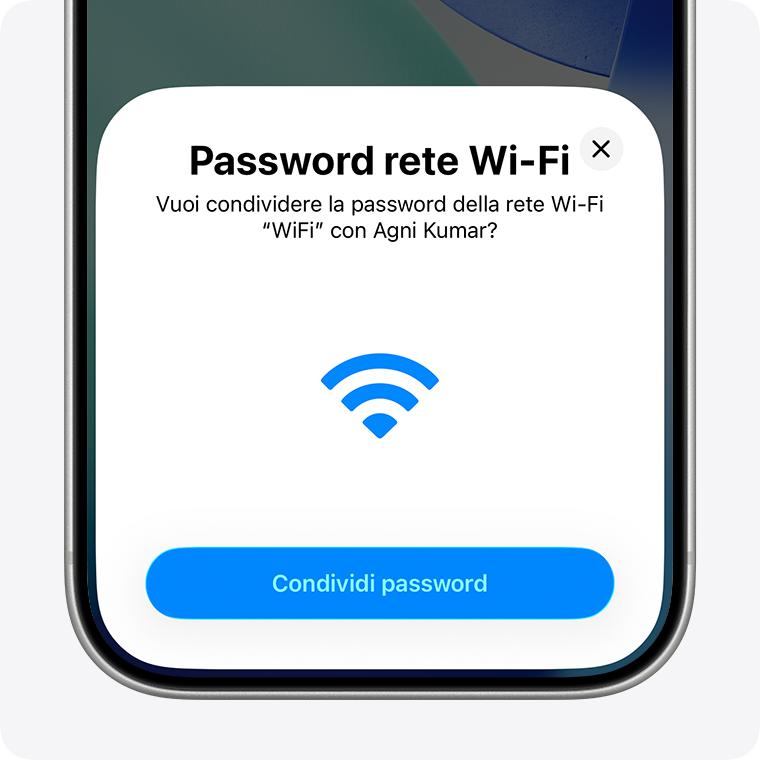
Method 1: Share WiFi Password From iPhone to iPhone
Apple offers a built-in feature that lets you share a WiFi password without reading or typing it.
Follow these steps:
- Connect your iPhone to the WiFi network you want to share.
- Make sure both iPhones have WiFi and Bluetooth turned on.
- Sign in to an Apple Account on both devices.
- Save each other’s Apple Account email address or phone number in Contacts.
- Keep both iPhones close together.
- On the receiving iPhone, open Settings > Wi-Fi.
- Tap the WiFi network you want to join.
- Unlock the iPhone that is already connected.
- When the Share Password notification appears, tap it.
- Tap Done after the other iPhone connects.
The receiving iPhone should join the network without manually entering the password.
Important: Turn off Personal Hotspot on both devices before trying this method.
Method 2: Share WiFi Password Using a QR Code on iPhone
On supported newer iOS versions, you can display a QR code for a saved WiFi network.
This is especially useful when sharing WiFi with an Android user.
- Open the Passwords app.
- Unlock it using Face ID, Touch ID, or your passcode.
- Tap Wi-Fi.
- Select the network you want to share.
- Tap Show Network QR Code.
- Ask the other person to scan the code using their phone’s camera.
The receiving device can then follow the prompt to connect.
The Passwords app is available beginning with iOS 18.
If your iPhone uses an older version, use the password-copying method below instead.
Method 3: Find and Copy Your WiFi Password on iPhone
If automatic sharing isn’t available, you can reveal the saved password.
On iOS 16 and later:
- Open Settings.
- Tap Wi-Fi.
- Tap the information icon next to the connected network.
- Tap the Password field.
- Authenticate using Face ID, Touch ID, or your passcode.
- Copy the password and share it with someone you trust.
On iOS 18 and later, you can also open Passwords > Wi-Fi, select the network, and copy its password.
This method works when the other person uses Android, Windows, or another device that accepts a regular WiFi password.
How to Share WiFi Password on Android
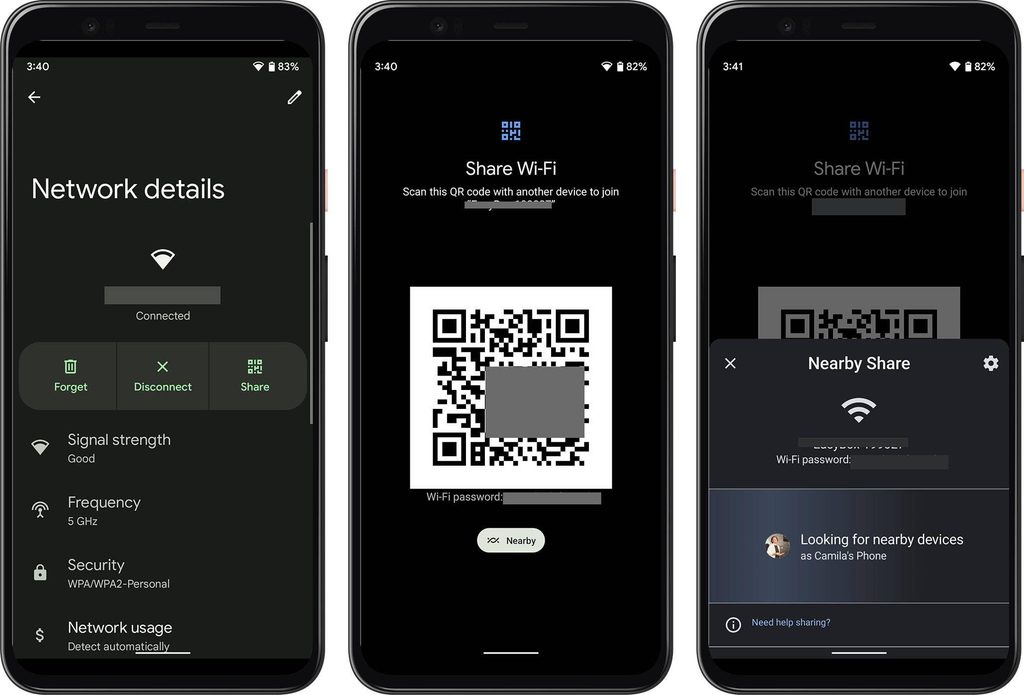
Most modern Android phones offer built-in WiFi sharing through a QR code.
The exact menu names depend on the phone manufacturer and Android version.
Share WiFi Password With an Android QR Code
On many Android phones:
- Open Settings.
- Tap Network & internet.
- Select Internet.
- Tap your connected WiFi network.
- Select Share.
- Confirm your identity if prompted.
- A QR code will appear.
- Ask the other person to scan the QR code with their phone.
The receiving phone can then connect to the network.
You generally don’t need to type the password.
Can You Share WiFi From Android to iPhone?
Yes.
An iPhone can scan a compatible WiFi QR code displayed on an Android phone.
- Generate the WiFi QR code on Android.
- Open the Camera app on the iPhone.
- Point the camera at the QR code.
- Tap the WiFi connection prompt.
- Confirm that you want to join the network.
If the QR code doesn’t work, you can enter the password manually.
Note: Some Android manufacturers place the sharing feature under different menus, such as Wi-Fi, Connections, or Network details.
How to Share WiFi Password on Samsung Galaxy
Samsung Galaxy phones use One UI, so the steps may differ from Google Pixel and other Android devices.
On many recent Samsung Galaxy phones:
- Open Settings.
- Tap Connections.
- Select Wi-Fi.
- Tap the settings icon next to the connected network.
- Look for QR code or a network-sharing option.
- Display the QR code.
- Have another device scan it to connect.
You may need to unlock your phone before the QR code appears.
If you don’t see the QR code option, check the network details page and confirm that your Galaxy phone is running a supported One UI version.
Can Samsung Share WiFi With iPhone?
Yes. If your Samsung phone displays a standard WiFi QR code, an iPhone can usually scan it using the Camera app.
You don’t need to install Samsung-specific software on the iPhone.
How to Share WiFi Password From iPhone to Android
If you want to share WiFi from an iPhone to an Android phone, you have two practical options.
Option 1: Use a WiFi QR Code
On an iPhone with a supported version of the Passwords app:
- Open Passwords.
- Tap Wi-Fi.
- Select your connected network.
- Tap Show Network QR Code.
- Open the camera or QR scanner on the Android phone.
- Scan the code.
- Confirm the connection.
This avoids typing a long or complicated password.
Option 2: Copy the WiFi Password
If QR code sharing isn’t available:
- Open Settings > Wi-Fi on your iPhone.
- Tap the information icon beside the network.
- Tap Password.
- Authenticate to reveal the password.
- Copy it.
- On the Android phone, select the same network and enter the password.
Why doesn’t Apple’s Share Password popup work with Android?
Apple’s automatic nearby password-sharing feature is designed for supported Apple devices. For cross-platform sharing, use a QR code or the network password instead.
How to Share WiFi Password From Android to iPhone
The simplest method is to generate a QR code on the Android device.
- Open the Android phone’s WiFi settings.
- Select the connected network.
- Tap Share or QR code.
- Unlock the phone if required.
- Open the iPhone’s Camera app.
- Scan the QR code.
- Tap the prompt to join the WiFi network.
If the iPhone doesn’t recognize the code, check whether it contains valid WiFi connection details or enter the password manually.
How to Share WiFi Password on Windows 11
Windows 11 lets you find saved WiFi passwords and, on supported versions, share network information using a QR code.
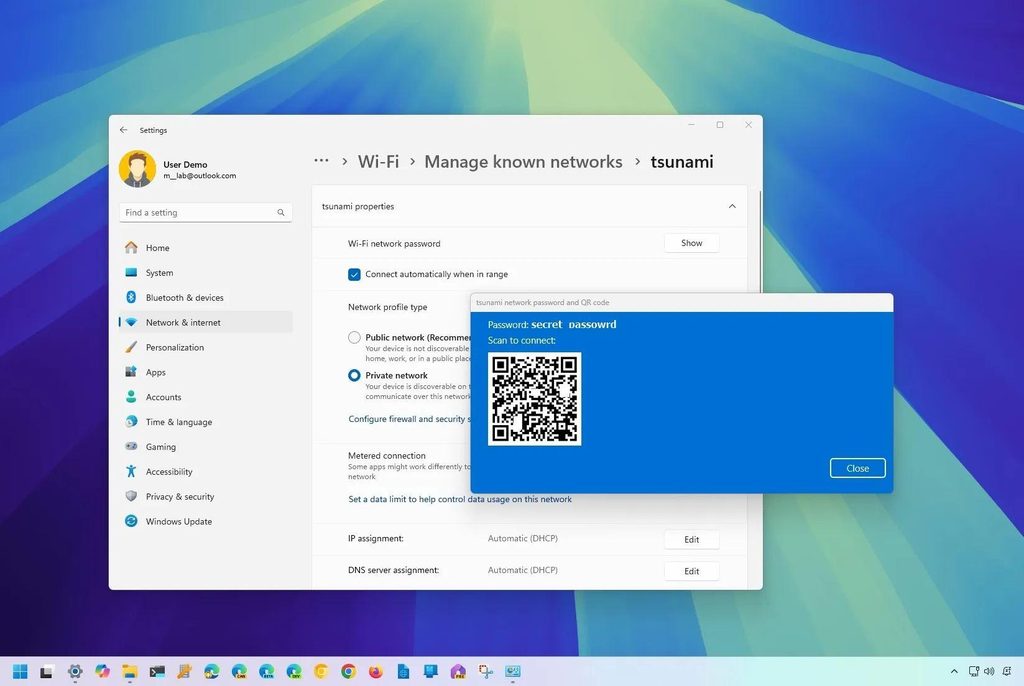
Method 1: Find and Share Your Current WiFi Password
- Open Settings.
- Go to Network & internet.
- Open the connected network’s Properties.
- Find Wi-Fi network password.
- Click Show.
- Copy or read the password.
- Enter it on the other device.
On supported Windows 11 versions, Windows can also display a QR code that another device can scan.
Method 2: Find a Previously Saved WiFi Password
If your computer connected to the network before:
- Open Settings.
- Select Network & internet.
- Click Wi-Fi.
- Open Manage known networks.
- Select the saved network.
- Find Wi-Fi network password.
- Click Show.
You can then share the password with a trusted person.
Can Windows Share WiFi Using a QR Code?
Yes, on supported Windows 11 versions.
If a QR code appears alongside the saved network password, scan it with another compatible device.
A Windows device with a suitable camera can also scan a WiFi QR code through the Camera app’s barcode mode.
Note: Older Windows installations may not have the same QR code interface.
How to Share WiFi Password on Mac
Mac computers can share WiFi passwords with nearby Apple devices or display saved passwords for other devices.
Method 1: Share WiFi From Mac to iPhone
- Connect your Mac to the WiFi network.
- Turn on WiFi and Bluetooth.
- Make sure both users are signed in to their Apple Accounts.
- Save the relevant Apple Account contact information.
- Keep the Mac and iPhone nearby.
- On the iPhone, select the WiFi network.
- Unlock the Mac.
- When prompted, click Share Password.
The iPhone should connect without requiring manual password entry.
Method 2: Find Your WiFi Password on Mac
On macOS versions with the Passwords app:
- Open Passwords.
- Select Wi-Fi in the sidebar.
- Choose the network.
- Reveal or copy the saved password.
- Share it with someone you trust.
Method 3: Share a WiFi QR Code From Mac
On supported macOS versions:
- Open Passwords.
- Select Wi-Fi.
- Choose the network.
- Click Show Network QR Code.
- Ask the other person to scan it.
This is useful when the receiving device is an Android phone.
Older macOS versions may use different methods for viewing saved network passwords.
How to Share a WiFi Password With a QR Code
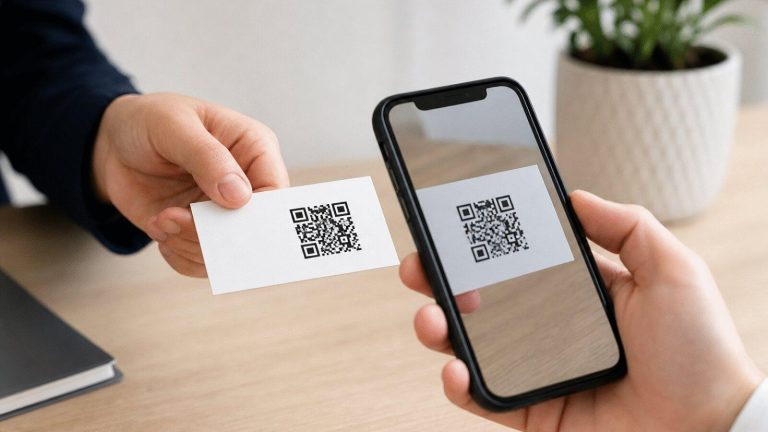
A WiFi QR code contains the information another device needs to join a network.
Depending on the operating system, it may include:
- Network name (SSID).
- WiFi security type.
- Network password.
- Additional connection details.
When someone scans the code with a compatible device, the device can offer to join the network.
Which Devices Can Generate a WiFi QR Code?
| Device | Built-In QR Code Sharing |
|---|---|
| iPhone | Yes, on supported newer iOS versions |
| Android | Yes, on many modern Android devices |
| Samsung Galaxy | Yes, on supported One UI versions |
| Windows 11 | Yes, on supported versions |
| Mac | Yes, on supported macOS versions |
Is a WiFi QR Code Safe?
A QR code is convenient, but it should be treated as sensitive information.
Someone who scans or photographs the code may be able to use it later to connect to the same network.
Avoid posting your home WiFi QR code publicly.
If you regularly share internet access with visitors, consider creating a separate guest network.
Why Can’t I Share My WiFi Password?
If WiFi password sharing isn’t working, the problem is often related to device settings, compatibility, or network restrictions.
1. WiFi or Bluetooth Is Turned Off
Apple’s nearby sharing feature requires WiFi and Bluetooth.
Make sure both are enabled.
2. The Devices Are Too Far Apart
For Apple’s nearby password sharing, keep the devices close together.
3. The Devices Aren’t Saved in Contacts
Apple’s automatic sharing process may require each person to have the other’s Apple Account email address or phone number saved in Contacts.
4. Personal Hotspot Is Enabled
Turn off Personal Hotspot when using Apple’s nearby WiFi password sharing.
5. The Phone Is Locked
Unlock the device that is sharing the password.
6. The Operating System Is Outdated
Some WiFi sharing features require newer operating-system versions.
Update your device when appropriate.
7. The QR Code Doesn’t Scan
Try these fixes:
- Increase screen brightness.
- Clean the receiving phone’s camera lens.
- Move the phones closer together.
- Make sure the entire QR code is visible.
- Use the device’s built-in camera or QR scanner.
- Enter the password manually if necessary.
8. The Network Uses Enterprise Authentication
School, office, and other managed WiFi networks may require individual credentials, certificates, or organization-specific sign-in procedures.
A simple password or QR code may not be enough.
9. The Network Password Has Changed
If the router password was recently updated, a saved password or previously generated QR code may no longer work.
10. Restart Both Devices
If Apple’s Share Password notification never appears, restart both devices and try again.
How to Share Home WiFi Safely With Family and Guests
Sharing your WiFi password with a family member is usually straightforward.
However, you should still protect your home network.
Use a Guest WiFi Network
Many modern routers let you create a separate network for visitors.
This helps keep guest access separate from your main home network.
Use a Strong Password
Avoid easy-to-guess passwords such as common names, birthdays, or simple number sequences.
Use a long, unique password.
Choose Modern WiFi Security
Use WPA3-Personal when supported by your router and devices, or an appropriate WPA2-AES configuration for compatibility.
Avoid outdated security options such as WEP.
Don’t Share Passwords Publicly
Avoid posting WiFi credentials or QR codes on public social media pages.
Review Connected Devices
Periodically check your router’s device list for unfamiliar connections.
Change the Password When Necessary
If your WiFi password has been shared too widely or exposed, update it in your router settings.
Remember to reconnect trusted devices afterward.
Sharing WiFi Password vs. Sharing a Mobile Hotspot
These two features are different.
WiFi password sharing allows another device to join an existing wireless network.
Mobile hotspot sharing allows your phone or computer to provide an internet connection to another device.
For example, sharing your home router’s WiFi password does not turn your iPhone into a hotspot.
If you’re away from home and want to share cellular internet access, use your phone’s Personal Hotspot or Hotspot settings instead.
Frequently Asked Questions
1. How do I share my WiFi password from iPhone to iPhone?
Connect one iPhone to WiFi, enable WiFi and Bluetooth on both devices, save each other’s Apple Account contact information, and keep the devices nearby. When the second iPhone selects the network, tap Share Password on the connected iPhone.
2. How do I share my WiFi password from iPhone to Android?
On supported iOS versions, open Passwords > Wi-Fi, select the network, and tap Show Network QR Code. Have the Android phone scan it. Alternatively, reveal and copy the password from WiFi settings.
3. How do I share a WiFi password on Android?
Open Settings > Network & internet > Internet, select the connected WiFi network, and tap Share. The phone should display a QR code that another device can scan. Menu names may vary.
4. How do I share WiFi password with a QR code?
Open your device’s WiFi sharing feature and display the network QR code. Have the receiving device scan it with its camera or QR scanner, then confirm the connection.
5. Can I share WiFi password without knowing it?
Yes, in many cases. Apple’s nearby sharing feature and built-in QR code sharing can let another device connect without you manually typing or reading the password.
6. How do I share WiFi password on Samsung?
Open Settings > Connections > Wi-Fi, select the connected network’s details, and look for the QR code option. Another phone can scan it to connect.
7. How do I share WiFi password from Android to iPhone?
Generate a WiFi QR code on Android, then scan it using the iPhone’s Camera app. Confirm the network connection when prompted.
8. How do I share WiFi password on Windows 11?
Open Settings > Network & internet, select the WiFi network’s properties, and click Show beside the WiFi password. Supported Windows 11 versions can also display a QR code.
9. How do I share WiFi password from Mac to iPhone?
Connect your Mac to WiFi, enable WiFi and Bluetooth, and keep both Apple devices nearby. When the iPhone selects the network, approve the Share Password prompt on the Mac.
10. Why is the Share Password option not showing on iPhone?
Check that both devices have WiFi and Bluetooth enabled, Personal Hotspot is off, Apple Account contact information is saved, and the sharing device is unlocked. Keep the devices nearby and restart them if necessary.
11. Can I share WiFi without using a third-party app?
Yes. iPhone, Android, Windows 11, and Mac offer built-in methods for sharing or revealing WiFi passwords on supported versions.
12. Can I share WiFi password through WhatsApp or text message?
Yes, if you know the password, you can send it as text. However, this exposes the password in the conversation. For greater privacy, consider nearby sharing, a QR code, or a separate guest network.
13. Does sharing a WiFi password use mobile data?
Sharing an existing WiFi network password does not itself require using cellular data. The connected device will use the WiFi network once it joins successfully.
14. Can I share a WiFi password with a laptop?
Yes. You can enter the password manually on a laptop, or use a compatible WiFi QR code when the laptop supports scanning and joining networks that way.
15. Is it safe to share my WiFi password with guests?
It can be safe when you trust the recipient, but a separate guest WiFi network is generally preferable. This helps limit access to your primary home network.
Final Thoughts
Learning how to share a WiFi password is easier when you know which method your device supports.
For most situations:
- iPhone to iPhone: Use Apple’s Share Password feature.
- Android to Android: Share a WiFi QR code.
- iPhone to Android: Use a QR code or copy the password.
- Android to iPhone: Scan the Android WiFi QR code.
- Windows 11: Reveal the saved password or use a supported QR code.
- Mac: Use nearby Apple sharing or the Passwords app.
If you’re connecting family members or visitors to your home network, use built-in sharing features whenever possible and consider a separate guest WiFi network for visitors.
The easiest method is usually the one that avoids typing a long password while keeping your network credentials under your control.
Sources and Further Reading
- Apple Support — Share Your WiFi Password From iPhone or iPad
- Apple Support — Find Saved WiFi Passwords on iPhone
- Apple Support — Find and Share WiFi Password on iPhone
- Google Android Help — Connect to and Share WiFi Networks
- Microsoft Support — Connect to WiFi in Windows
- Apple Support — Find and Share WiFi Password on Mac
Last editorial review: October 22, 2026. Menu names and supported features may change with operating-system updates. Follow the latest instructions for your device.