
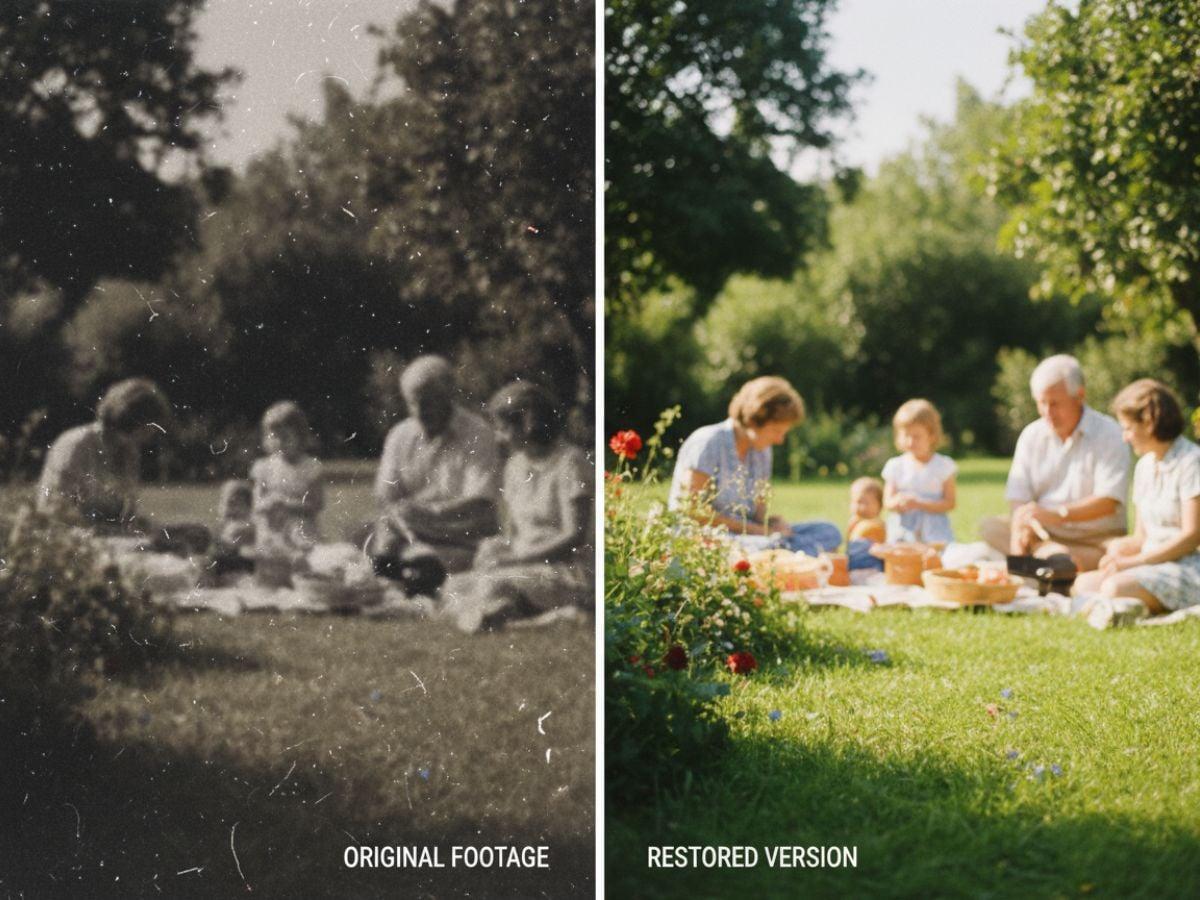
A blurry video can be frustrating, especially when it captures a moment you can’t record again. Maybe it’s a family vacation, your child’s first steps, an old home movie, or a clip that looks noticeably worse after being shared online.
Fortunately, AI video enhancement tools can sometimes improve footage that looks soft, pixelated, noisy, or low-resolution.
But there’s an important catch: not every blurry video can be restored, and not every video enhancer is designed to fix the same problem.
Some tools specialize in AI upscaling. Others offer motion deblurring, sharpening, noise reduction, or face enhancement. Choosing the wrong tool may make a video look artificially sharp without actually recovering meaningful detail.
If you’re looking for the best tool to fix blurry videos, this guide compares six options for different needs and budgets.
Quick Comparison: Best Tools to Fix Blurry Videos
| Tool | Best For | Main Strength | Main Limitation |
|---|---|---|---|
| Topaz Video | Professional restoration | Advanced enhancement, deblurring, and noise reduction | Higher cost and hardware demands |
| HitPaw VikPea | Beginners | Accessible AI enhancement workflows | Advanced exports generally require payment |
| CapCut | Social media videos | Convenient editing and enhancement in one workflow | Limited restoration control |
| AVCLabs Video Enhancer AI | Faces and old footage | Face enhancement and video upscaling | Processing can be resource-intensive |
| Adobe Firefly | Adobe-based workflows | Integrated creative and video enhancement options | Features and availability vary by plan |
| Krea | Online AI upscaling | Browser-based enhancement workflows | Credit, duration, and resolution limits |
Our overall recommendation: Topaz Video is the strongest starting point for people who need specialized video restoration controls. HitPaw VikPea is worth considering if you prefer a simpler interface, while CapCut is more convenient for everyday social media editing.
These are editorial recommendations based on product capabilities and intended use cases, not results from controlled hands-on testing.
Can AI Really Fix a Blurry Video?
Yes, AI can improve some blurry videos. However, the results depend heavily on what caused the blur.
Before choosing a tool, identify the problem.
1. Out-of-Focus Blur
Out-of-focus blur occurs when the camera focuses on the wrong subject or fails to focus correctly.
For example, your phone might focus on the background instead of a person’s face.
AI sharpening may improve the perceived clarity of mildly soft footage. However, severe defocus can permanently remove visual information that software cannot reliably recover.
2. Motion Blur
Motion blur happens when a subject or camera moves during exposure.
It often appears in videos of running children, sports, pets, or handheld recordings.
Specialized motion deblurring models may improve certain types of motion blur, but success depends on the amount and pattern of blur.
3. Low Resolution
A low-resolution video contains fewer pixels than a higher-resolution recording.
Older family videos, downloaded clips, and compressed messaging-app videos may look especially soft on modern displays.
AI upscaling can generate a higher-resolution output and improve perceived detail.
However, upscaling doesn’t guarantee that newly generated details match what the camera originally captured.
4. Compression Artifacts
Videos sent through messaging apps or uploaded to social platforms may lose detail because of compression.
Common symptoms include:
- Blocky textures.
- Smudged faces.
- Soft edges.
- Banding in gradients.
- Loss of fine detail.
AI enhancement can sometimes reduce the appearance of these artifacts, although severe compression damage may remain visible.
5. Noise and Grain
Videos recorded in low light may contain distracting noise.
AI denoising can make footage look cleaner, but aggressive processing may also remove natural texture.
The takeaway: The best video enhancer is the one that addresses your footage’s specific problem, not necessarily the one promising the highest output resolution.
1. Topaz Video — Best Overall for Professional Video Restoration
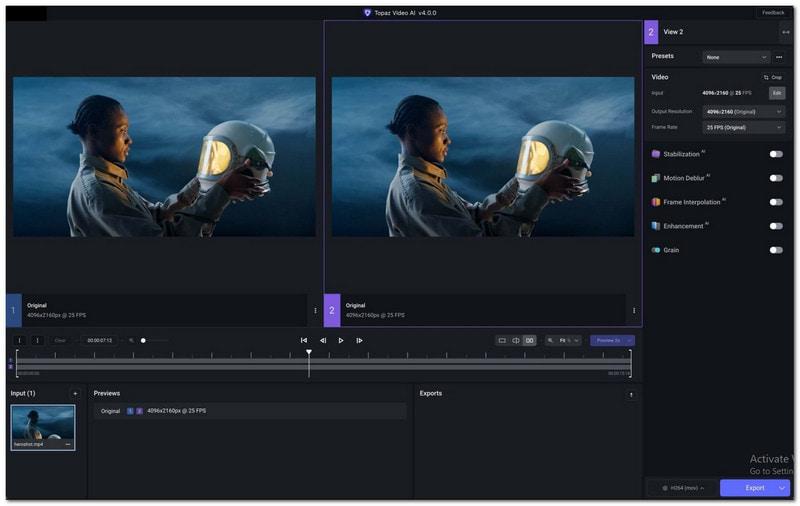
Best for: Serious video restoration, motion deblurring, old footage, and creators who want detailed enhancement controls.
Topaz Video is a strong choice for users who need more than basic sharpening.
Its video enhancement technology is designed for demanding restoration tasks, including noise reduction, upscaling, detail enhancement, and certain types of motion blur.
That makes it particularly relevant when you’re working with footage that has meaningful personal or professional value.
Key Features
- AI-assisted video upscaling.
- Noise reduction for grainy footage.
- Sharpening and detail enhancement.
- Specialized models for selected restoration tasks.
- Motion deblurring capabilities.
- Local processing workflows, depending on the product and configuration.
Pros
- Specialized restoration capabilities.
- More control than many simple online enhancers.
- Useful for older and lower-quality footage.
- Suitable for users willing to compare models and settings.
Cons
- Can require substantial computing resources.
- More complex than a one-click online tool.
- Processing time may be significant.
- Cost may be difficult to justify for occasional users.
When Should You Choose Topaz Video?
Choose Topaz Video if you have a collection of old family videos, professional footage, or clips with noticeable noise and motion blur.
For example, if you want to improve an old birthday recording before playing it on a large television, its restoration controls may be more useful than a basic video editor.
However, even advanced AI models cannot guarantee the recovery of details that were never captured.
Verdict: Our best overall choice for users who prioritize restoration capability over simplicity.
Official website: https://www.topazlabs.com/
2. HitPaw VikPea — Best AI Video Enhancer for Beginners
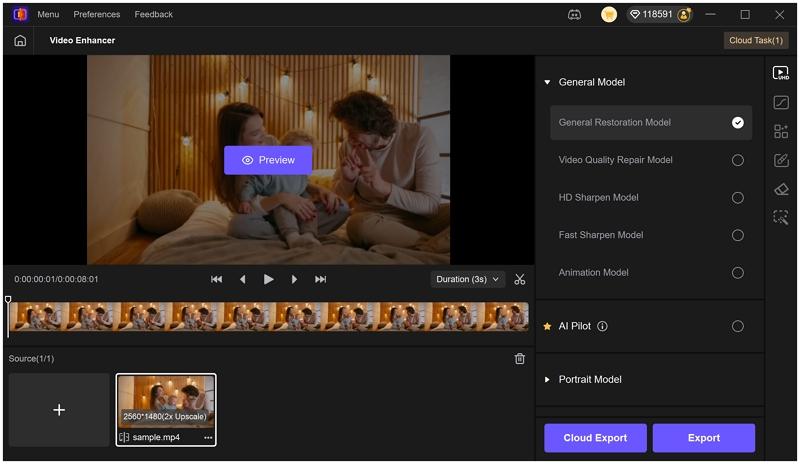
Best for: People who want to improve video quality without learning complicated editing software.
HitPaw VikPea focuses on AI-assisted video enhancement through a relatively accessible workflow.
Rather than requiring users to manually adjust every aspect of the image, it provides enhancement options designed around common video problems.
This makes it appealing to people who want to restore personal recordings or improve everyday footage.
Key Features
- AI video enhancement.
- Video upscaling.
- Noise reduction.
- Enhancement workflows for different footage types.
- Video repair or restoration features, depending on the version and plan.
Pros
- Beginner-friendly approach.
- Designed specifically for video enhancement.
- Less manual configuration than professional restoration workflows.
- Useful for experimenting with old or low-quality clips.
Cons
- Full-resolution exports may require payment.
- Results can vary considerably by footage.
- AI enhancement may create unnatural textures.
- Feature availability depends on the version or subscription.
When Should You Choose HitPaw VikPea?
Consider it if you have a blurry video from your phone and want to see whether AI enhancement can improve it without spending hours adjusting settings.
It can be a practical option for users who value convenience more than detailed technical control.
Verdict: A good starting point for beginners who want a dedicated AI video enhancer.
Official website: https://www.hitpaw.com/
3. CapCut — Best for Fixing Blurry Social Media Videos
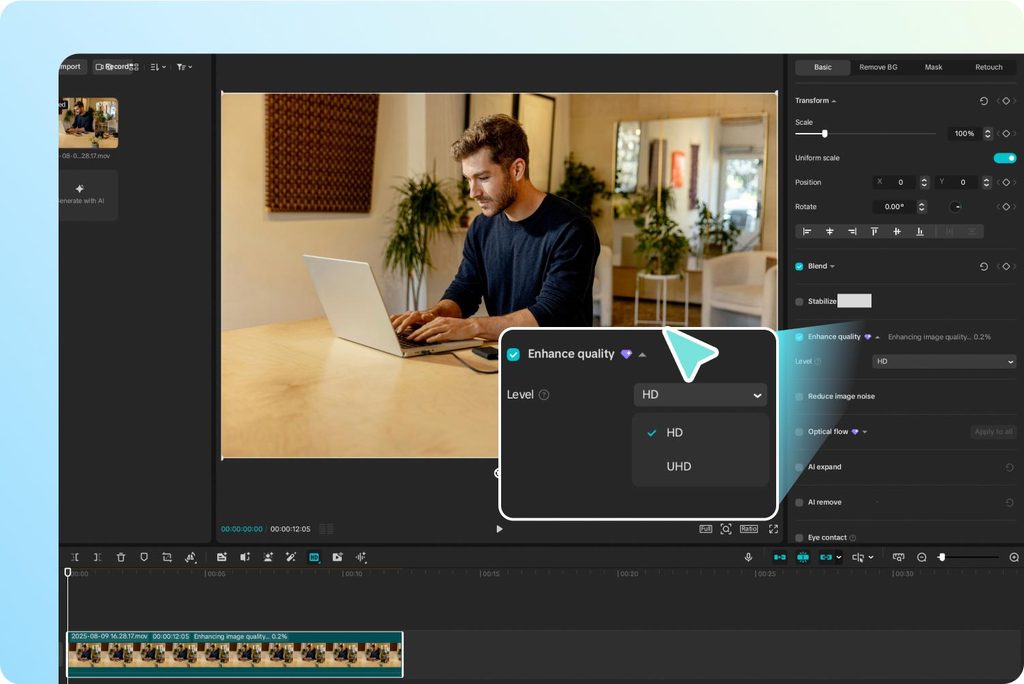
Best for: TikTok, Instagram Reels, YouTube Shorts, and casual video editing.
CapCut is primarily a video editor rather than a specialized restoration application.
Its advantage is convenience.
You can edit clips, adjust their appearance, apply supported enhancement features, add captions, and export content from a single workflow.
For creators who already use CapCut, this may be easier than moving footage between several programs.
Key Features
- Video editing and trimming.
- Sharpening and visual adjustments.
- AI-assisted enhancement features where available.
- Noise reduction or other image adjustments, depending on the version.
- Social media-oriented export workflows.
Pros
- Convenient for short-form video creators.
- Combines enhancement and editing.
- Available across multiple device types.
- Some editing features are available without a paid plan.
Cons
- Not designed for advanced video restoration.
- Severe blur may remain unresolved.
- Some AI features and exports require payment.
- Available tools vary by platform and region.
When Should You Choose CapCut?
Use CapCut if your video is only slightly soft and you also need to crop, trim, caption, or prepare it for social media.
For example, if a family vacation clip looks a little dull after editing, CapCut may provide enough control to improve its appearance.
For severe motion blur or damaged footage, a specialized restoration tool is more appropriate.
Verdict: Best for creators who want simple enhancement inside an everyday editing workflow.
Official website: https://www.capcut.com/
4. AVCLabs Video Enhancer AI — Best for Faces and Old Family Videos
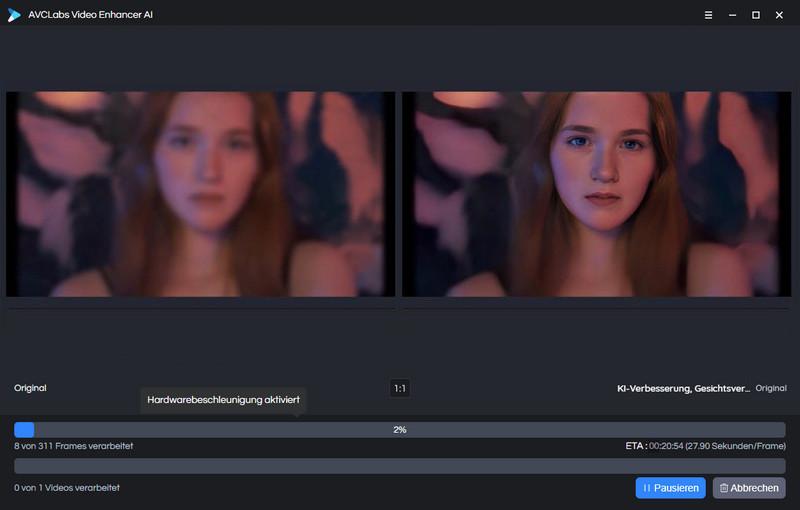
Best for: Older footage, family recordings, and videos where faces are an important part of the scene.
AVCLabs Video Enhancer AI offers AI-based video improvement tools, including upscaling and face-focused enhancement capabilities.
This makes it an option worth considering when restoring footage of people.
For example, you may have an old family celebration video where faces appear soft because of low resolution or compression.
Key Features
- AI video upscaling.
- Face enhancement capabilities.
- Noise reduction.
- Video restoration workflows.
- Enhancement of lower-resolution footage.
Pros
- Relevant to videos containing people.
- Dedicated AI enhancement features.
- Useful for experimenting with old recordings.
- Combines several restoration functions.
Cons
- Face enhancement can create details that weren’t present in the original.
- High-resolution processing may be slow.
- Results depend on source quality.
- Full functionality generally requires a paid license or plan.
When Should You Choose AVCLabs?
Consider AVCLabs if your main goal is to make faces in old family footage appear clearer.
However, be cautious about AI-generated facial details.
A reconstructed face may look sharper without being a fully accurate representation of the person.
For important historical or family records, always preserve the original video.
Verdict: Worth considering for people-focused restoration, especially when facial clarity matters.
Official website: https://www.avclabs.com/
5. Adobe Firefly — Best for Adobe Creative Workflows
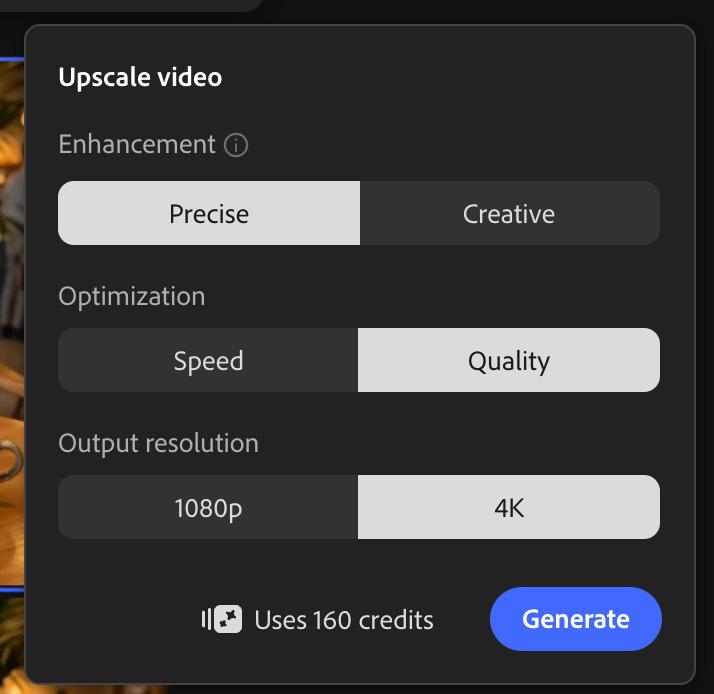
Best for: Creators who already use Adobe products and want video enhancement within a broader creative workflow.
Adobe Firefly is part of Adobe’s generative AI ecosystem.
Adobe has introduced video-related creative and enhancement capabilities, including integrations with specialized AI technology.
Its appeal is workflow integration rather than being a traditional standalone video deblurring application.
Key Features
Depending on the current product, plan, and region, relevant capabilities may include:
- AI-assisted video workflows.
- Video enhancement or upscaling integrations.
- Creative editing features.
- Integration with Adobe’s broader ecosystem.
Pros
- Useful for existing Adobe customers.
- Integrates with broader creative workflows.
- Can reduce the need to switch between unrelated services.
- Relevant to creators producing polished visual content.
Cons
- Not every Firefly video feature is a blur-repair tool.
- Enhancement availability may depend on integrations and subscription tiers.
- Usage credits or processing limits may apply.
- Not the simplest choice for a single blurry phone recording.
When Should You Choose Adobe Firefly?
Consider Adobe if you’re already producing content with Adobe tools and want to explore supported enhancement capabilities in that ecosystem.
Before purchasing a plan, verify that the specific video enhancement feature you need is available in your account.
Verdict: Most relevant for Adobe users who want an integrated workflow, rather than people seeking a dedicated one-click deblur tool.
Official website: https://firefly.adobe.com/
6. Krea — Best for Online AI Video Upscaling
Best for: Users who prefer browser-based AI enhancement and don’t want to install a large desktop application.
Krea offers AI-powered creative tools, including enhancement and upscaling workflows.
Its online approach may appeal to people who occasionally want to improve short video clips.
Key Features
- Browser-based AI workflows.
- AI upscaling and enhancement options.
- Tools for creative image and video processing.
- Credit-based access to supported features.
Pros
- No traditional desktop installation required.
- Convenient for occasional use.
- Accessible from a browser.
- Suitable for experimenting with AI-generated enhancement.
Cons
- Credits, processing limits, or paid access may apply.
- Large videos may be impractical to upload.
- Results can be stylized rather than strictly restorative.
- Uploading private family videos requires considering data handling and privacy.
When Should You Choose Krea?
Krea may be worth exploring if you have a short clip and want an online AI enhancement workflow.
For private family footage, check the service’s privacy policy, retention practices, and account settings before uploading.
Verdict: A convenient option for browser-based experimentation, particularly with short clips.
Official website: https://www.krea.ai/
Which Tool Is Best for Your Type of Blurry Video?
The best choice depends on what you’re trying to fix.
| Your Video Problem | Recommended Starting Point | Why |
|---|---|---|
| Motion blur | Topaz Video | Specialized restoration capabilities |
| Old, low-resolution family videos | Topaz Video or AVCLabs | AI upscaling and restoration |
| Blurry faces | AVCLabs | Face-focused enhancement |
| Slightly soft social media clips | CapCut | Easy editing and visual adjustments |
| Beginner-friendly enhancement | HitPaw VikPea | Accessible workflow |
| Short clips you want to process online | Krea | Browser-based tools |
| Existing Adobe creative workflow | Adobe Firefly | Ecosystem integration |
These recommendations are based on feature positioning. Your actual results may differ, so test a short section of your own footage before paying for a tool.
How to Fix a Blurry Video With AI: Step-by-Step
Although each application has a different interface, the overall process is similar.
Step 1: Identify Why the Video Looks Blurry
Watch the original video at its native resolution.
Ask yourself:
- Is the entire scene out of focus?
- Does the blur appear only when something moves?
- Does the footage look pixelated?
- Is there excessive grain?
- Did the video become blurry after being sent through a messaging app?
Knowing the likely cause will help you choose the right enhancement settings.
Step 2: Preserve the Original Video
Before making changes, save an untouched copy.
AI enhancement may alter textures, facial features, or other visual details.
Keeping the original lets you compare results and return to the source if necessary.
Step 3: Choose an Appropriate Enhancement Tool
For significant motion blur, try a specialized restoration tool.
For mild softness in social media clips, start with an editor you already use.
For low-resolution footage, look for AI upscaling.
Step 4: Import a Short Test Clip
Instead of processing an entire hour-long video, select a representative section.
Include:
- A face, if the video contains people.
- Some movement.
- Fine details such as hair, clothing, or background textures.
- The most visibly blurry portion.
A short test can help you determine whether the software is worth using.
Step 5: Select the Right Enhancement Settings
Depending on the application, choose an appropriate option such as:
- Deblur.
- Denoise.
- Sharpen.
- Upscale.
- Face enhancement.
- Compression artifact reduction.
Avoid automatically applying maximum sharpening.
Overprocessing can create halos, waxy skin, or artificial-looking textures.
Step 6: Compare the Before and After Results
Look beyond whether the enhanced video appears sharper.
Check for:
- Natural-looking faces.
- Stable details between frames.
- Unwanted flickering.
- Strange edges or halos.
- Artificial textures.
- Changes to text or small objects.
If the enhanced version looks less natural, reduce the processing intensity or try a different model.
Step 7: Export at an Appropriate Resolution
Choose an output resolution based on the original footage and your intended use.
For example, a 720p recording can be exported at 1080p or 4K using AI upscaling.
However, exporting at 4K does not automatically mean the video contains genuine 4K detail.
Use a suitable video codec and bitrate to avoid introducing new compression artifacts.
Best Free Tools to Fix Blurry Videos
If you don’t want to pay immediately, start with free editing features or limited previews.
CapCut
CapCut offers accessible video editing tools, including sharpening and visual adjustments on supported versions.
Some advanced AI enhancement capabilities may require a paid plan.
Krea
Krea may provide limited access to selected AI features, depending on its current plan structure.
Check the available credits and export restrictions before uploading a long video.
Trial Versions of Dedicated AI Enhancers
Some dedicated video enhancement tools offer trials or previews.
However, a free preview doesn’t necessarily mean you can export an enhanced video without paying.
Before investing time in processing, check:
- Whether exports are allowed.
- Whether a watermark is applied.
- Maximum video duration.
- Output resolution limits.
- Processing credits.
- Supported file formats.
Can You Fix a Blurry Video Completely Free?
Sometimes, especially when the problem is mild softness that can be improved through ordinary sharpening or editing.
Severely blurred footage is much harder to restore, and free tools may not provide the specialized processing needed.
A useful free workflow is to test a short clip first, then decide whether the improvement justifies a paid solution.
How to Fix a Blurry Video on iPhone
If you recorded a blurry video on an iPhone, start by checking whether the problem is in the original recording or a shared copy.
First, Find the Original Video
Open the video in the Photos app.
If you received it through a messaging service, ask the sender for the original file when possible.
The original may contain more detail than a compressed copy.
Try Basic Editing
If the video only looks slightly soft, supported editing apps may let you adjust sharpening, contrast, or other visual settings.
These changes can improve perceived clarity but won’t reconstruct severely missing detail.
Use an AI Enhancer for More Difficult Footage
For advanced restoration, you may need to transfer the original video to a desktop application or upload it to a supported online service.
Be mindful of privacy when uploading videos of children or family members.
How to Fix a Blurry Video on Android
Android users can follow a similar approach.
- Find the highest-quality original recording.
- Check whether compression caused the problem.
- Try supported sharpening or enhancement features in your editing app.
- For severe blur, use a dedicated AI video enhancement service or desktop tool.
- Compare the output carefully before replacing the original.
Some phone manufacturers offer built-in enhancement features, but availability varies by model and software version.
How to Fix Old Family Videos Without Losing Their Authenticity
Restoring family footage requires special care.
Old recordings may have low resolution, visible noise, unusual colors, and imperfect frame rates.
AI can sometimes make these recordings more enjoyable to watch, but it can also invent visual details.
Keep an Archival Copy
Store the original recording separately from the enhanced version.
Avoid Excessive Face Reconstruction
When enhancing videos of relatives, especially older recordings, compare faces carefully.
AI-generated features may not accurately represent how someone looked.
Preserve the Original Frame Rate When Appropriate
Frame interpolation can make motion appear smoother, but it may also change the visual character of the recording or introduce artifacts.
Use it only when it serves your goal.
Check the Entire Enhanced Video
A short preview may look impressive while other frames contain glitches.
Review the final export before sharing it with family members.
Think About Privacy
Family videos may contain children, private conversations, or personal information.
Before uploading footage to an online AI service, review its privacy terms and data retention policies.
For sensitive recordings, a suitable local-processing workflow may be preferable.
AI Video Deblur vs. Video Upscaling: What’s the Difference?
These terms are often used interchangeably, but they solve different problems.
| Feature | Main Purpose | Typical Use Case |
|---|---|---|
| Deblurring | Reduce visible blur | Camera shake or moving subjects |
| Sharpening | Increase edge contrast | Slightly soft footage |
| Upscaling | Increase output resolution | Low-resolution recordings |
| Denoising | Reduce grain and noise | Low-light videos |
| Face enhancement | Improve perceived facial detail | Low-resolution videos of people |
| Frame interpolation | Generate intermediate frames | Smoother motion |
A single video may need more than one technique.
For example, an old family recording might benefit from noise reduction before upscaling.
However, combining too many enhancements can make footage look unnatural.
Can AI Turn a Blurry Video Into 4K?
AI can upscale a lower-resolution video to a 4K output.
But 4K output resolution is not the same as authentic 4K captured detail.
AI enhancement models estimate or generate additional visual information based on the source.
This may improve how the video looks on a modern screen, but the process cannot guarantee faithful recovery of missing details.
For family memories, this distinction matters because a sharper-looking face may contain AI-inferred features.
For evidence, identification, or other situations requiring factual accuracy, don’t treat AI-generated details as proof of what the original scene contained.
How to Choose the Best Tool to Fix Blurry Videos
Before paying for an AI video enhancer, consider five factors.
1. Your Main Video Problem
Choose deblurring for certain motion blur problems, upscaling for low-resolution footage, and denoising for grainy recordings.
A tool optimized for one problem may perform poorly on another.
2. Your Computer or Device
Advanced desktop video enhancement can require substantial GPU resources and storage.
Check the application’s current system requirements before purchasing.
3. Your Budget
Some applications use subscriptions, others use licenses or credit-based processing.
Compare the cost of your expected workload rather than looking only at the advertised starting price.
4. Privacy and Data Handling
If you’re restoring family videos, check whether processing occurs locally or requires uploading the footage.
Read the service’s policies on storage, retention, and permitted data use.
5. Preview Quality
Whenever possible, test the exact footage you want to improve.
A product demonstration using ideal sample clips is not a reliable prediction of your own results.
Frequently Asked Questions
1. What is the best tool to fix blurry videos?
Topaz Video is our leading recommendation for specialized video restoration. HitPaw VikPea is a beginner-friendly alternative, while CapCut is convenient for light enhancement and social media editing. The best choice depends on the cause of the blur.
2. Can AI fix a blurry video?
AI can improve certain types of blur, noise, and low-resolution footage. However, severely missing or out-of-focus details cannot always be recovered accurately.
3. What is the best free tool to fix blurry videos?
CapCut is a practical starting point for basic editing and sharpening. Free AI enhancement options may have export, resolution, watermark, or credit limits.
4. How do I unblur a video online?
Choose a browser-based video enhancer, upload a short clip, select the appropriate enhancement option, preview the result, and export if the service supports it. Check privacy policies before uploading sensitive footage.
5. Can I fix a blurry video on my iPhone?
You can improve mild softness with supported editing apps. More advanced restoration may require a dedicated AI enhancer or desktop software.
6. Can I fix a blurry video on Android?
Yes. Start with the highest-quality original file, try basic editing adjustments, and consider an AI video enhancer if the problem is more severe.
7. Can AI restore old family videos?
AI can sometimes improve the clarity of older footage through noise reduction, upscaling, and other enhancement techniques. Always preserve the original recording because AI may introduce inaccurate details.
8. Does 4K upscaling fix blurry videos?
4K upscaling increases output resolution and may improve perceived detail. It does not automatically correct motion blur or recover authentic details lost during recording.
9. Can motion blur be removed from video?
Some specialized AI tools can reduce certain types of motion blur. Results depend on the amount of movement, exposure, and available image information.
10. Can AI fix an out-of-focus video?
Mild defocus may be improved visually, but severe out-of-focus blur often cannot be faithfully reversed.
11. Why does my video look blurry after uploading?
Online platforms may compress videos, reduce bitrate, or serve lower-quality playback versions. Check the original file and the platform’s upload and playback settings.
12. Is AI video enhancement better than sharpening?
AI enhancement may use more advanced processing than conventional sharpening. However, neither method guarantees accurate restoration, and excessive processing can create artifacts.
13. How long does AI video enhancement take?
Processing time depends on the source resolution, video length, enhancement model, hardware, and service workload. Advanced restoration may take substantially longer than ordinary editing.
14. Is it safe to upload family videos to online AI tools?
It depends on the provider’s security, privacy, retention, and data-use practices. Avoid uploading sensitive footage until you understand those terms. Local processing may offer greater control over private files.
15. Which video enhancer is best for blurry faces?
AVCLabs and other tools with face enhancement capabilities are worth considering. However, face reconstruction can create plausible-looking details that weren’t captured in the original footage.
Final Verdict: Which AI Video Enhancer Should You Choose?
If you’re trying to fix a blurry video, don’t start by looking for the tool that promises the biggest resolution increase.
Start by identifying what went wrong with the footage.
For advanced restoration, Topaz Video is our top recommendation based on its specialized enhancement capabilities.
For a simpler AI enhancement workflow, consider HitPaw VikPea.
For everyday social media videos, CapCut may be all you need.
If you’re restoring old family recordings with blurry faces, AVCLabs Video Enhancer AI is another option worth evaluating.
Adobe Firefly may fit an existing Adobe workflow, while Krea is worth exploring for browser-based enhancement.
Most importantly, test a short clip before committing to a paid tool, and keep your original recording.
AI can make some videos look significantly better, but it cannot guarantee the faithful recovery of information the camera never recorded.
For treasured family memories, the best restoration is one that improves viewing quality while preserving as much of the original moment as possible.
Official Product Resources
Editorial disclosure: This is a research-based comparison of product features and intended use cases. The products have not been evaluated in a controlled, side-by-side hands-on test for this article. Features, pricing, trial access, supported platforms, and processing limits may change. No affiliate relationship is implied by inclusion in this guide.